

Work with storages
In this chapter: look around inside a storage and organize it with folders. Creating your first storage is in 1. Create a storage.
Where storages are
Section titled “Where storages are”Storages are listed by name under Storage in the left menu. Select a name to open that storage's document list.
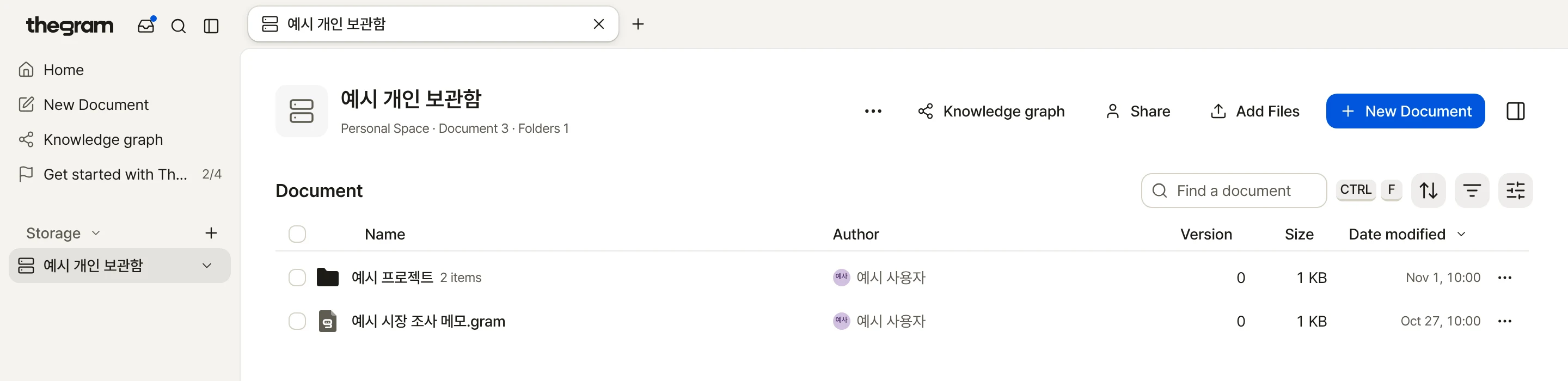
| Button | What it does |
|---|---|
| New Document | Creates a document in this storage. Write documents |
| Add Files | Uploads files you have. Upload files |
| Share | Invites people to use this storage with you. Share storages and documents |
| Knowledge graph | Shows how the documents and records in this storage connect. Home, Inbox and the knowledge graph |
Type a name in Find a document above the list to filter this storage's documents. The icons next to it change the sort order or filter by file type, author or modified date.
Personal space and organizations
Section titled “Personal space and organizations”A storage belongs to a space. There are two kinds.
- Personal Space: where your own account's storages are. Until you invite someone, only you see them.
- Organization: a space a team shares. Members use organization storages as far as each storage's access allows. Create an organization and invite members
To switch, select your name at the bottom left, then the space name at the top of the menu. The storage list in the left menu changes to that space.
Organize with folders
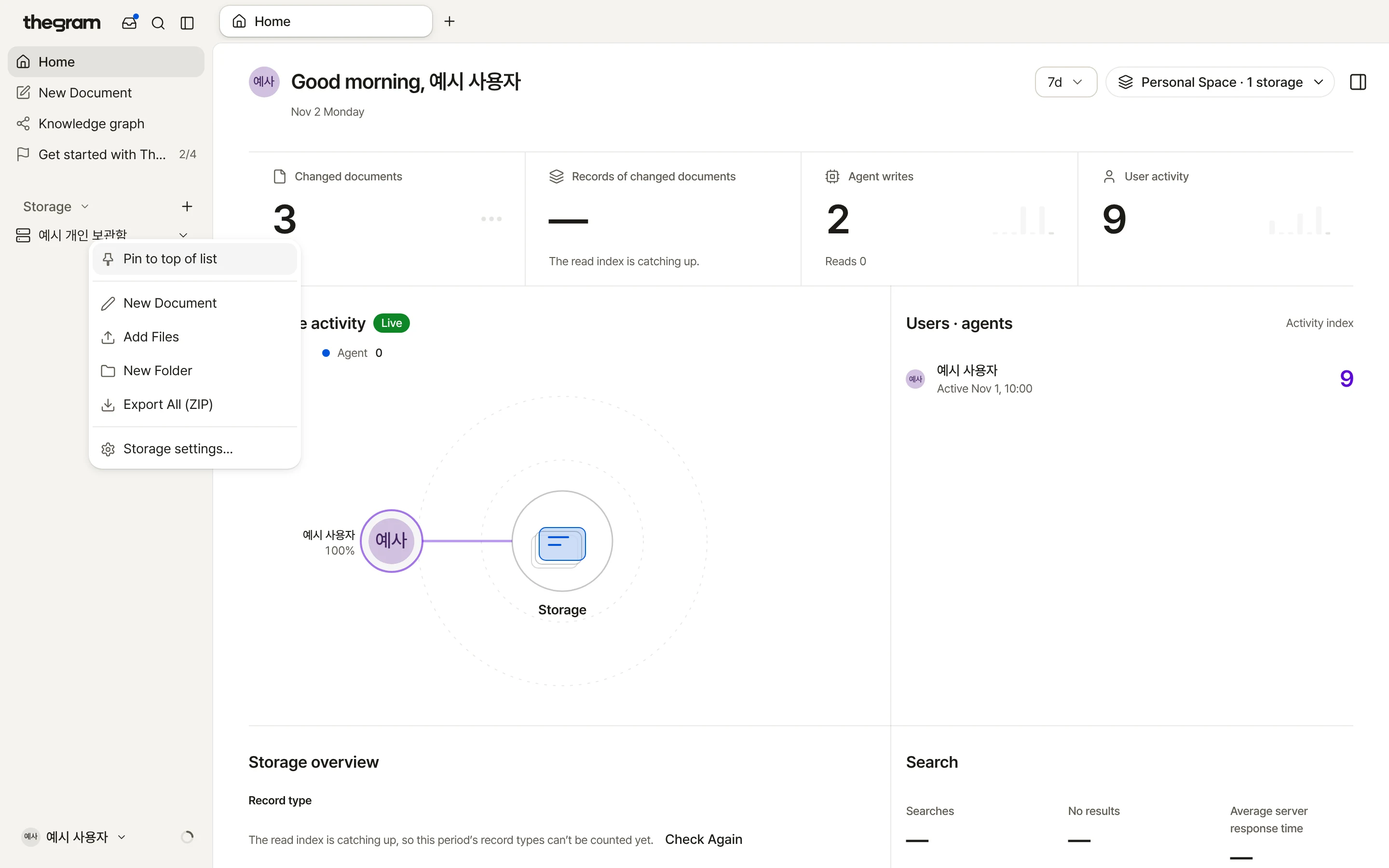
Section titled “Organize with folders”- In the left menu, select the arrow next to the storage name to open its menu.
- Select New Folder and enter a name.
To move a document into a folder, select … on the right of the document in the list and choose Move to folder…. The same menu has these.
| Menu | What it does |
|---|---|
| Add to favorites | Puts it under Favorites in the left menu |
| Open in New Tab | Opens it in another tab and keeps the current one |
| Copy link | Copies the document's address. Who can open it follows the sharing settings |
| Download | Downloads it as a file |
| Duplicate document | Makes another document with the same content |
| Rename… | Changes the document's name |
| Move to Trash | Moves the document to the trash. You can get it back for 30 days |
Keep a storage at the top
Section titled “Keep a storage at the top”When you have many storages, select Pin to top of list in the storage menu. It moves to the top of the storage list in the left menu. To undo it, select Unpin from top in the same menu.
Change the name and icon
Section titled “Change the name and icon”- In the storage menu, select Storage settings….
- Select the pencil next to the name to rename it. Select the icon to change the icon and color.
If you rename a storage, also update the storage name inside the instructions you gave your AI. The name is written there as text and does not change by itself.
Delete a storage
Section titled “Delete a storage”- Select your name at the bottom left, then Settings.
- Select Storage, then the storage to delete.
- At the bottom, under Delete storage, select Delete.
A deleted storage moves to the trash and can be brought back within 30 days. See Trash and export. Before deleting, Export All (ZIP) in the storage menu gives you a copy.
If you are stuck
Section titled “If you are stuck”- A storage is missing from the left menu. You may be looking at another space. Select your name at the bottom left and check the space.
- New Document and Add Files do not respond. If your role in that storage is Viewer, you can only read. Ask the storage admin to make you an Editor.
- I can't create a storage in the organization. Only organization owners and admins can create organization storages.
Next chapter: Upload files
Something different from this guide? Report a docs issue · Troubleshooting
Review and send the email yourself. Do not include API keys or private document content.