

Set permissions for each AI
In this chapter: change storage permissions in Settings › AI permissions. It takes two minutes. If the meaning of a permission is unclear, read Understand storage permissions first.
Change permissions for all AIs at once
Section titled “Change permissions for all AIs at once”This applies to every AI that follows the shared permissions.
- Select your name at the bottom left, then Settings.
- Select AI permissions, then the Shared permissions line at the top.
- On the right of the storage, select None, Read, Edit or All. It is saved as soon as you select it.
- Under Connected AI, check that the right AIs follow this table.
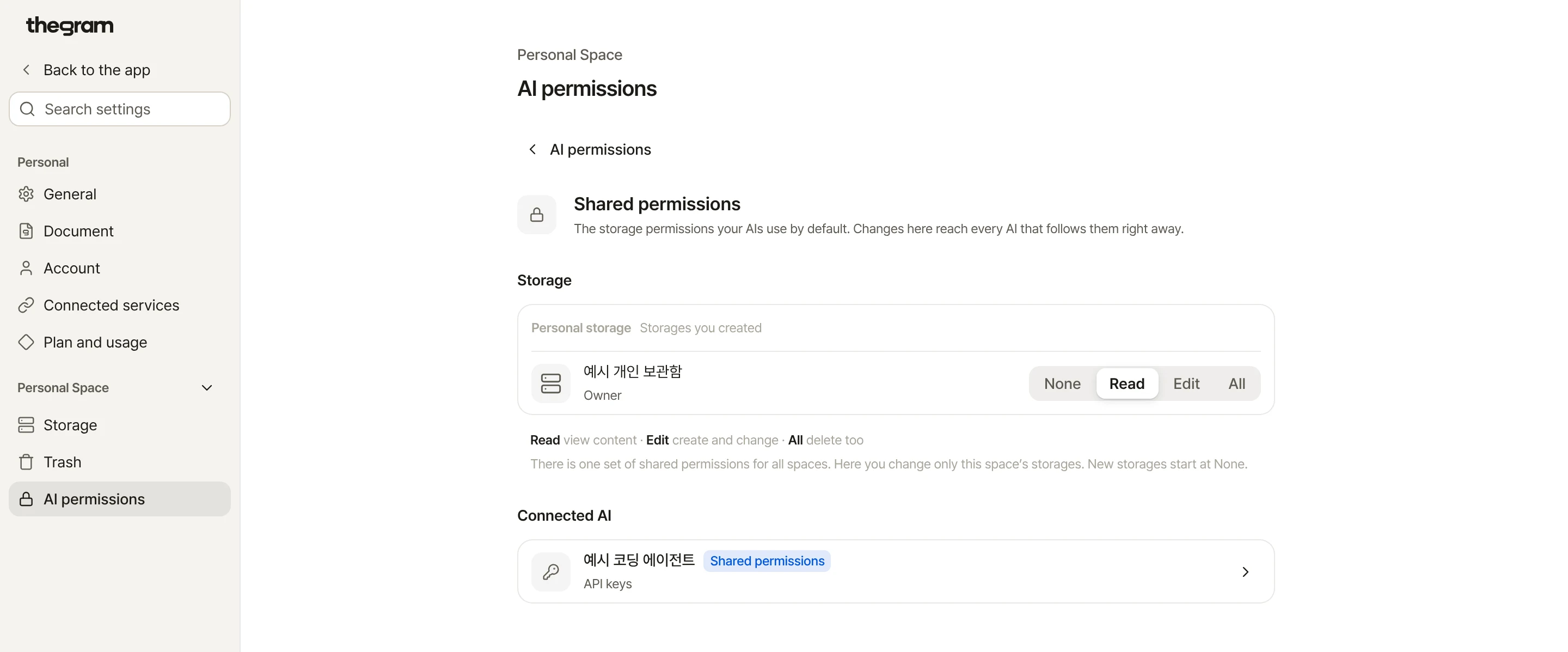
To change an organization's storages, select the arrow next to the space name (for example Personal Space) on the left of Settings and choose the organization. AI permissions shows only the storages of the space you chose.
Set one AI differently
Section titled “Set one AI differently”- In Settings › AI permissions, select the AI (or API key).
- Under How permissions are set, select Set separately.
- Choose a value for each storage.
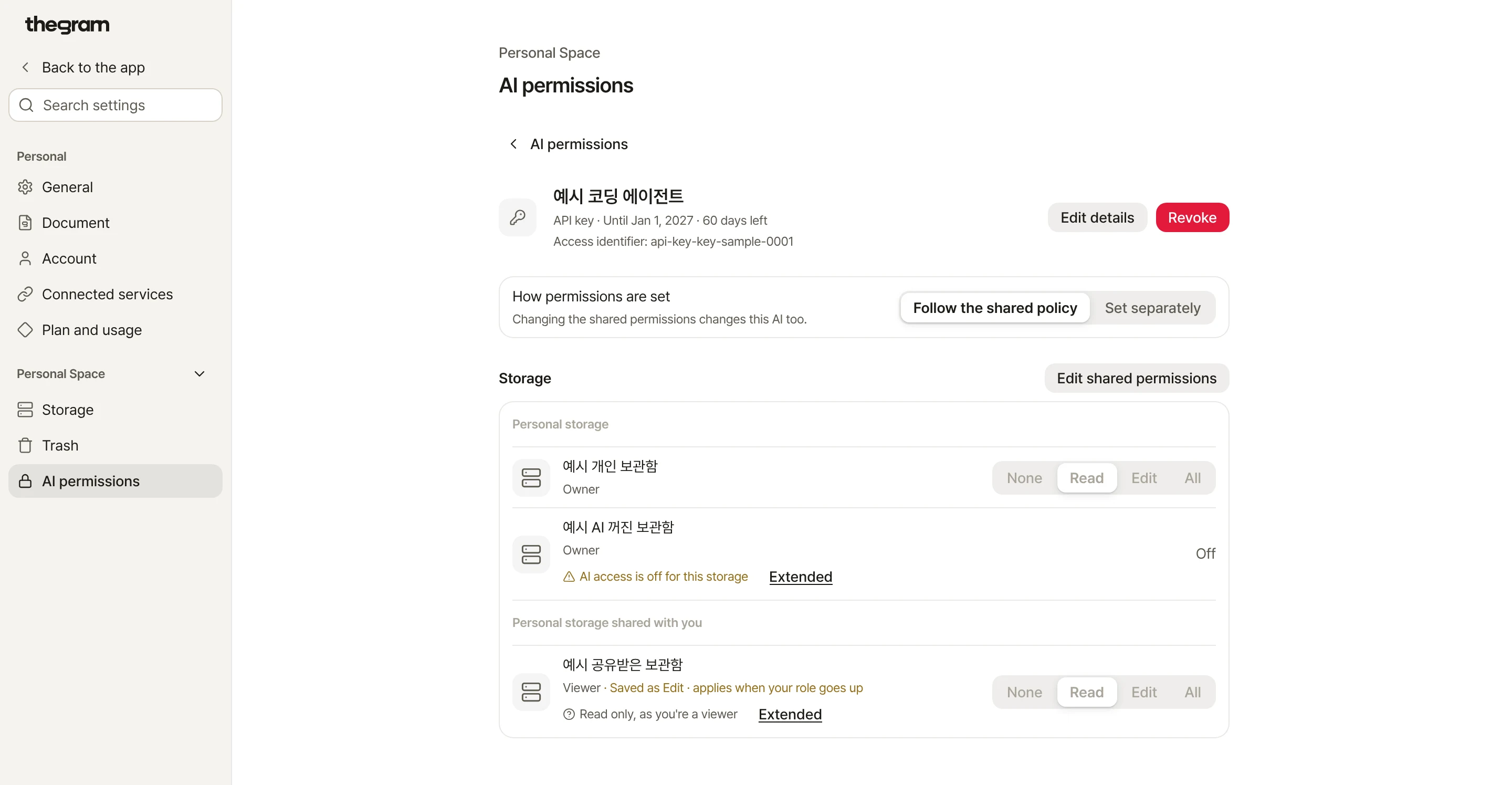
- Switch back to Follow the shared policy and the AI uses the shared table again. The screen says "Changing the shared permissions changes this AI too."
- On an AI that follows the shared permissions, Edit shared permissions takes you straight to that screen.
- Storages are grouped as Personal storage, Personal storage shared with you, then each organization. In a shared storage you cannot go above your own role, and in an organization storage you cannot go above the organization's AI limit.
- When a reason is written under a storage, select Extended next to it. It shows, in order, where access stopped. When an AI can't use a storage explains how to read it.
Create an API key
Section titled “Create an API key”Coding agents such as Claude Code and Codex connect with an API key.
- In Settings › AI permissions, select Create API key.
- Enter a Name that says where the key is used, such as "My laptop Claude Code".
- Choose the Lifetime: 30 days, 90 days, a date, or never expires.
- Set the Access. Let the key follow the shared permissions, or choose Set separately and set each storage.
- Select Create, then Copy the key. The key value is shown only this once.
Putting the key on your computer and connecting the agent is in 2. Connect the AI you use.
Three rules for keys:
- Do not paste a key into a conversation with an AI or commit it to a repository.
- Create a separate key for each device or tool. If one is lost, you revoke only that one.
- Give a key only the storages its job needs.
Edit and revoke an API key
Section titled “Edit and revoke an API key”- In Settings › AI permissions, select the key.
- To change its name or lifetime, select Edit details.
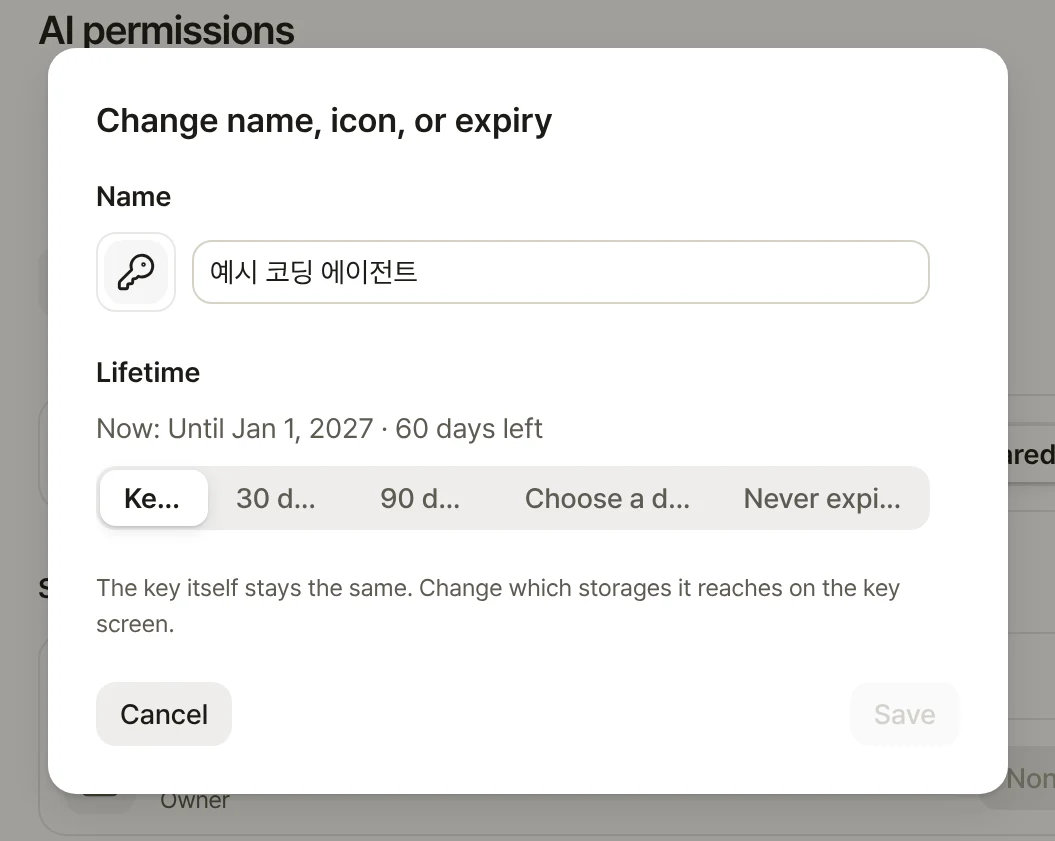
- For a key you no longer use, select Revoke. Any agent using it loses access at once.
- A key value cannot be shown again. If you lost it, revoke it and create a new one.
- An expired key can only be revoked. To keep working, create a new key.
- A key that never expires works until you revoke it. Revoke it when you stop using it.
How you know it worked
Section titled “How you know it worked”- In the Settings › AI permissions list, the text under the AI's name shows the new value, such as "Our team Edit".
- In a new conversation, the AI answers the question below with the new values.
Tell me which storages I can use in Thegram and at what permission. Do not create or change anything.If you are stuck
Section titled “If you are stuck”- I raised the value but the AI still can't write. Check whether that AI is Set separately while you changed only the shared permissions. If the list marks it Set separately, change it on the AI's own screen.
- Some values cannot be selected. You can choose only up to what your role or the organization's policy allows. Select Extended under the storage to see the reason.
- A storage is missing from the list. Only the storages of the chosen space are shown. Select the arrow next to the space name on the left of Settings and switch.
Next chapter: When an AI can't use a storage
Something different from this guide? Report a docs issue · Troubleshooting
Review and send the email yourself. Do not include API keys or private document content.