

Version history and going back
In this chapter: open an earlier version of a document and, if needed, go back to it. This is also how you recover a document an AI changed wrongly.
What a version is
Section titled “What a version is”Each time a document is saved, a version is added: Version 1, Version 2 and so on. Each version records who changed what and when. Edits by people and edits by a connected AI are kept the same way.
Read an earlier version
Section titled “Read an earlier version”- Open the document and select the Info tab in the right panel.
- In the list of versions by date, select the one to read.
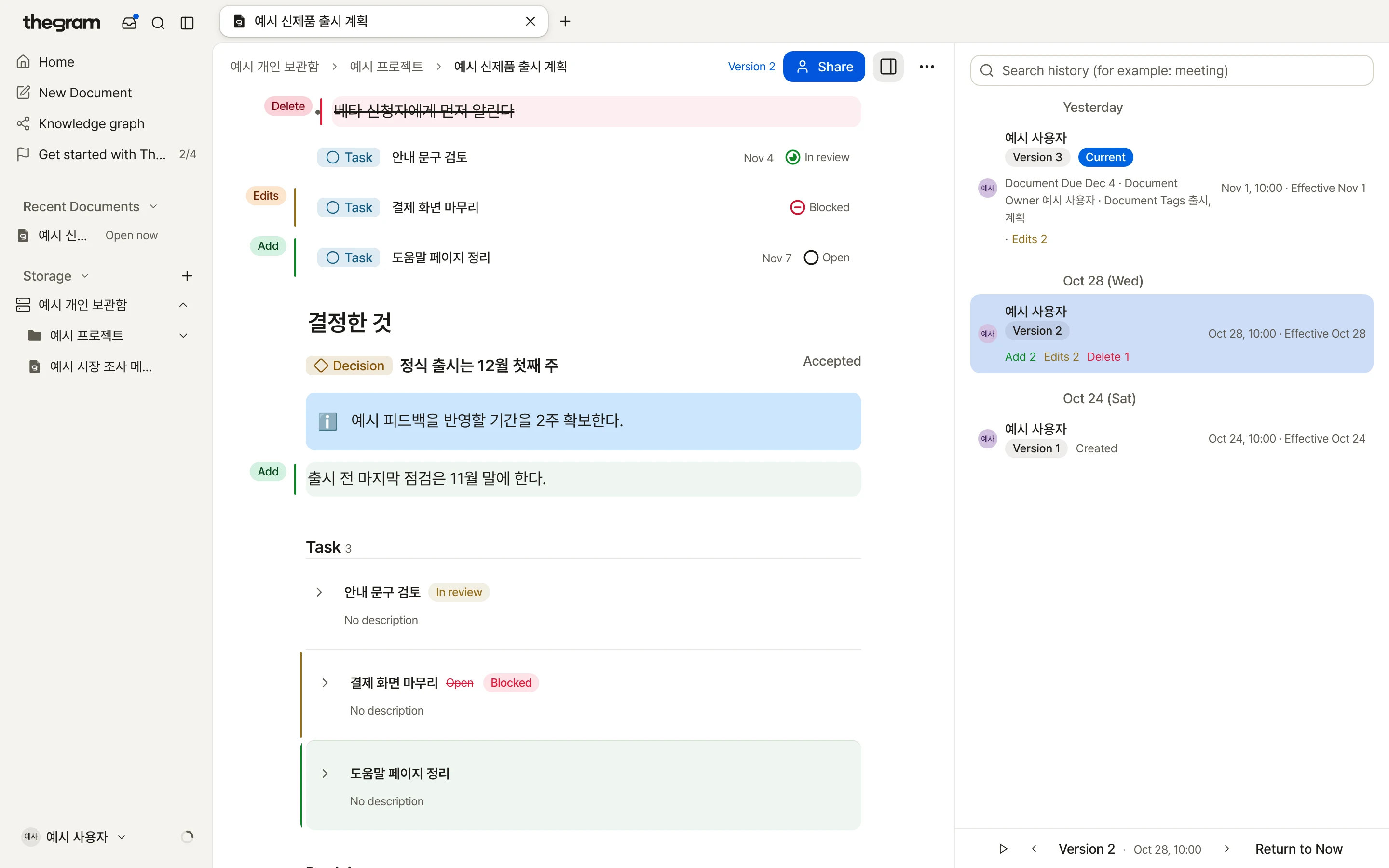
- The Add, Edits and Delete marks on the left of the body show what changed in that version.
- "Add 2 · Edits 2 · Delete 1" next to a version counts its changes.
- Use the arrows at the bottom to step through versions.
- The document does not change while you read an earlier version. Select Return to Now to come back to the current document.
Go back to an earlier version
Section titled “Go back to an earlier version”- Open the version to go back to.
- Select Go back to this version. The menu of that version in the list has the same item.
- Confirm when asked whether to save that version as a new version.
Going back saves the earlier content again as a new version. The current saved copy and the versions in between are not removed; they stay in the history. If going back was a mistake, return the same way.
Versions of uploaded files
Section titled “Versions of uploaded files”For an uploaded file such as Word, Hangul or PDF, earlier originals are under Work history in the Original view. Choose one and select Restore as new version: that original is saved as a new version and the current original stays in the history.
Find a deleted record
Section titled “Find a deleted record”A record you deleted is removed from the current document only. Open the version before the deletion and it is there. In the records list below the body, opening a record also shows the version where it first appeared and the version where it last changed.
If you are stuck
Section titled “If you are stuck”- Go back to this version does not respond. It is already the latest version, or your role is Viewer.
- A very old version does not open. "This version is past its retention period." means its body can no longer be read.
- The whole document is gone. Check the trash. Trash and export
Next chapter: Trash and export
Something different from this guide? Report a docs issue · Troubleshooting
Review and send the email yourself. Do not include API keys or private document content.