

Get started with Thegram
Create a storage and connect the AI you use. You and your AI get a knowledge hub you both work from.
The first time you sign in, Home shows Get started with Thegram. This guide walks through the same four steps in the same order, one step per chapter, in more detail. Keep the app open next to it and follow along.
The app calls a vault a storage. These chapters use the app's word.
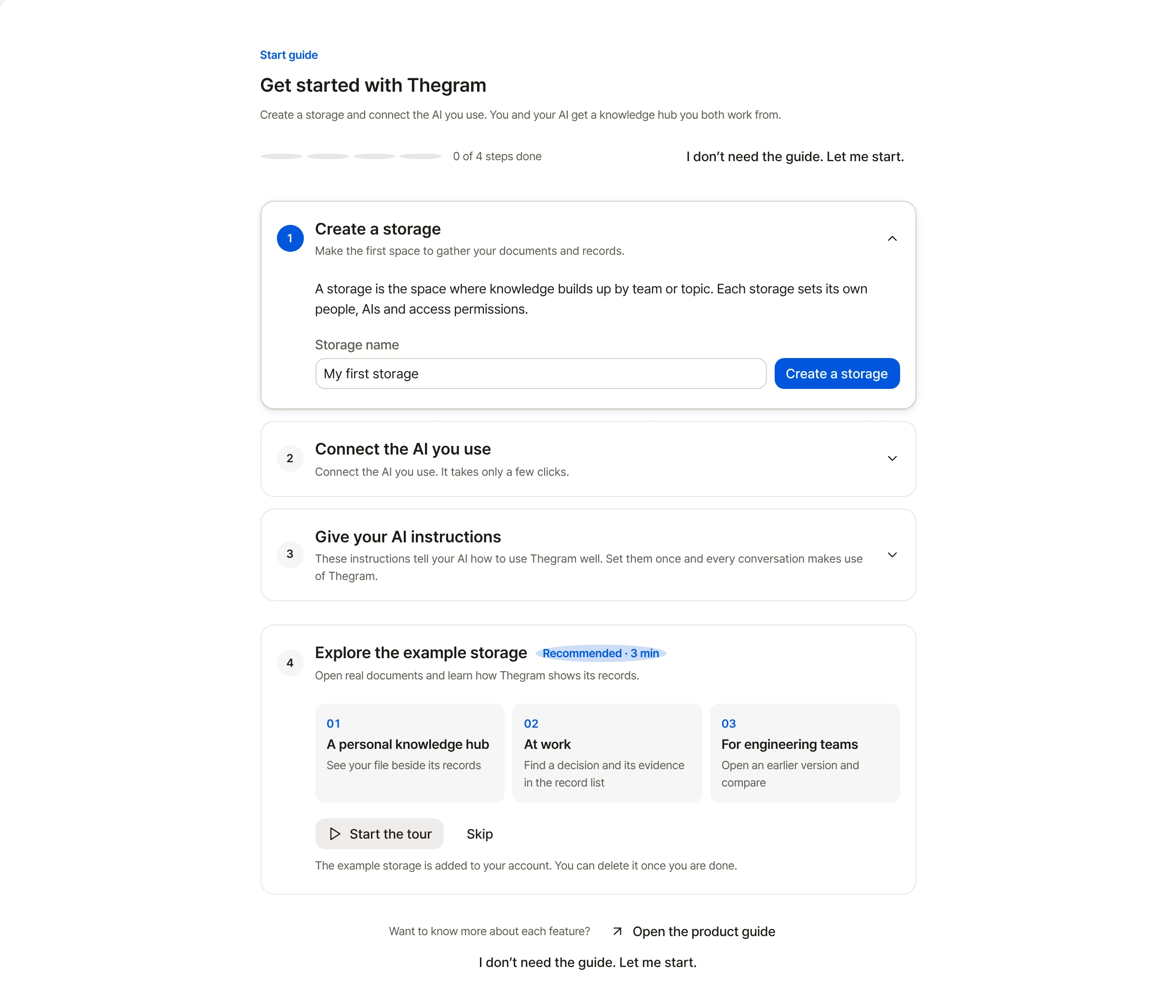
The four steps
Section titled “The four steps”- Create a storage: make the first space for your documents and records.
- Connect the AI you use: connect ChatGPT, Claude, Claude Code or Codex to Thegram.
- Give your AI instructions: paste the instructions once, so your AI looks in the storage before it answers and writes down what was settled on its own.
- Explore the example storage: open real documents and learn to read the original, the records and earlier versions.
Every chapter has the same shape: what you do in this chapter, the steps, how you know it worked, what to do when you are stuck, and the next chapter.
Before you start
Section titled “Before you start”- You need a Thegram account. Sign in at Thegram.
- You need an account for the AI you connect. ChatGPT and Claude only need a browser. Claude Code and Codex need a terminal on the computer where the tool is installed.
Reopen or skip the guide
Section titled “Reopen or skip the guide”- Until all four steps are done, Get started with Thegram in the left menu brings you back to this screen. The menu shows your progress, for example "2/4".
- When all four steps are done, it leaves the menu. To see it again, open Settings › Help and select Reopen the guide.
- If you do not need the guide, select I don't need the guide. Let me start. The guide counts as finished, and you can still reopen it from Settings › Help.
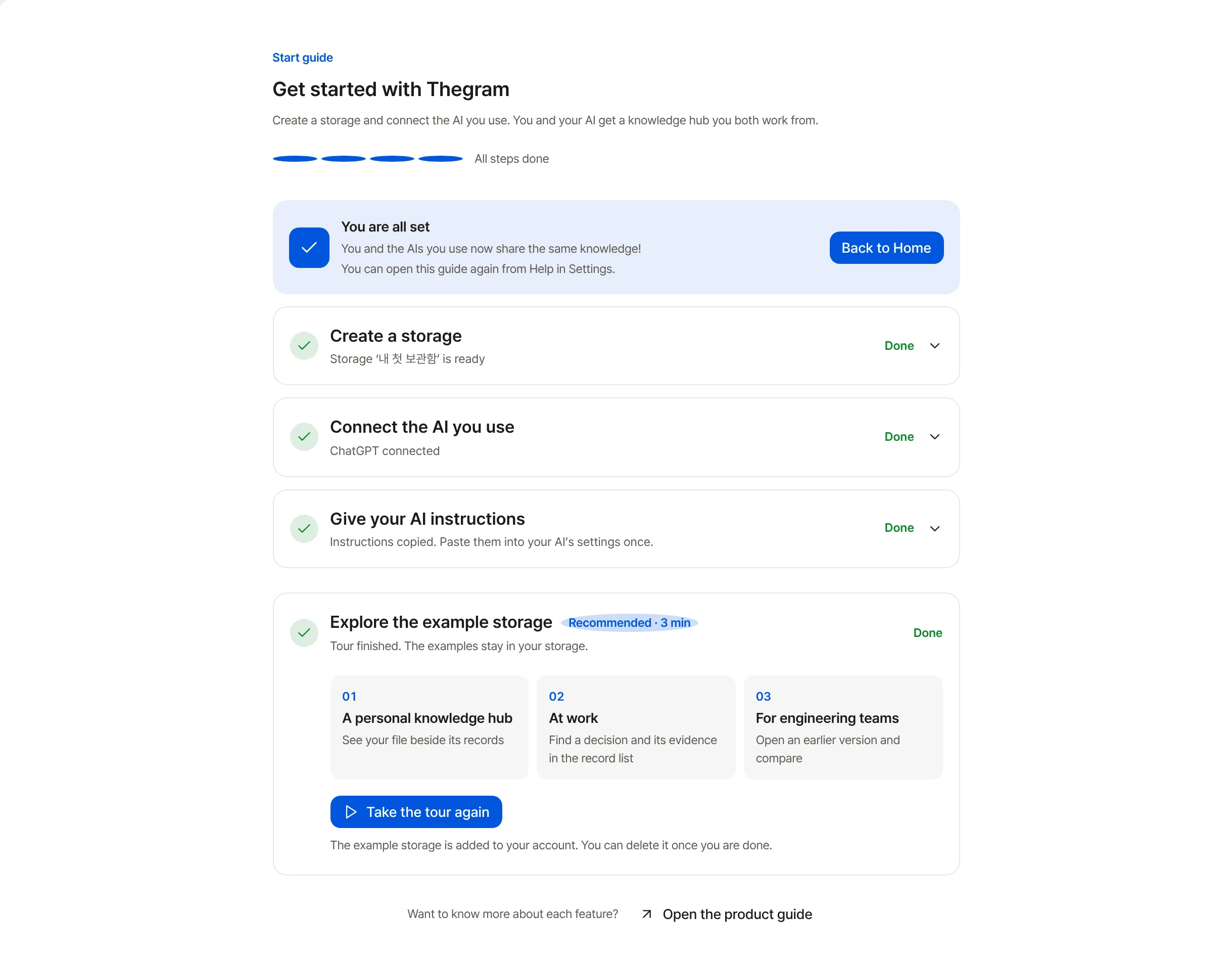
After the four steps
Section titled “After the four steps”| What you want to do | Where to look |
|---|---|
| Understand AI connections and storage permissions properly | Understand AI connections, Understand storage permissions |
| Upload your files and write documents | Upload files, Write documents |
| Let your AI save by itself, and check it | Let your AI save |
| Find past decisions and hand work over | Ask your connected AI |
| Work with your team | Share storages and documents, Create an organization and invite members |
| Fix an AI that can't use a storage or won't connect | When an AI can't use a storage, When an AI won't connect |
Something different from this guide? Report a docs issue · Troubleshooting
Review and send the email yourself. Do not include API keys or private document content.