

Understand storage permissions
In this chapter: how "who can do what" is decided for each storage. In one line, an AI can do only as much of what you can do as you allow.
There are two kinds of permission
Section titled “There are two kinds of permission”| A person's role | AI permission | |
|---|---|---|
| What it decides | What that person can do in the storage | What the AI that person connected can do in the storage |
| Values | Owner, Editor, Viewer | None, Read, Edit, All |
| Who sets it | Whoever created or manages the storage | You, for the AI you connected |
| Where you see it | Share on the storage | Settings › AI permissions |
Think of an office. Your role is your own access card. The AI permission is a copy of that card you hand to an assistant. The copy cannot open more doors than your card does, and you decide which doors it opens at all.
The four AI levels
Section titled “The four AI levels”| Value | What the AI can do | Choose it when |
|---|---|---|
| None | It cannot see this storage | You do not want an AI to see it |
| Read | It finds and reads documents | You want it for reference only |
| Edit | Read, plus create and change documents | You want the AI to record what you discuss |
| All | Edit, plus delete documents | You hand the AI the tidying too |
For an AI to record what was decided in a conversation, it needs Edit or higher. With Read it looks things up but cannot save.
All hands over deleting. Give it only to an AI that really needs it.
Shared permissions and setting separately
Section titled “Shared permissions and setting separately”With several AIs, setting each storage for each AI gets tedious. Thegram has Shared permissions for that.
- Shared permissions is one table your AIs use by default. For each storage it holds None, Read, Edit or All.
- For each AI you choose Follow the shared policy or Set separately.
- An AI that follows the shared policy uses that table as it is. Change the table and every AI that follows it changes right away.
- An AI that is set separately keeps its own table. Changing the shared permissions does not affect it. The list marks it Set separately.
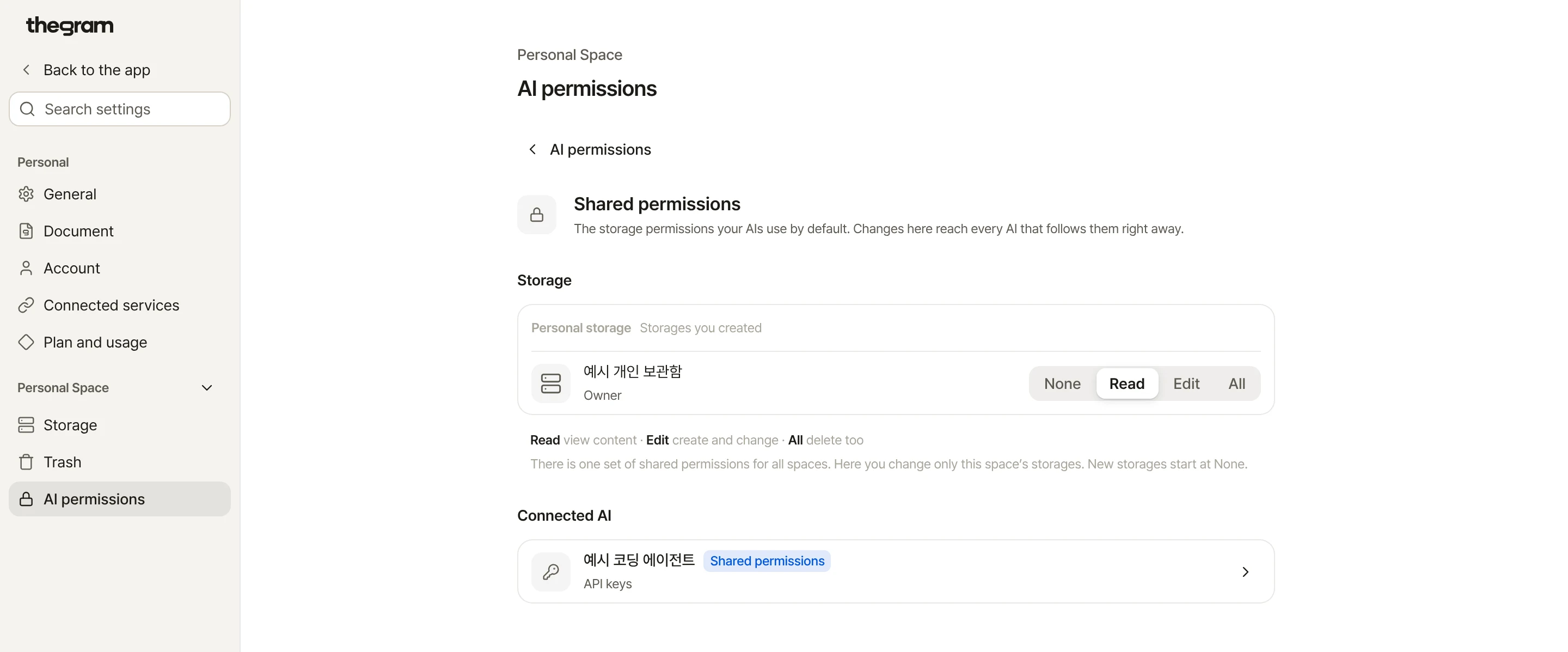
For example:
| Storage | Shared permissions (ChatGPT and Claude follow) | Codex key (set separately) |
|---|---|---|
| Our team | Edit | None |
| Dev docs | Read | Edit |
| Personal notes | None | None |
ChatGPT and Claude record into the team storage and only read the dev docs. Codex writes only to the dev docs and sees nothing else. No AI can see the personal notes.
There is one set of shared permissions per account. It is the same table in your personal space and in an organization; the screen shows only the storages of the space you are looking at.
A new storage starts at None
Section titled “A new storage starts at None”When you create a storage, it is None in the shared permissions. Connected AIs do not get it automatically.
- When creating a storage you are asked "Let AI use this storage?" and can set it right there. See Create another storage.
- If you skipped that, open Shared permissions in Settings › AI permissions and change it.
Your role is the AI's ceiling
Section titled “Your role is the AI's ceiling”An AI acts for you, so what you cannot do, your AI cannot do either.
| Your role | Highest level you can give your AI |
|---|---|
| Owner, Editor | All |
| Viewer | Read |
In a storage someone shared with you as Viewer, your AI gets Read at most, even if you chose Edit. To let your AI write there, ask the storage's admin to make you an Editor.
Organization storages add the organization's limits
Section titled “Organization storages add the organization's limits”In an organization storage, the organization's owners and admins set one more layer.
- Storage AI access: a switch on each storage. When it is off, nobody's AI can use that storage.
- AI limit: the highest permission members can give their AI. If the organization set Read, you get Read even if you gave Edit.
- Allowed AI only: when on, only AIs on the organization's list can reach organization storages.
- Limits per person: holds one person's AI to a lower level.
How an admin sets these is in Set the organization's AI policy.
The real permission is the lowest value
Section titled “The real permission is the lowest value”An AI can use a storage only if it passes every condition so far, and its real permission is the lowest value among them.
- The AI is connected
- Storage AI access is on
- (Organization storages) the organization allows this AI
- (Organization storages) the organization's AI limit
- (Organization storages) a limit on you personally
- Your role in the storage
- What you gave this AI
So if you gave Edit but your role is Viewer, the result is Read. The app shows you where it was lowered. When an AI can't use a storage explains how to check.
Things people mix up
Section titled “Things people mix up”- If I share a storage with a teammate, can their AI see it? Not automatically. They give the storage to their own AI in their Settings › AI permissions, and that value cannot go above their role.
- Do the permissions I give my AI apply to other people? No. AI permissions belong to whoever connected the AI. Yours apply to your AIs only.
- If I lower a permission, what happens to documents the AI already wrote? They stay. A permission changes only what the AI can do from now on.
- When does a change apply? The new value is saved right away. The AI may remember an earlier answer, so check in a new conversation.
Next chapter: Set permissions for each AI
Something different from this guide? Report a docs issue · Troubleshooting
Review and send the email yourself. Do not include API keys or private document content.