

Share storages and documents
In this chapter: work with other people. First decide whether to share a whole storage or show just one document.
What to share
Section titled “What to share”| Share a storage | Share a document | |
|---|---|---|
| What they see | Every document in the storage | That one document |
| What you can give | Editor, Viewer | View, Comment, Edit |
| Public link | No | Yes, you can open it to anyone with the link |
| Use it for | People you keep working with | People who need one look, or people outside |
If a team keeps sharing several storages, an organization is easier to manage.
Share a storage
Section titled “Share a storage”- Open the storage and select Share. It shows the current members and your role.
- Select Invite and manage members. Storage settings opens. Storage settings… in the storage menu opens it too.
- Under Member, enter the email of the person to invite.
- Choose Editor or Viewer next to it and select Invite.
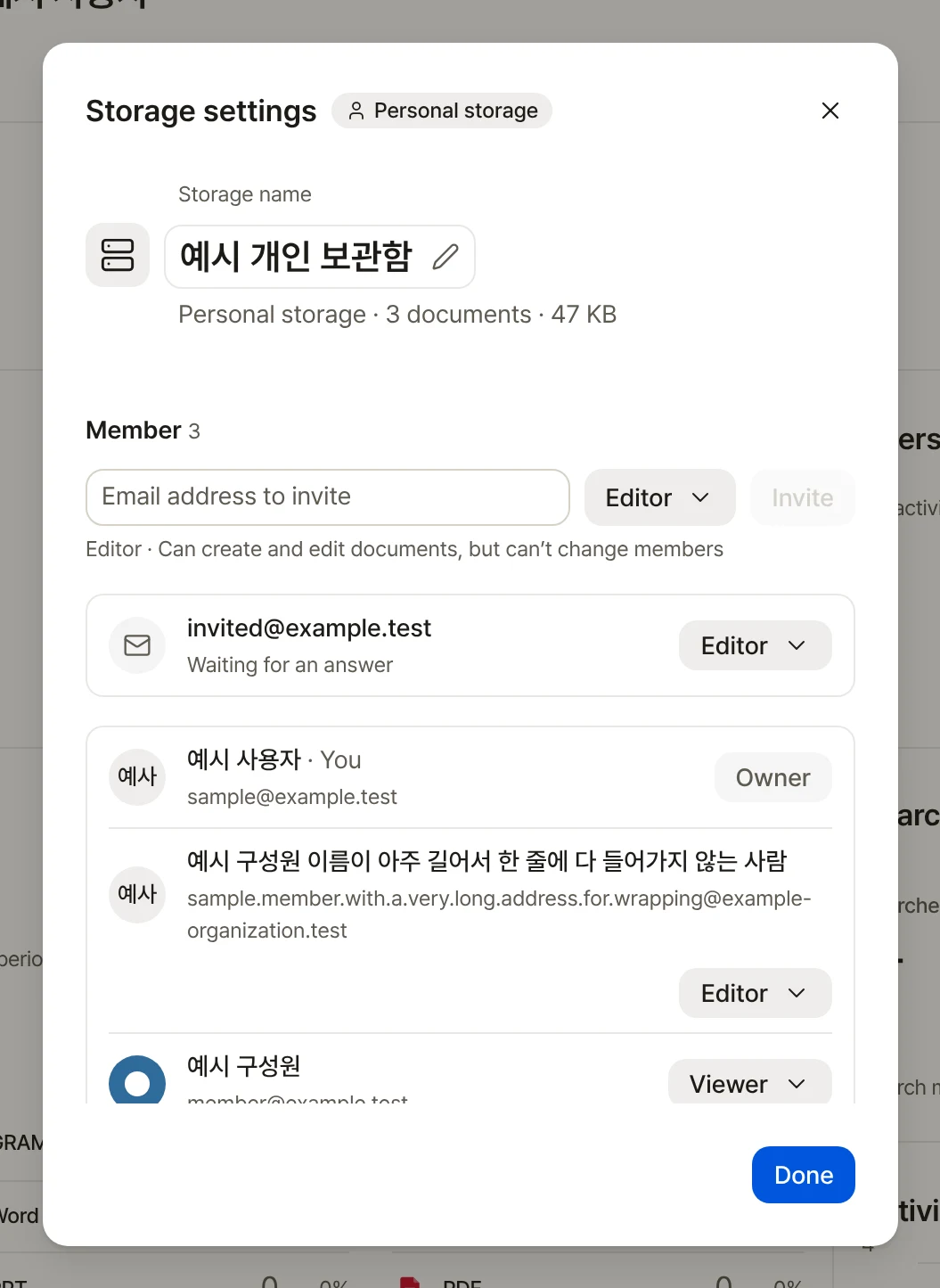
| Role | Can do |
|---|---|
| Owner | Everything, including inviting members and changing roles |
| Editor | Create and edit documents, but not change members |
| Viewer | Read only |
To change a role, select the role on the right of the member and choose another.
Copy link in the share dialog copies the storage's address. The link opens only for people who can open this storage.
Share one document
Section titled “Share one document”- Open the document and select Share at the top right.
- Enter an email in Add people by email.
- Choose View, Comment or Edit next to it and select Invite.
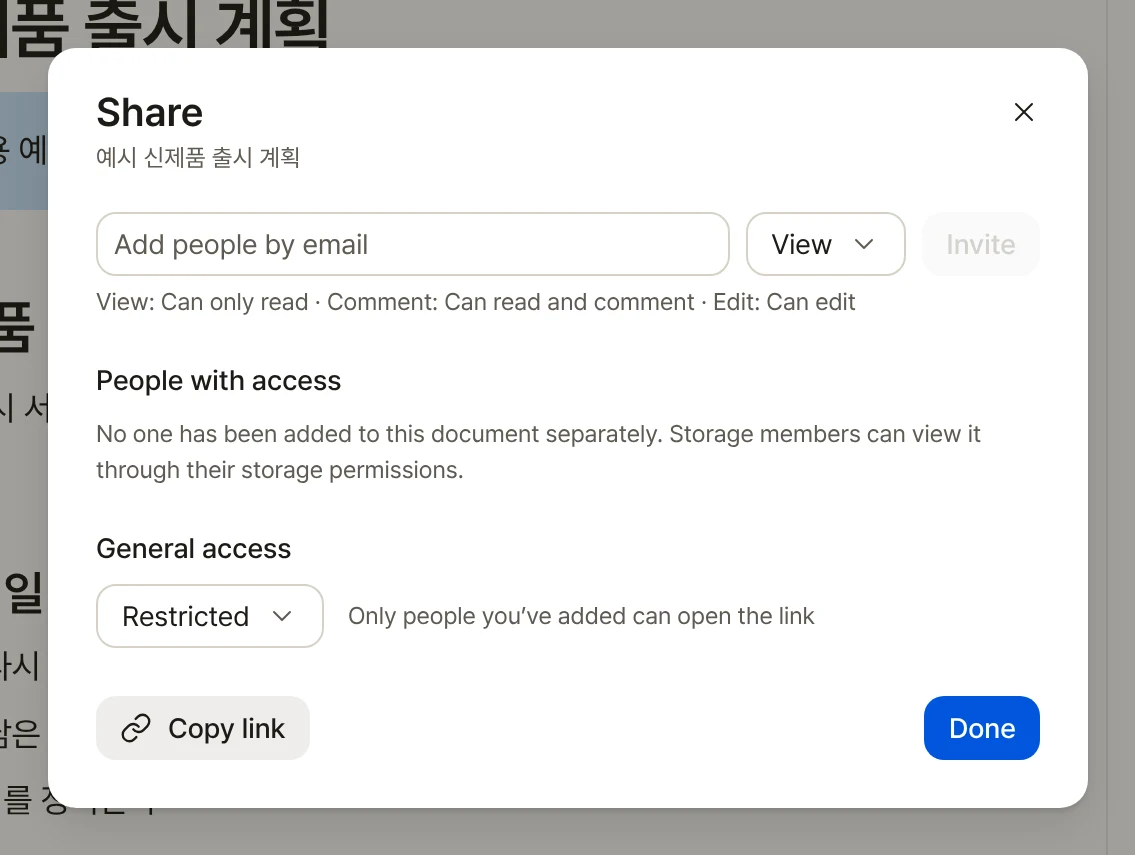
The person gets a notice in their Inbox. Members of the storage can already see the document through their storage role without being added.
Open it by link
Section titled “Open it by link”Set this under General access at the bottom of the document's share dialog.
| Value | Who can open it |
|---|---|
| Restricted | Only people you've added can open the link. This is the starting value |
| Anyone with the link | Anyone who knows the link can view it |
Select Copy link to copy the address.
Before you switch to Anyone with the link, know this.
- Anyone who knows the link can read and download the currently saved content and its attachments. The change history and comments are not shown.
- People who receive the link can pass it on.
- A copy someone has already downloaded cannot be taken back.
- If the link spread by mistake, select Create new link. The current link stops opening.
- To stop sharing publicly, set it back to Restricted in the same place.
Documents in an organization storage can be shared only as far as the organization allows. For each storage, an organization admin chooses Share outside the organization, Share within the organization or No sharing. In a storage that does not allow outside sharing, the dialog says "Organization documents can't be shared outside the organization".
The AI of the person you shared with
Section titled “The AI of the person you shared with”Sharing a storage does not make the other person's AI able to use it right away.
- They give that storage to their own AI in their Settings › AI permissions.
- That value cannot go above their role. The AI of someone you invited as Viewer can only read.
- To let their AI record into this storage, invite them as Editor.
See Understand storage permissions.
If you are stuck
Section titled “If you are stuck”- The Invite button does not respond. Check the email format. You have to be the owner of the storage to invite members.
- The other person did not get the invitation. Check that they signed in to Thegram with the email you invited.
- I can't change General access. In an organization storage, the organization may have blocked outside sharing.
Next chapter: Create an organization and invite members
Something different from this guide? Report a docs issue · Troubleshooting
Review and send the email yourself. Do not include API keys or private document content.