---
title: Work with storages
description: Open a storage, organize it with folders, rename it, pin it to the top of the list and delete it. Also the difference between your personal space and an organization.
url: https://docs.thegram.one/use/vaults/
lang: en
tier: current
---
# Work with storages
In this chapter: look around inside a storage and organize it with folders. Creating your first storage is in 1. Create a storage.
## Where storages are {#where}
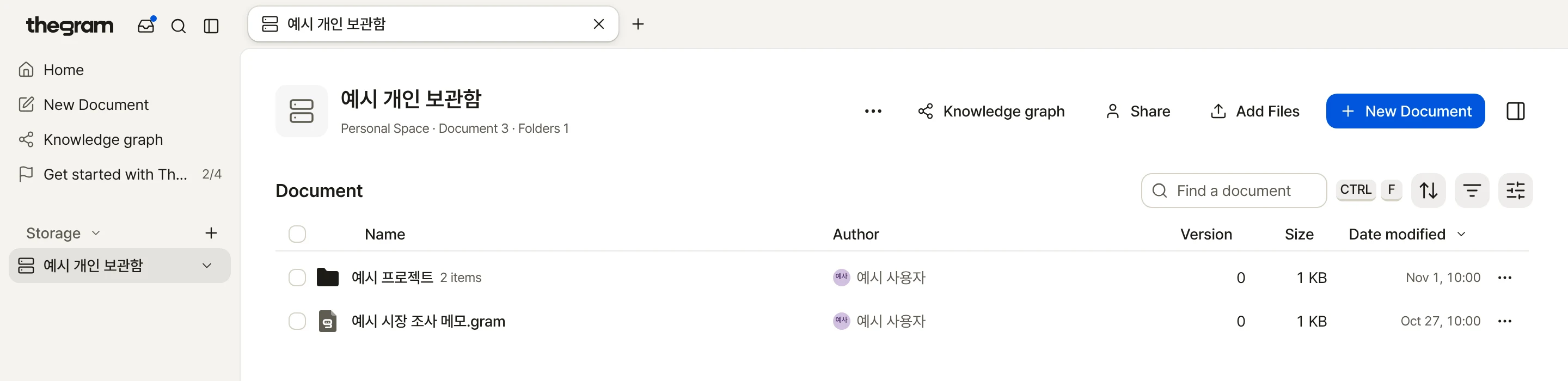
Storages are listed by name under **Storage** in the left menu. Select a name to open that storage's document list.
A storage. Folders and documents appear in one list.
| Button | What it does |
| --- | --- |
| **New Document** | Creates a document in this storage. [Write documents](/use/write/) |
| **Add Files** | Uploads files you have. [Upload files](/use/upload/) |
| **Share** | Invites people to use this storage with you. [Share storages and documents](/team/sharing/) |
| **Knowledge graph** | Shows how the documents and records in this storage connect. [Home, Inbox and the knowledge graph](/use/home/#graph) |
Type a name in **Find a document** above the list to filter this storage's documents. The icons next to it change the sort order or filter by file type, author or modified date.
## Personal space and organizations {#spaces}
A storage belongs to a **space**. There are two kinds.
- **Personal Space**: where your own account's storages are. Until you invite someone, only you see them.
- **Organization**: a space a team shares. Members use organization storages as far as each storage's access allows. [Create an organization and invite members](/team/organization/)
To switch, select your name at the bottom left, then the space name at the top of the menu. The storage list in the left menu changes to that space.
## Organize with folders {#folders}
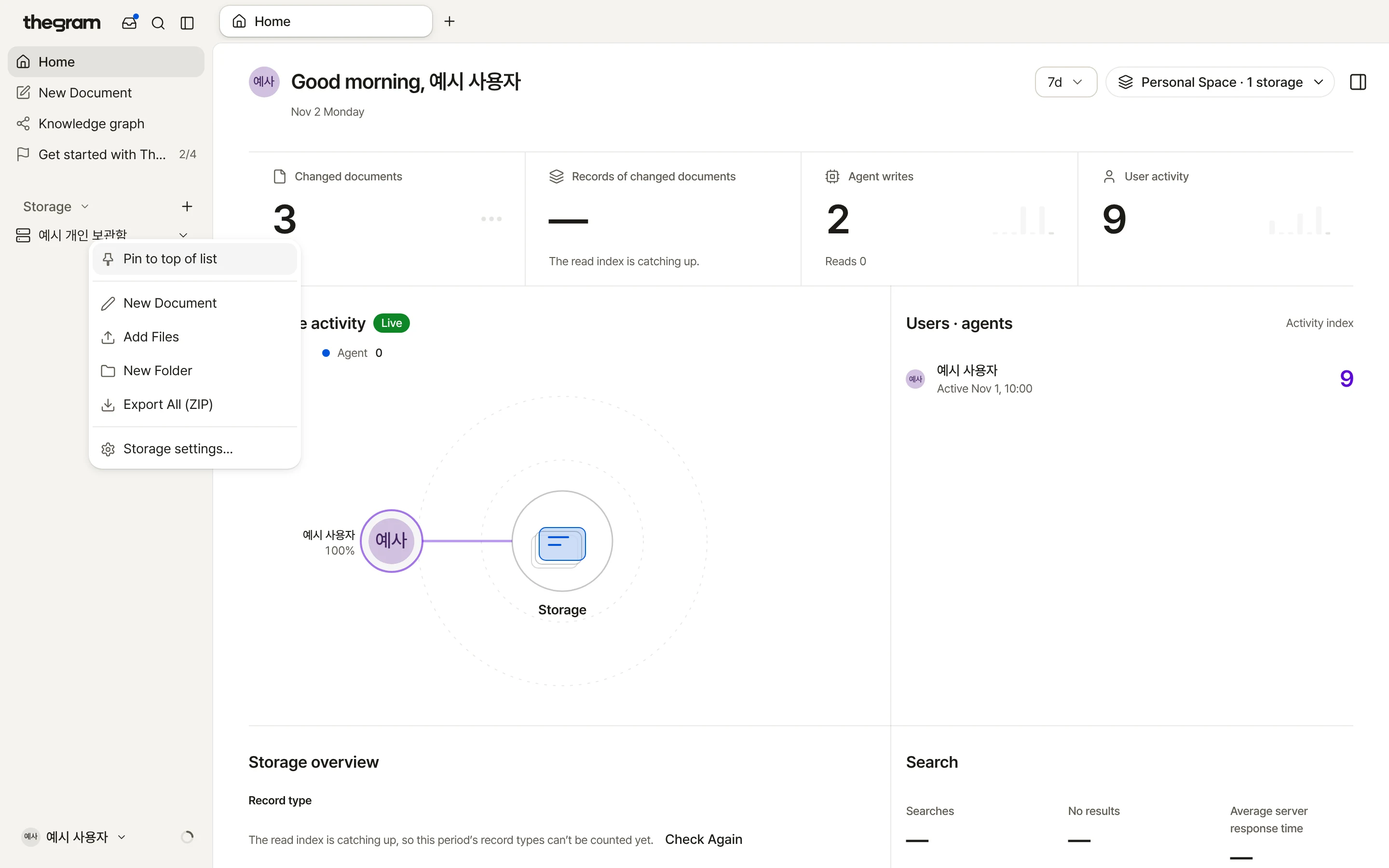
1. In the left menu, select the arrow next to the storage name to open its menu.
2. Select **New Folder** and enter a name.
The storage menu.
To move a document into a folder, select **…** on the right of the document in the list and choose **Move to folder…**. The same menu has these.
| Menu | What it does |
| --- | --- |
| Add to favorites | Puts it under **Favorites** in the left menu |
| Open in New Tab | Opens it in another tab and keeps the current one |
| Copy link | Copies the document's address. Who can open it follows the [sharing settings](/team/sharing/#document) |
| Download | Downloads it as a file |
| Duplicate document | Makes another document with the same content |
| Rename… | Changes the document's name |
| Move to Trash | Moves the document to the trash. You can get it back for 30 days |
## Keep a storage at the top {#pin}
When you have many storages, select **Pin to top of list** in the storage menu. It moves to the top of the storage list in the left menu. To undo it, select **Unpin from top** in the same menu.
## Change the name and icon {#rename}
1. In the storage menu, select **Storage settings…**.
2. Select the pencil next to the name to rename it. Select the icon to change the icon and color.
If you rename a storage, also update the storage name inside the [instructions you gave your AI](/start/instructions/). The name is written there as text and does not change by itself.
## Delete a storage {#delete}
1. Select your name at the bottom left, then **Settings**.
2. Select **Storage**, then the storage to delete.
3. At the bottom, under **Delete storage**, select **Delete**.
A deleted storage moves to the trash and can be brought back within 30 days. See [Trash and export](/manage/trash-export/). Before deleting, **Export All (ZIP)** in the storage menu gives you a copy.
## If you are stuck {#help}
- **A storage is missing from the left menu.** You may be looking at another space. Select your name at the bottom left and check the space.
- **New Document and Add Files do not respond.** If your role in that storage is Viewer, you can only read. Ask the storage admin to make you an Editor.
- **I can't create a storage in the organization.** Only organization owners and admins can create organization storages.
Next chapter: [Upload files](/use/upload/)