

When an AI can't use a storage
In this chapter: find the cause when an AI says "I can't see the storage", "access denied" or "I couldn't save". The app points to the exact place.
Three things to check first
Section titled “Three things to check first”It is usually one of these.
- Is it a new storage? A new storage starts with AI permission None. Raise it in Settings › AI permissions › Shared permissions.
- Is it set to Read? Read only looks things up. Change it to Edit to let the AI save.
- Is that AI set separately? An AI that is set separately does not change when you change the shared permissions. Open that AI and change it there.
How to change them is in Set permissions for each AI.
Open the access check
Section titled “Open the access check”If it is none of the three, ask the app.
- In Settings › AI permissions, select the AI (or API key) that has the problem.
- Find the storage in the list. A storage that is blocked or lowered has a one-line reason under its name.
- Select Extended on that line.
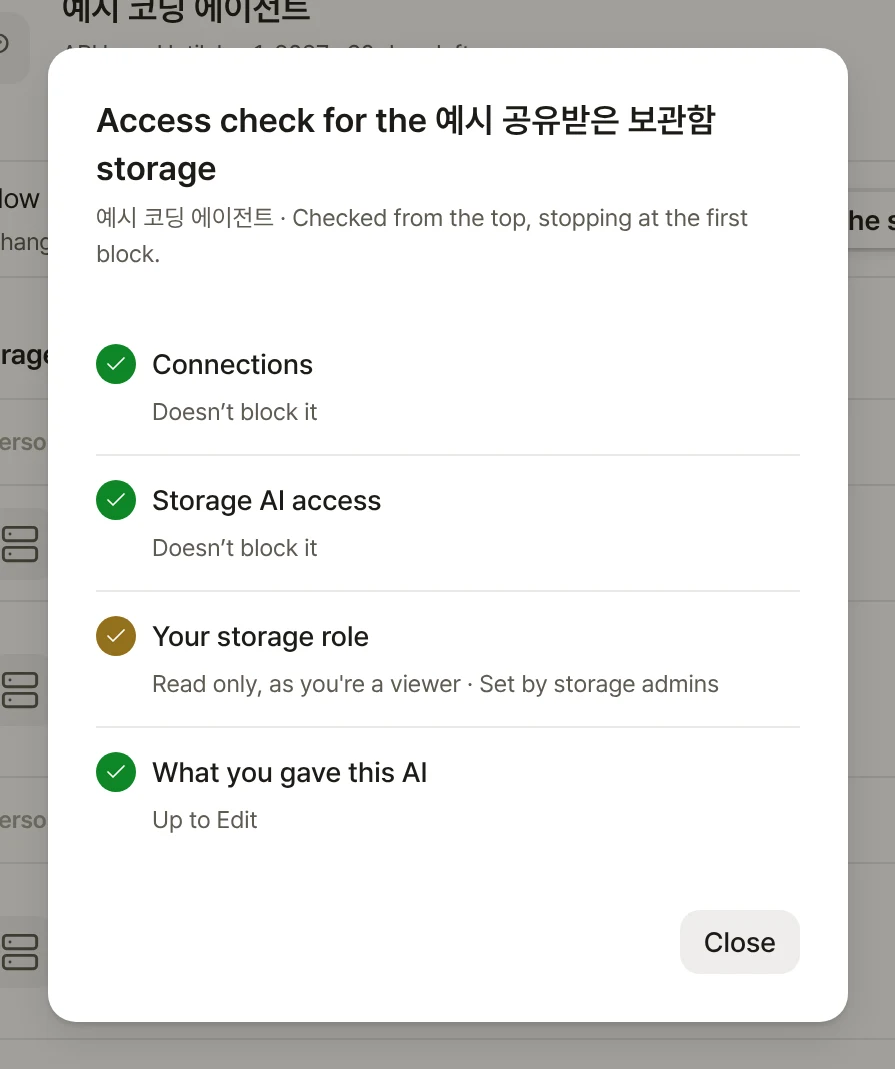
How to read it
Section titled “How to read it”The dialog checks the conditions one at a time from the top. A green mark means the line passes. An orange mark means the permission was lowered there. If a line blocks access completely, the check stops at it.
| Line | What it checks | What it says when blocked | Who fixes it |
|---|---|---|---|
| Connections | Whether the AI is connected | Not connected | You reconnect it |
| Storage AI access | The storage's AI access switch | AI access is off for this storage | For an organization storage, an organization owner or admin |
| Organization allow list | Whether the organization allows this AI | Not an AI this organization allows | An organization admin |
| Organization AI limit | The highest permission the organization set | The organization AI limit is none | An organization admin |
| Limits per person | A limit on you only | Blocked by a personal limit | An organization admin |
| Your storage role | Your role in that storage | Your role doesn't allow it | A storage admin |
| What you gave this AI | The permission you gave this AI | You haven't given this storage to this AI | You change it |
The three middle lines (allow list, AI limit, limits per person) appear only for organization storages.
Each line names who can fix it.
- You can change this: raise the value on this screen, or reconnect.
- Set by storage admins: ask whoever shared the storage with you to change your role.
- Set by organization admins: ask an organization owner or admin. Send them the Access identifier shown at the top of the AI's screen so they can add it to the allow list.
Common cases
Section titled “Common cases”I gave Edit but it can only read
Section titled “I gave Edit but it can only read”Some condition is lower than what you gave. It is usually one of two.
- Your role is Viewer. A viewer's AI can only read. Ask the storage admin to make you an Editor.
- The organization's AI limit is Read. An organization admin has to raise it.
Only organization storages fail
Section titled “Only organization storages fail”If personal storages work and organization storages do not, look at the organization's policy.
- With Allowed AI only on, an AI that is not on the list cannot reach organization storages. Each API key has its own identifier, so when you create a new key an admin has to add it again.
- When a storage's AI access is off, nobody's AI can use that storage.
It worked yesterday and not today
Section titled “It worked yesterday and not today”- Check whether the API key's lifetime has ended. An expired key has to be replaced.
- Check whether someone revoked the key or disconnected the AI app. If its line is gone from the list, connect again.
- In an organization, the policy or your role may have changed. The access check shows it.
Everything passes but the AI still can't use it
Section titled “Everything passes but the AI still can't use it”Thegram's side is fine. Check the AI's side.
- Open a new conversation. A running conversation may not know about the new permission.
- Check that the AI is using Thegram. In ChatGPT and Claude, Thegram can be turned off for a conversation.
- If you doubt the connection itself, see When an AI won't connect.
How you know it worked
Section titled “How you know it worked”- Every line of the access check is green and What you gave this AI shows the value you want.
- In a new conversation, the AI can create or change a document in that storage.
Next chapter: Work with storages
Something different from this guide? Report a docs issue · Troubleshooting
Review and send the email yourself. Do not include API keys or private document content.