

Keep records
In this chapter: what records are (the thing that makes Thegram more than a document store), and how to keep and find them.
What a record is
Section titled “What a record is”If your meeting notes say "The official launch is in the first week of December", a person can read it. But three months later, to answer "when did we decide to launch?", someone has to go through the notes again.
A record puts a label on that line: "this is a decision, and its status is accepted". With the label, both people and AIs can pick out and count "accepted decisions only" or "blocked tasks only".
Record types
Section titled “Record types”These are the common ones.
| Type | What it holds | Example |
|---|---|---|
| Decision | Something that was decided | Official launch in the first week of December |
| Task | Work to do | Finish the payment screen |
| Knowledge | A fact you learned | The launch covers documents, search and sharing |
| Goal | A state or number to reach | 1,000 sign-ups this quarter |
| Metric | A value that was actually measured | 212 sign-ups this week |
| Risk | Something that could go wrong | Legal review may be late |
| Evidence | Material that backs a judgment | Beta user survey results |
| Schedule | Something with a set date | Final check at the end of November |
There are also Event, Person, Assumption, Source, History, Note and Project.
Goal and metric are easy to confuse. "Let's reach 1,000" is a goal. "We are at 212" is a metric.
See records
Section titled “See records”Open a Gram document and scroll below the body to the Records list. It groups the records in this document by type.
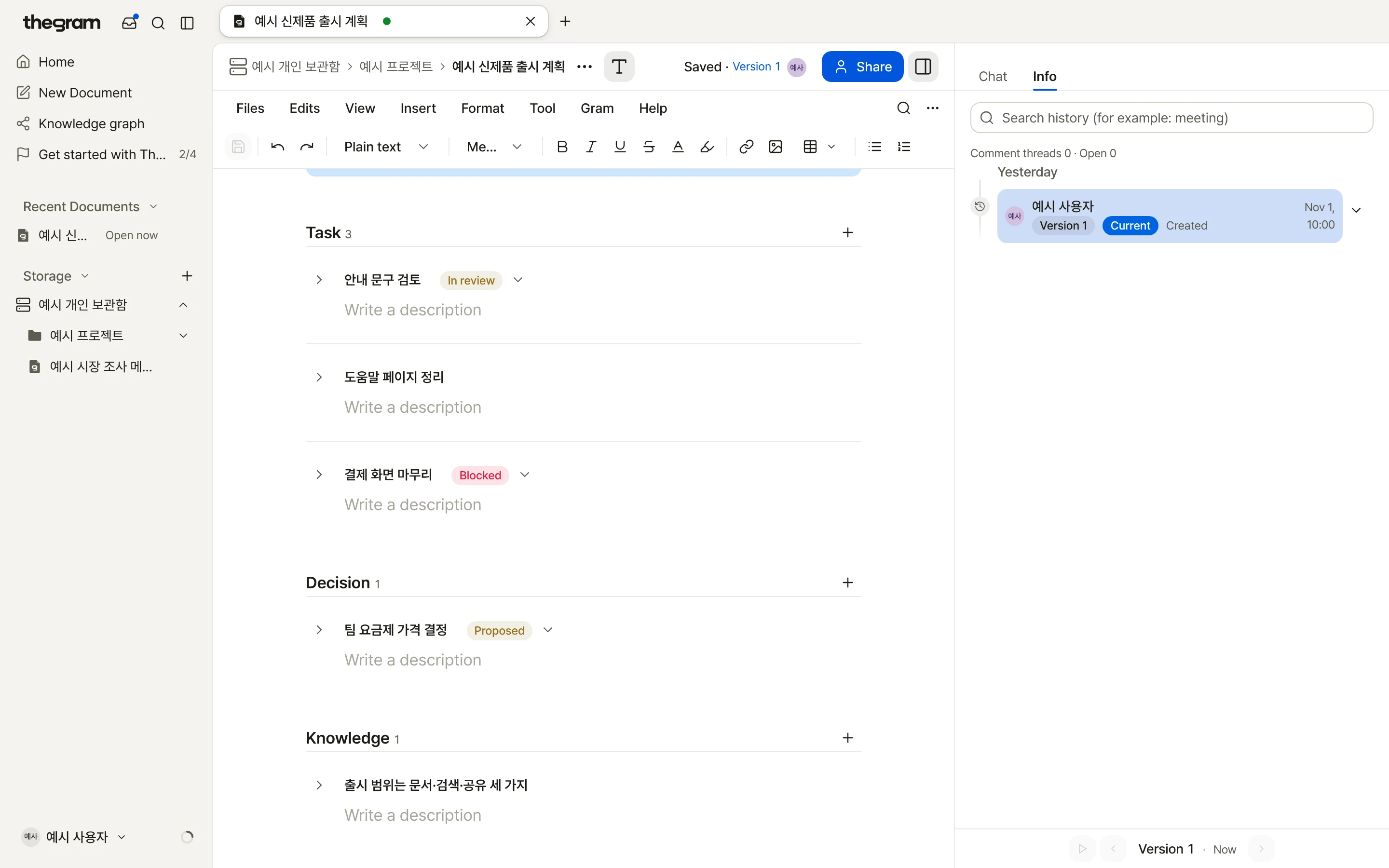
- The colored text next to a name is its status: Open, In review or Blocked for a task, Proposed or Accepted for a decision.
- Select the arrow on the left of a name to open its description and what changed.
- Records can also sit in the body as a table. Each row of the table is one record.
Add a record
Section titled “Add a record”- In the records list, select + on the right of the type to add (for example Decision).
- Enter a name and press Enter. Press Esc to cancel.
- Under the name, in "Write a description", write the reason or background.
- Select the status and choose the right value.
For a decision, write why it was decided in the description. The reason is what people look for most later.
Edit and delete records
Section titled “Edit and delete records”- Select the name, description or status in place to change it. The change is kept as a new version of the document.
- Deleting a record removes it from the current document only. It remains in earlier versions, where you can see it in the version history.
- When a decision changes, change its status and add the new decision instead of deleting the old one. That keeps "why it changed".
Records your AI writes
Section titled “Records your AI writes”An AI with the instructions writes what was decided in a conversation as records like these. So decisions and tasks build up in your storage without you creating each record. You edit and delete records an AI wrote the same way. Let your AI save
Find records
Section titled “Find records”| Where | How |
|---|---|
| In this document | Type a word in the search field of the Info tab on the right |
| In every storage | Type a word in search at the top (Ctrl+K). Records appear under In the text with their type |
| Through a connected AI | Ask something like "find accepted decisions only, with their evidence". Ask your connected AI |
| As a map | See how documents and records connect in the knowledge graph |
If you are stuck
Section titled “If you are stuck”- There is no records list. The records list is in Gram documents. For an uploaded PDF or Office file, switch to the Gram view at the top right to see the records drawn from that file.
- + does not respond. Your role is Viewer, or you are reading an earlier version.
Next chapter: Let your AI save
Something different from this guide? Report a docs issue · Troubleshooting
Review and send the email yourself. Do not include API keys or private document content.