

Find documents and content
In this chapter: choose the search that fits what you are looking for. Ctrl+K is enough most of the time. On a Mac, press ⌘ where this guide says Ctrl.
Which search to use
Section titled “Which search to use”| Looking for | Use | Shortcut |
|---|---|---|
| A document whose name you know | Quick open | Ctrl+K |
| Content, and you do not know which document | Full-text search | Ctrl+Shift+F |
| A document in the storage you are in | Find a document on the storage screen | |
| A word in the document you are in | Find in Document | Ctrl+F |
Quick open
Section titled “Quick open”- Select the magnifier at the top left, or press Ctrl+K.
- Type a word.
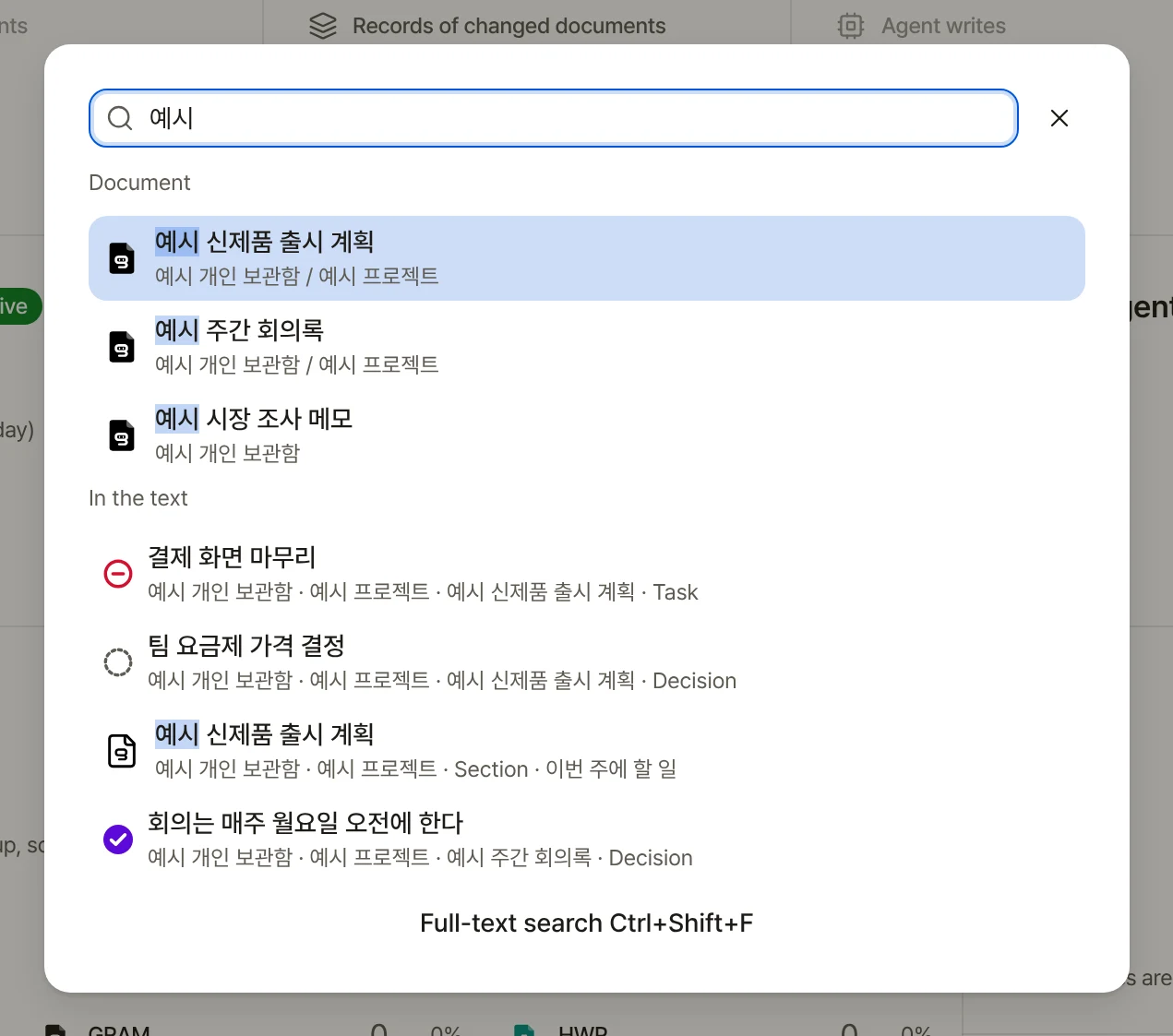
- Document: documents whose name contains the word, with the storage and folder below.
- In the text: records and sections whose content contains the word, with the document and the type (Task, Decision).
- Move with the arrow keys and open with Enter.
Full-text search
Section titled “Full-text search”Use it when quick open is not enough. You can narrow the scope and preview results.
- Press Ctrl+Shift+F, or select Full-text search at the bottom of quick open.
- Type a word.
- If needed, select All storages and All folders to narrow the scope.
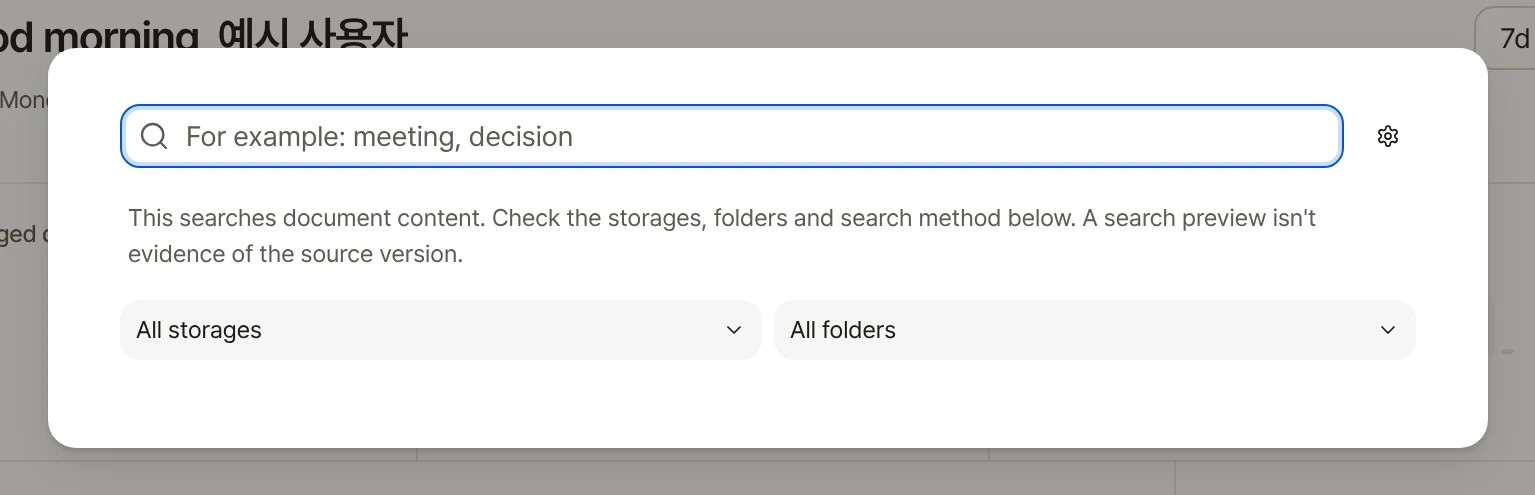
- The gear on the right of the search field sets the method. Keyword finds only what contains the letters you typed. Similar Meaning also finds content that says the same thing in other words.
- Results are grouped by document, with the type (Task, Decision, Document) and status (Blocked, Proposed, Accepted) on the right.
- Source preview is for skimming. For the exact sentence and version, select the result and check in the document.
Find within a storage
Section titled “Find within a storage”Type a name in Find a document on the storage screen to filter that storage's documents. The icons next to it change the sort order or filter by file type, author or modified date (last 24 hours, 7 days, 30 days).
Find within a document
Section titled “Find within a document”- With the document open, press Ctrl+F to find a word in it.
- To replace a word, press Ctrl+Shift+H (Find and replace).
- To search records only, use the search field in the Info tab on the right.
Let an AI find it
Section titled “Let an AI find it”When no word comes to mind, as in "how did we set the price last month?", asking a connected AI is faster. Ask your connected AI
If you are stuck
Section titled “If you are stuck”- A document I just created does not show up. Search can take a little while to catch up. Try again in a moment.
- A document I know exists does not show up. It may be in a storage of another space. Select your name at the bottom left and switch the space. Documents in the trash are not found.
- Too many results. In full-text search, narrow the storages and folders and set the method to Keyword.
Next chapter: Ask Gram AI in a document
Something different from this guide? Report a docs issue · Troubleshooting
Review and send the email yourself. Do not include API keys or private document content.