

Home, Inbox and the knowledge graph
In this chapter: three screens that show what has been happening in your storages.
Select Home in the left menu. It shows in numbers what happened in your storages during the chosen period.
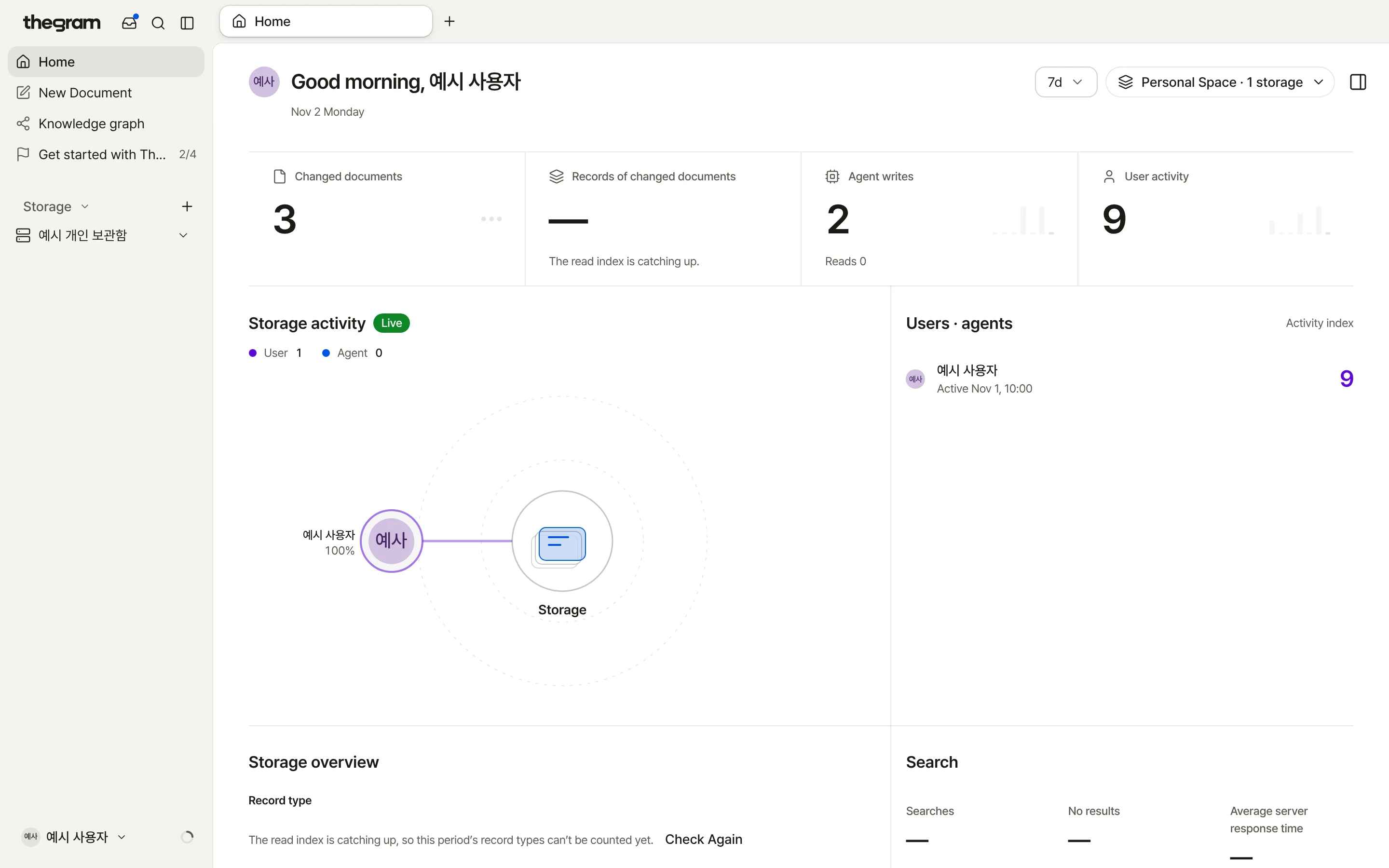
| What you see | Meaning |
|---|---|
| Changed documents | Documents created or edited during the period |
| Agent writes | How many times a connected AI wrote to a storage. Check here whether your AI is saving |
| User activity | Actions by people |
| Storage activity | A diagram of who (users, agents) worked in which storage |
| Storage overview | How much there is by record type and by file format |
Change the period (1 day, 7 days and so on) and the scope (space and storages) at the top right.
Select the inbox icon at the top left. A dot on the icon means something is unread.
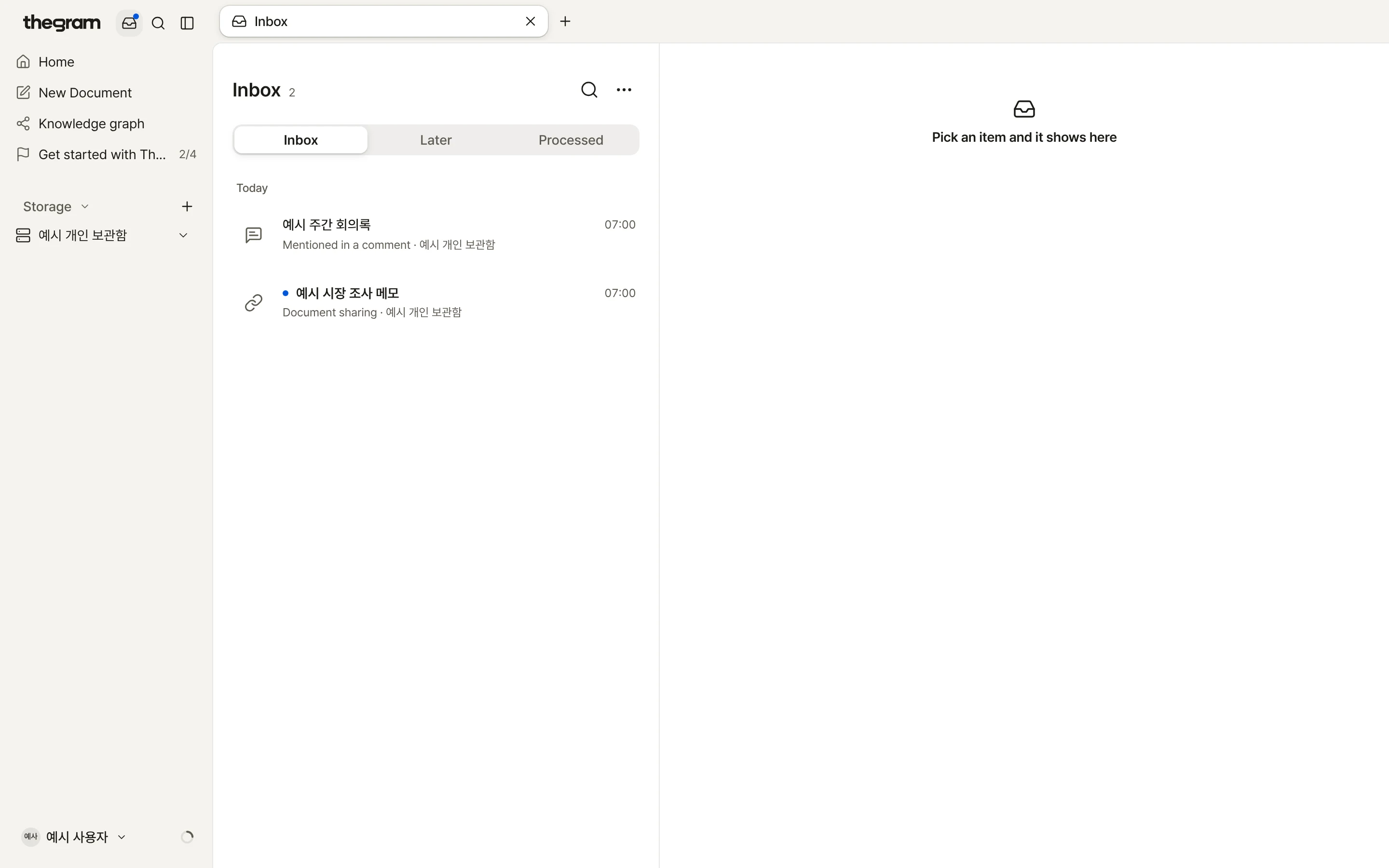
What arrives here:
- Mentioned in a comment: someone called you with
@in a comment. - Document sharing: someone shared a document with you.
Items are sorted into three tabs. Inbox holds new items, Later what you put off, and Processed what you finished.
Knowledge graph
Section titled “Knowledge graph”Select Knowledge graph in the left menu or on a storage screen. Documents and records are dots, and the relations between them are lines.
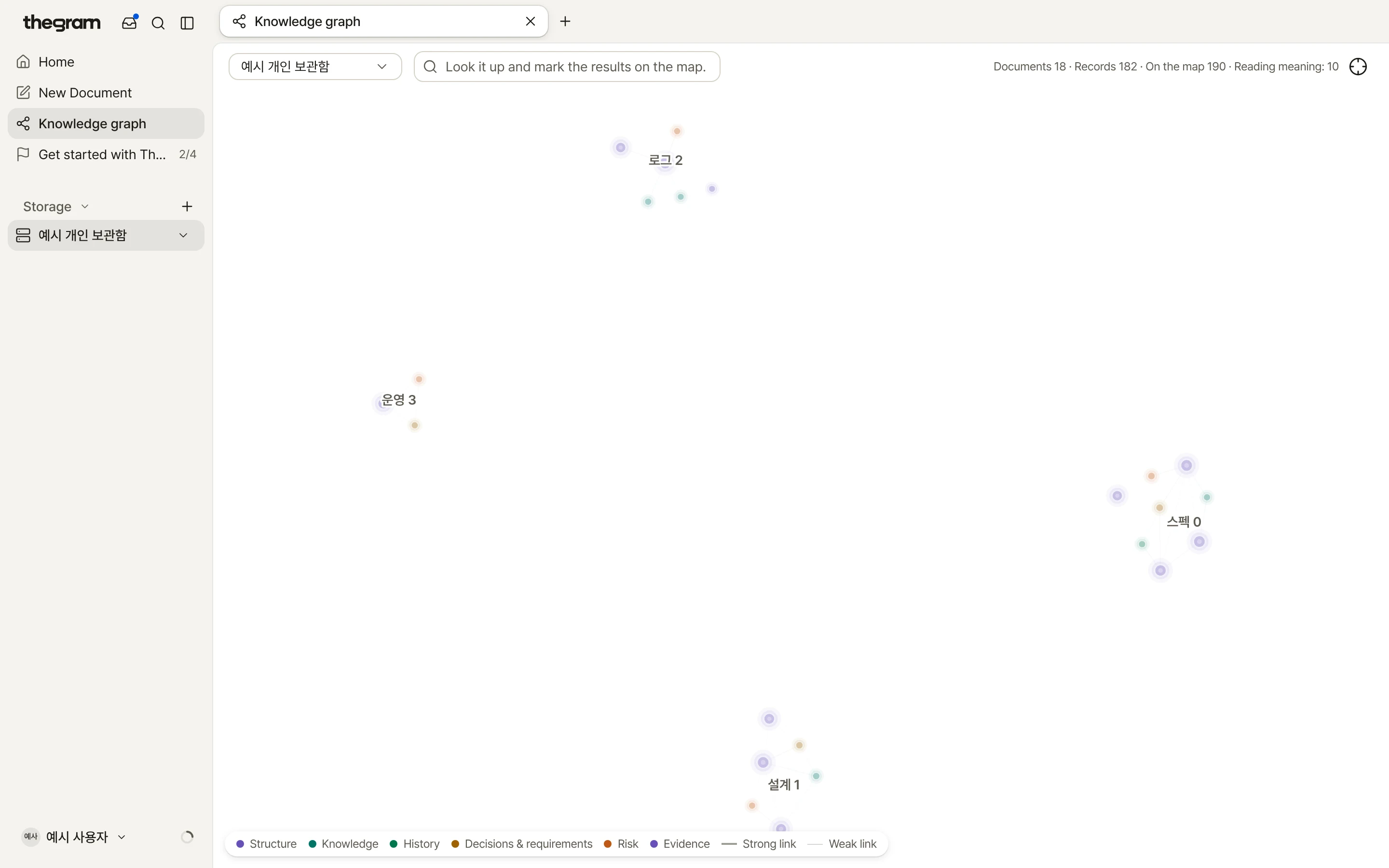
- Choose the storage at the top left.
- Type a word in the search field next to it to mark the matching dots on the map.
- Drag to move and use the mouse wheel to zoom.
- The legend at the bottom gives the kind of each dot (Structure, Knowledge, History, Decisions & requirements, Risk, Evidence). A thick line is a strong link, a thin line a weak one.
The knowledge graph is good for questions like "which evidence does this decision rest on?" and "how many documents have gathered on this topic?". To find a specific piece of content, search is faster.
Account menu
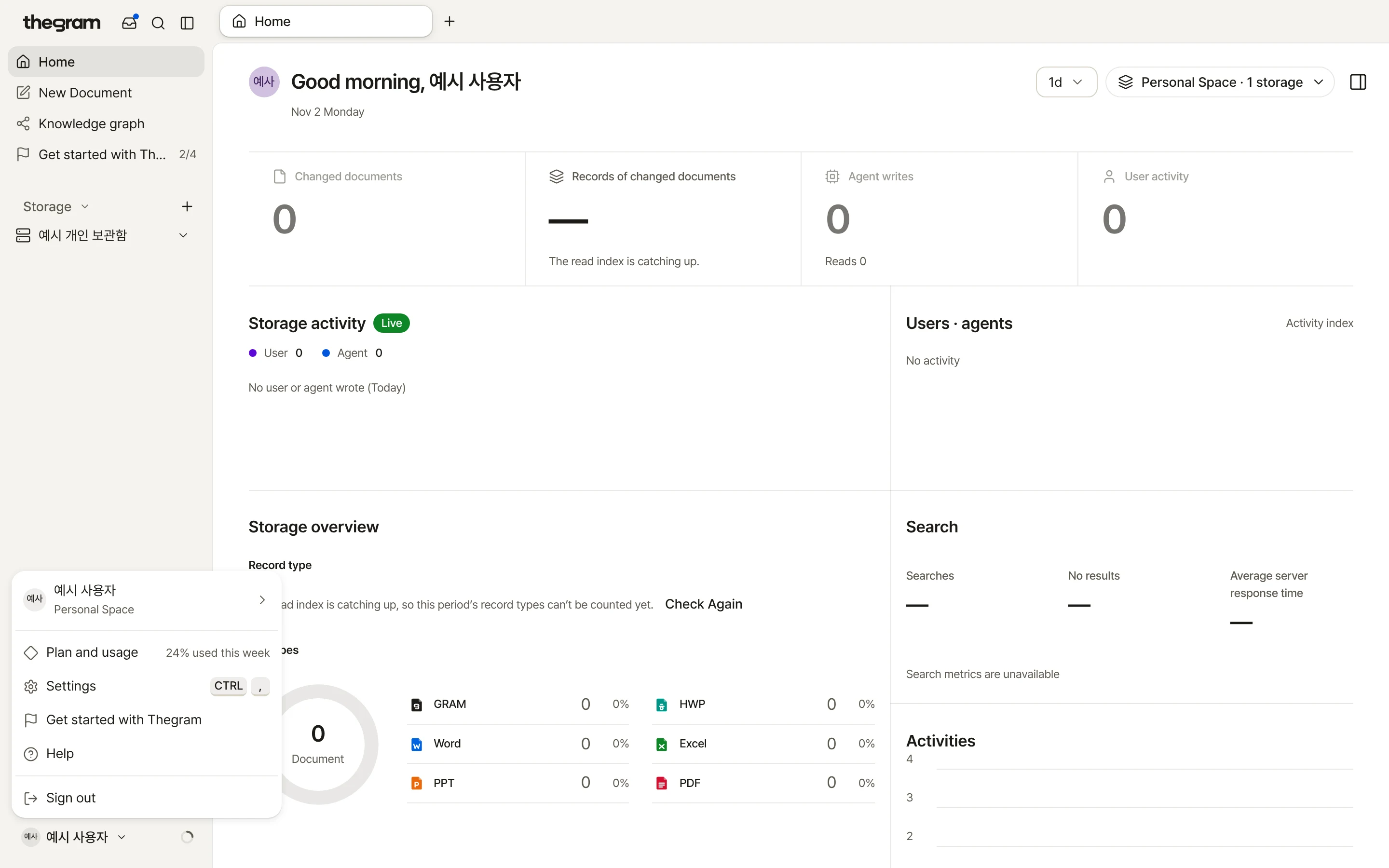
Section titled “Account menu”The menu that opens from your name at the bottom left.
| Menu | What it does |
|---|---|
| Your name and space at the top | Switches between your personal space and organizations. You also create a new organization here |
| Plan and usage | Shows how much you used this week. Plan and usage |
| Settings | Opens Settings (Ctrl+,) |
| Get started with Thegram | Reopens the start guide |
| Help | Has the guide, keyboard shortcuts and problem reports |
If you are stuck
Section titled “If you are stuck”- A number on Home shows "—". The counts are still catching up. Look again in a moment.
- The knowledge graph is empty. The chosen storage has no documents, or another storage is selected. Change the storage at the top left.
Next chapter: Share storages and documents
Something different from this guide? Report a docs issue · Troubleshooting
Review and send the email yourself. Do not include API keys or private document content.