

Set the organization's AI policy
In this chapter: as an organization owner or admin, decide how far members' AIs can go in organization storages. If you are a member, this chapter explains why your AI was stopped.
What the organization policy does
Section titled “What the organization policy does”Each member gives permissions to their own AI. The organization policy is a limit placed over that. Whatever a member gives, it cannot go above what the organization set.
| Setting | What it decides | Scope |
|---|---|---|
| AI limit | The highest permission members can give their AI | The whole organization |
| Allowed AI only | The list of AIs that can reach organization storages | The whole organization |
| Limits per person | Holding one person's AI to a lower level | One person |
| Storage AI access | Whether this storage is open to AI at all | One storage |
The first three are set in this chapter. Storage AI access is set in Set access to an organization storage.
Open the policy
Section titled “Open the policy”- Open Settings, select the arrow next to the space name on the left and choose the organization.
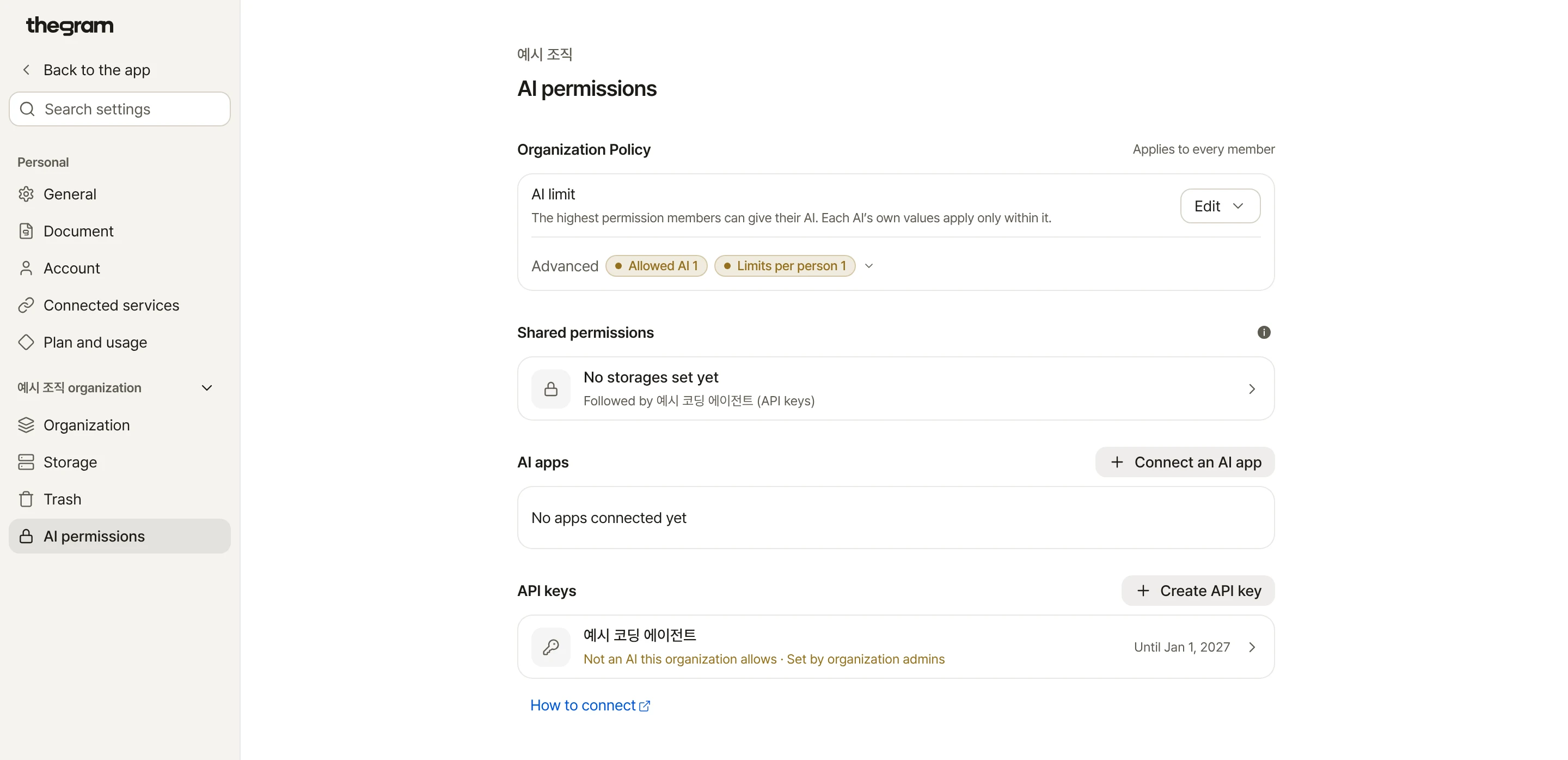
- Select AI permissions. Organization Policy is at the top. Organization owners and admins can change it.
Set the AI limit
Section titled “Set the AI limit”Choose a value on the right of AI limit. It is the highest permission members can give their AI.
| Value | Result |
|---|---|
| All | What members give applies as it is |
| Edit | AIs can create and edit organization documents but not delete them |
| Read | AIs only read organization documents. They cannot save to organization storages |
| None | No AI can use organization storages |
For AIs to record conversations into organization storages, this has to be Edit or higher. Unless you need AIs to delete, Edit is a sound choice.
Turn on Allowed AI only
Section titled “Turn on Allowed AI only”Use this to let only chosen AIs into organization storages.
- Select Advanced in the organization policy to open it.
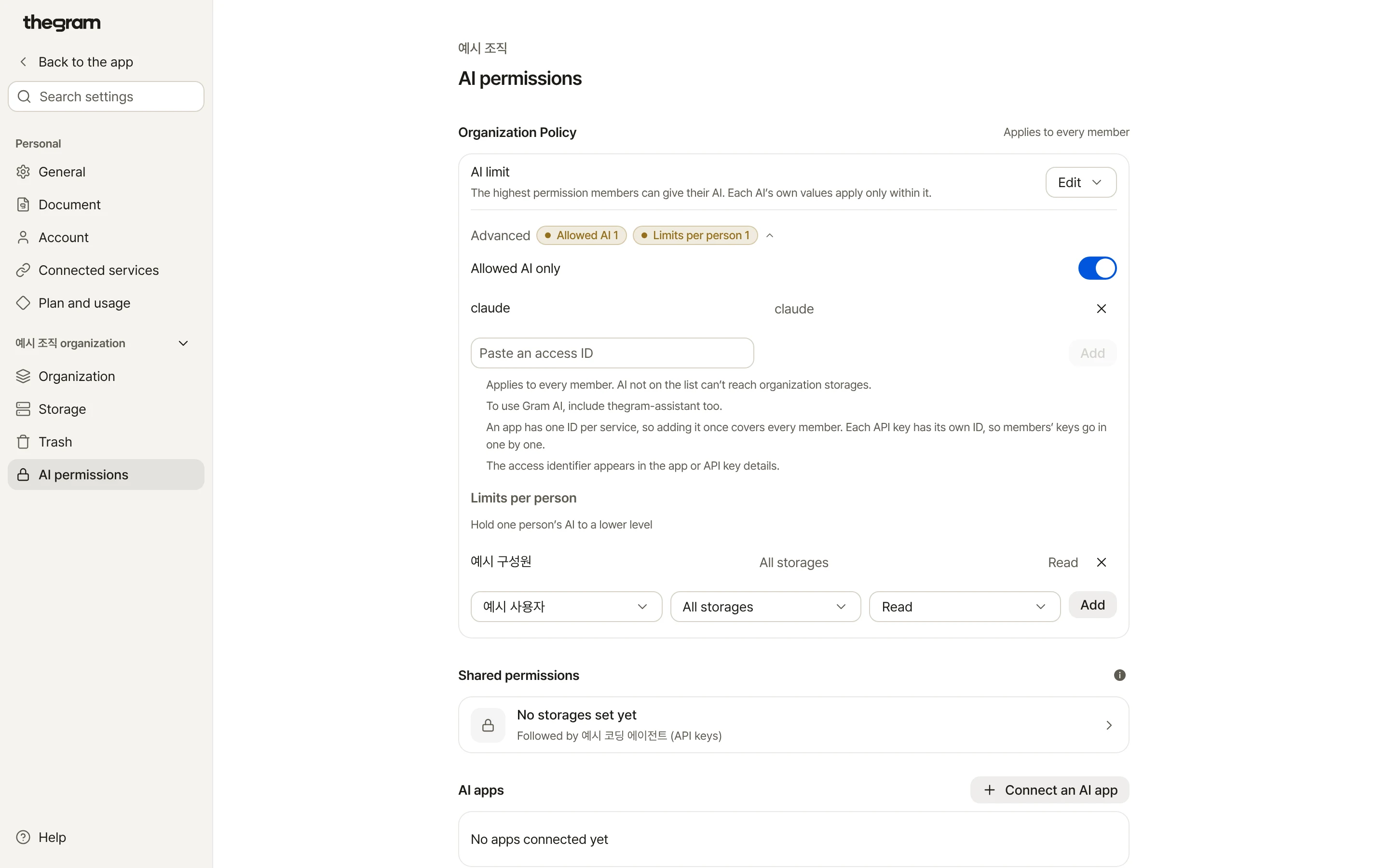
- Turn on Allowed AI only.
- Paste an AI's identifier into Paste an access ID and select Add.
Know this before you turn it on.
- The list is empty the moment you turn it on. Until you add AIs, every AI is blocked from organization storages. Collect the identifiers first.
- To use Gram AI, include
thegram-assistanttoo. Without it, the Chat tab cannot answer in organization documents. - An AI app has one identifier per service. Adding it once covers every member's copy of that AI.
- Each API key has its own identifier. Members' keys go in one by one, and a new key has to be added again.
The identifier is shown as Access identifier at the top when a member opens an AI or API key in their Settings › AI permissions. Ask members to send it.
Set a limit per person
Section titled “Set a limit per person”This holds one person's AI to a lower level. For example, an outside collaborator's AI can be limited to Read.
- Under Limits per person in Advanced, choose the person.
- Choose the storage (all storages or one) and the permission.
- Select Add.
A personal limit only lowers. It cannot give more than the AI limit.
What members see
Section titled “What members see”In a member's Settings › AI permissions, the reason is written in orange under an AI or storage that the policy stops, for example "Not an AI this organization allows · Set by organization admins". Extended shows which condition stopped it. When an AI can't use a storage
Tell members before you change the policy. If an AI that was working suddenly cannot save, they may not know why.
Values to start with
Section titled “Values to start with”- AI limit: Edit
- Allowed AI only: on if the team's AIs are fixed, otherwise off
- Sensitive storages: turn off the storage's AI access
- Outside collaborators: Read through a limit per person
If you are stuck
Section titled “If you are stuck”- I can't change the organization policy. Only organization owners and admins can.
- After turning on Allowed AI only, everyone's AI was blocked. The list is empty. Add the identifiers, or keep the switch off until you are ready.
- Gram AI does not answer in organization documents. Check that
thegram-assistantis on the allow list and that the storage's AI access is on.
Next chapter: Version history and going back
Something different from this guide? Report a docs issue · Troubleshooting
Review and send the email yourself. Do not include API keys or private document content.