

Upload files
In this chapter: upload the files you already have. The original stays as it is, and both you and your AI can find what is in it.
Files you can upload
Section titled “Files you can upload”PDF, Office (Word, Excel, PowerPoint), Hangul (HWP, HWPX), images and .gram files. You can upload several at once.
- In the left menu, select the storage for the files. To put them in a folder, open that folder.
- Select Add Files and choose the files. Or drag the files onto the document list.
- "Uploading file…" appears at the top. Select it to see each file's progress.
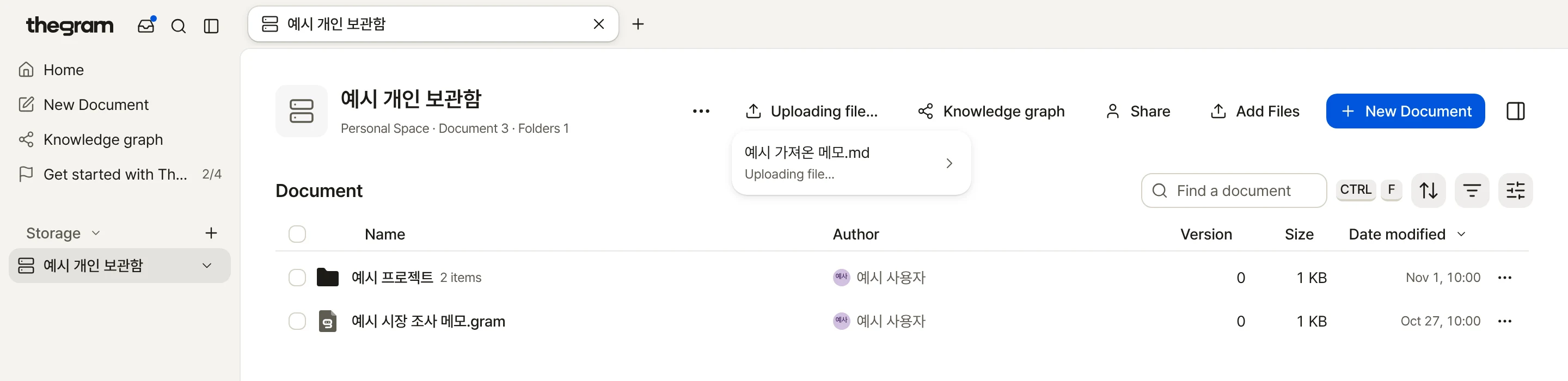
- When the upload finishes, the files appear in the list. Select one to open it.
Read an uploaded file: Original and Gram
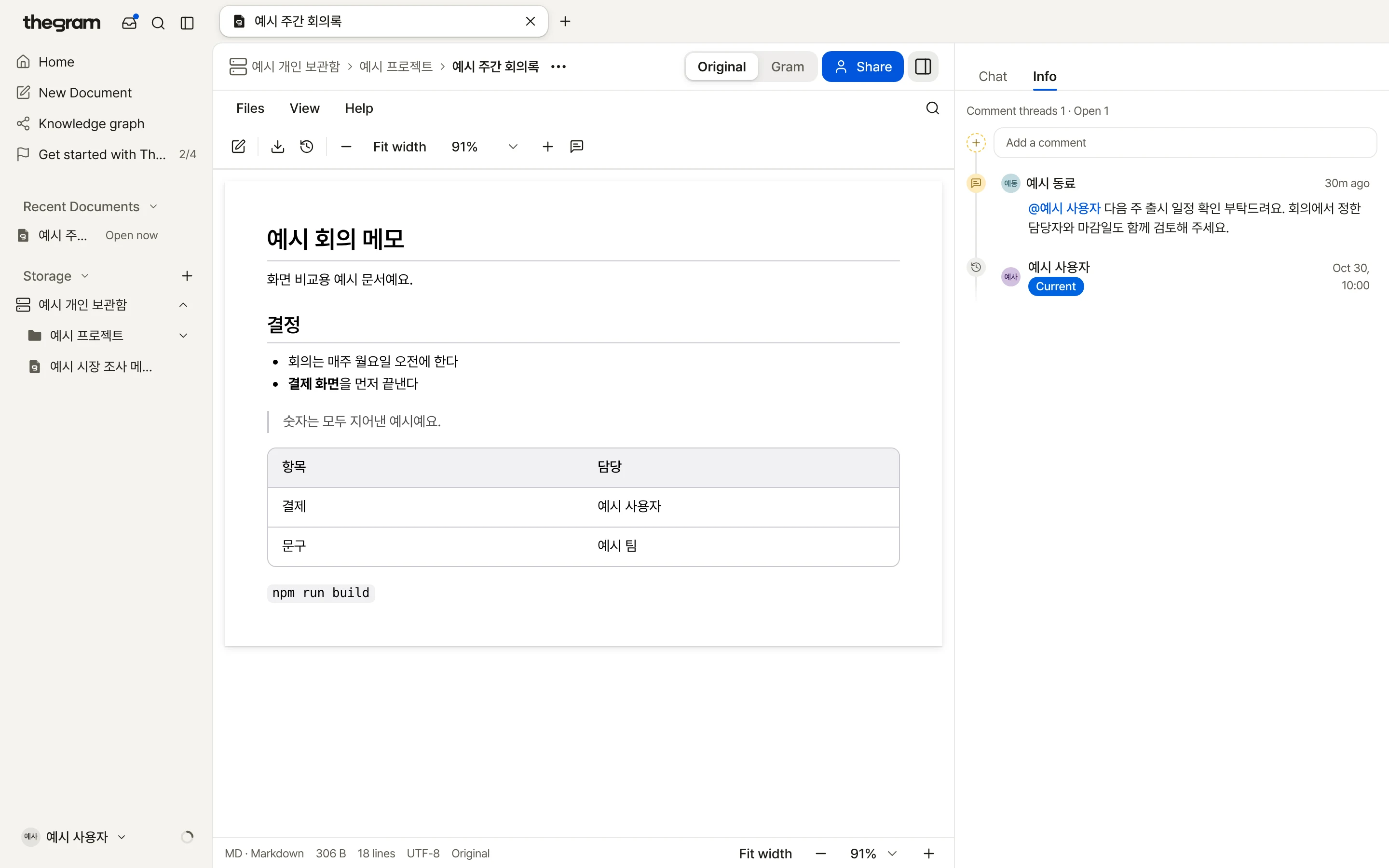
Section titled “Read an uploaded file: Original and Gram”An uploaded file opens with two views at the top right, Original and Gram.
| View | What you see | Use it to |
|---|---|---|
| Original | The uploaded file with its formatting | Check how the distributed document looks, or download it |
| Gram | The file's text and the records drawn from it | Find records such as decisions and numbers |
The toolbar of the Original view lets you download the file or comment on it. The original file is kept exactly as uploaded.
Create a new file in Thegram
Section titled “Create a new file in Thegram”Instead of uploading, you can create a new Word, Excel, PowerPoint or Hangul document in Thegram. New Document opens a dialog where you choose the format. See Write documents.
How you know it worked
Section titled “How you know it worked”- The uploaded file is in the storage list and opens when you select it.
- Search at the top finds the file by a word inside it. A file you just uploaded can take a little while to appear in search.
If you are stuck
Section titled “If you are stuck”- You see "You cannot upload files here". Open a storage or folder first, then upload. You cannot upload to a storage where your role is Viewer.
- Only the beginning of a large file is shown. Very large files show only their beginning on screen. Download the original to see all of it.
- You are out of storage space. Check what is left under My storage space in Settings › Plan and usage. Plan and usage
- The AI can't find the uploaded file. Check that the AI can read this storage. When an AI can't use a storage
Next chapter: Write documents
Something different from this guide? Report a docs issue · Troubleshooting
Review and send the email yourself. Do not include API keys or private document content.