---
title: Find documents and content
description: Four ways to find things. Open a document by name, search all content, search within one storage, or search within one document.
url: https://docs.thegram.one/use/search/
lang: en
tier: current
---
# Find documents and content
In this chapter: choose the search that fits what you are looking for. Ctrl+K is enough most of the time. On a Mac, press ⌘ where this guide says Ctrl.
## Which search to use {#which}
| Looking for | Use | Shortcut |
| --- | --- | --- |
| A document whose name you know | Quick open | Ctrl+K |
| Content, and you do not know which document | Full-text search | Ctrl+Shift+F |
| A document in the storage you are in | **Find a document** on the storage screen | |
| A word in the document you are in | Find in Document | Ctrl+F |
## Quick open {#quick}
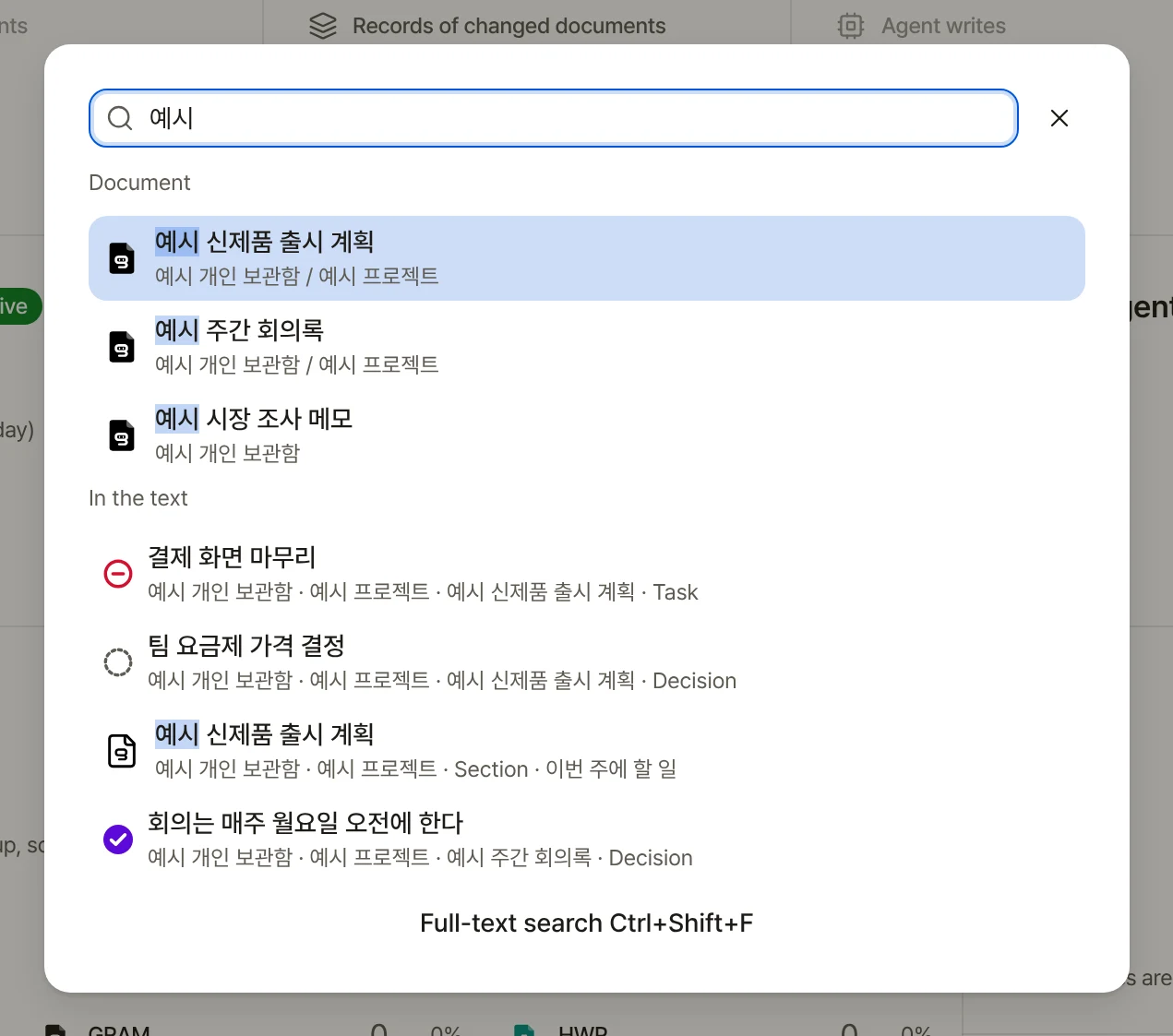
1. Select the magnifier at the top left, or press Ctrl+K.
2. Type a word.
"Document" at the top lists documents whose name matches. "In the text" below lists records and sections that contain the word.
- **Document**: documents whose name contains the word, with the storage and folder below.
- **In the text**: records and sections whose content contains the word, with the document and the type (Task, Decision).
- Move with the arrow keys and open with Enter.
## Full-text search {#content}
Use it when quick open is not enough. You can narrow the scope and preview results.
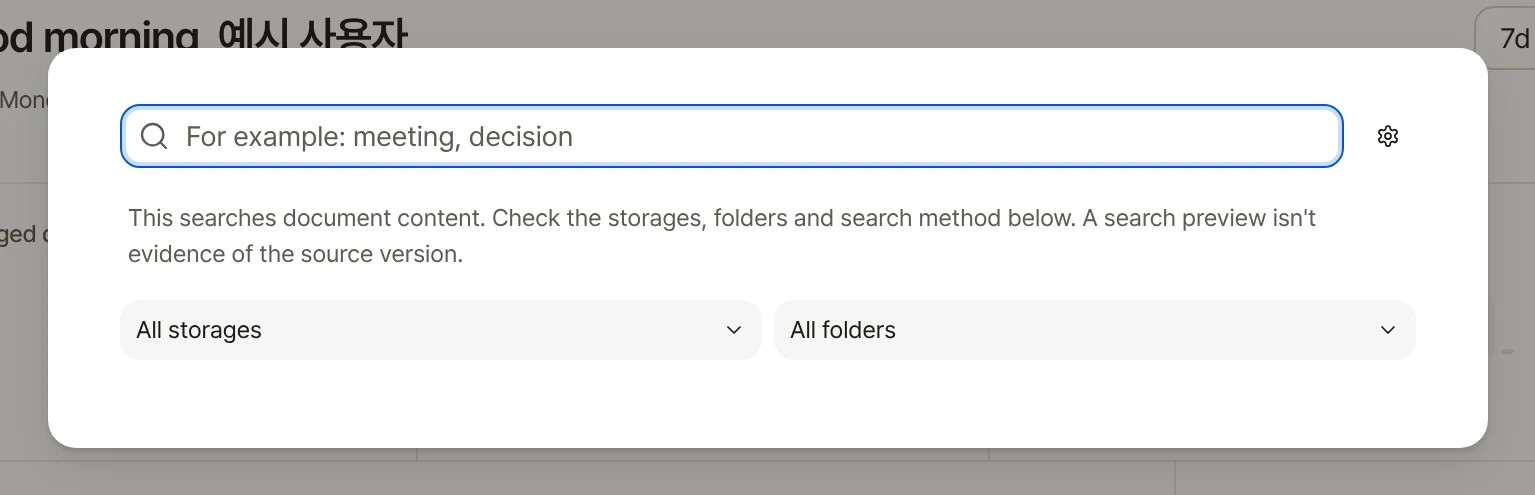
1. Press Ctrl+Shift+F, or select **Full-text search** at the bottom of quick open.
2. Type a word.
3. If needed, select **All storages** and **All folders** to narrow the scope.
The full-text search panel. Choose the storages and folders below the search field.
- The gear on the right of the search field sets the method. **Keyword** finds only what contains the letters you typed. **Similar Meaning** also finds content that says the same thing in other words.
- Results are grouped by document, with the type (Task, Decision, Document) and status (Blocked, Proposed, Accepted) on the right.
- **Source preview** is for skimming. For the exact sentence and version, select the result and check in the document.
## Find within a storage {#in-vault}
Type a name in **Find a document** on the storage screen to filter that storage's documents. The icons next to it change the sort order or filter by file type, author or modified date (last 24 hours, 7 days, 30 days).
## Find within a document {#in-doc}
- With the document open, press Ctrl+F to find a word in it.
- To replace a word, press Ctrl+Shift+H (Find and replace).
- To search records only, use the search field in the **Info** tab on the right.
## Let an AI find it {#ai}
When no word comes to mind, as in "how did we set the price last month?", asking a connected AI is faster. [Ask your connected AI](/use/recall/)
## If you are stuck {#help}
- **A document I just created does not show up.** Search can take a little while to catch up. Try again in a moment.
- **A document I know exists does not show up.** It may be in a storage of another space. Select your name at the bottom left and switch the space. Documents in the trash are not found.
- **Too many results.** In full-text search, narrow the storages and folders and set the method to **Keyword**.
Next chapter: [Ask Gram AI in a document](/use/gram-ai/)