---
title: Set the organization's AI policy
description: How organization owners and admins limit what members' AIs can do in organization storages, with the AI limit, Allowed AI only and Limits per person.
url: https://docs.thegram.one/team/ai-policy/
lang: en
tier: current
---
# Set the organization's AI policy
In this chapter: as an organization owner or admin, decide how far members' AIs can go in organization storages. If you are a member, this chapter explains why your AI was stopped.
## What the organization policy does {#what}
Each member gives permissions to their own AI. The organization policy is a **limit** placed over that. Whatever a member gives, it cannot go above what the organization set.
| Setting | What it decides | Scope |
| --- | --- | --- |
| **AI limit** | The highest permission members can give their AI | The whole organization |
| **Allowed AI only** | The list of AIs that can reach organization storages | The whole organization |
| **Limits per person** | Holding one person's AI to a lower level | One person |
| **Storage AI access** | Whether this storage is open to AI at all | One storage |
The first three are set in this chapter. Storage AI access is set in [Set access to an organization storage](/team/organization/#vaults).
## Open the policy {#open}
1. Open **Settings**, select the arrow next to the space name on the left and choose the organization.
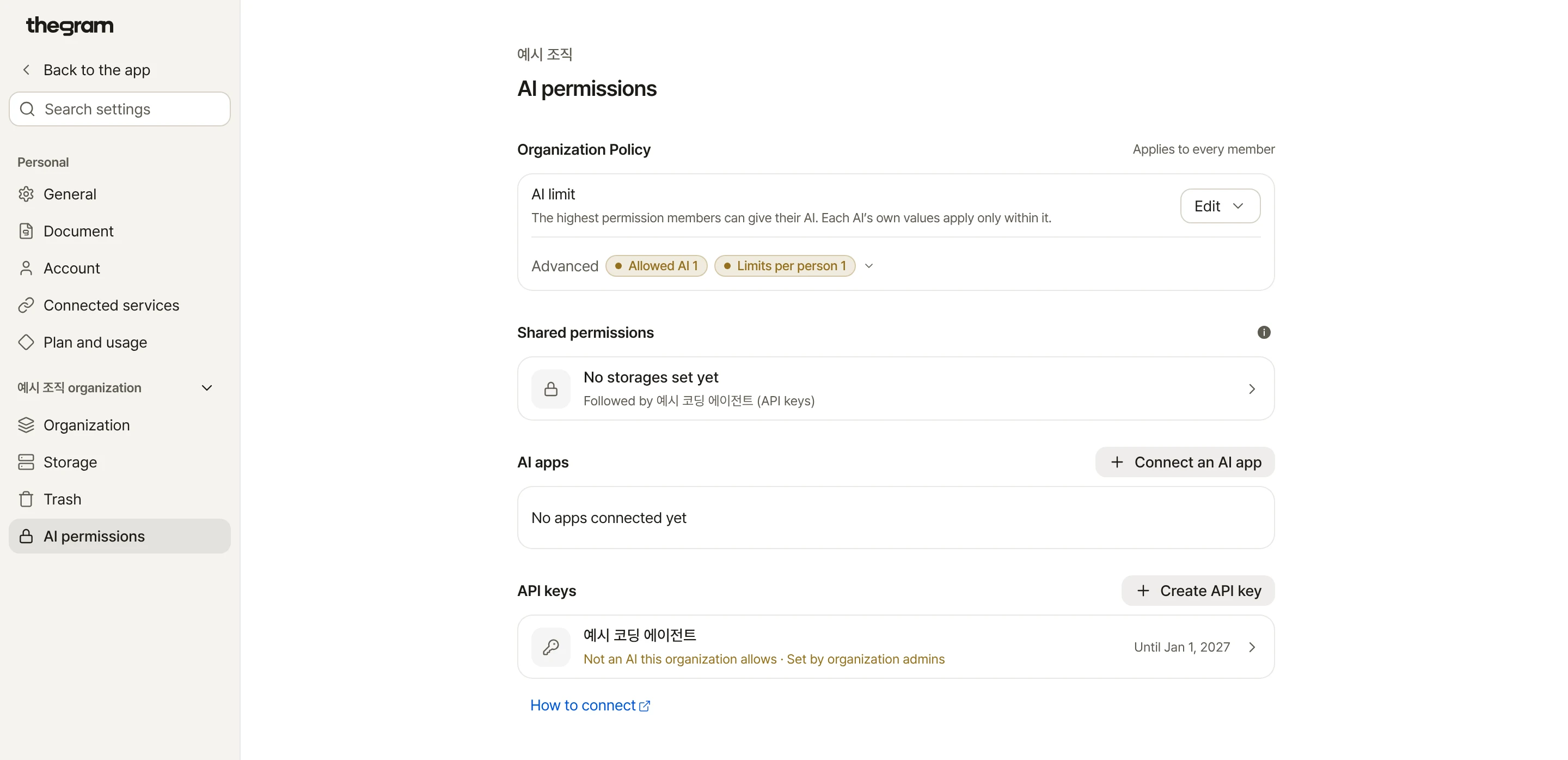
2. Select **AI permissions**. **Organization Policy** is at the top. Organization owners and admins can change it.
The organization's AI permissions. Below the policy are your own AI's permissions.
## Set the AI limit {#ceiling}
Choose a value on the right of **AI limit**. It is the highest permission members can give their AI.
| Value | Result |
| --- | --- |
| **All** | What members give applies as it is |
| **Edit** | AIs can create and edit organization documents but not delete them |
| **Read** | AIs only read organization documents. They cannot save to organization storages |
| **None** | No AI can use organization storages |
For AIs to record conversations into organization storages, this has to be **Edit** or higher. Unless you need AIs to delete, **Edit** is a sound choice.
## Turn on Allowed AI only {#allowlist}
Use this to let only chosen AIs into organization storages.
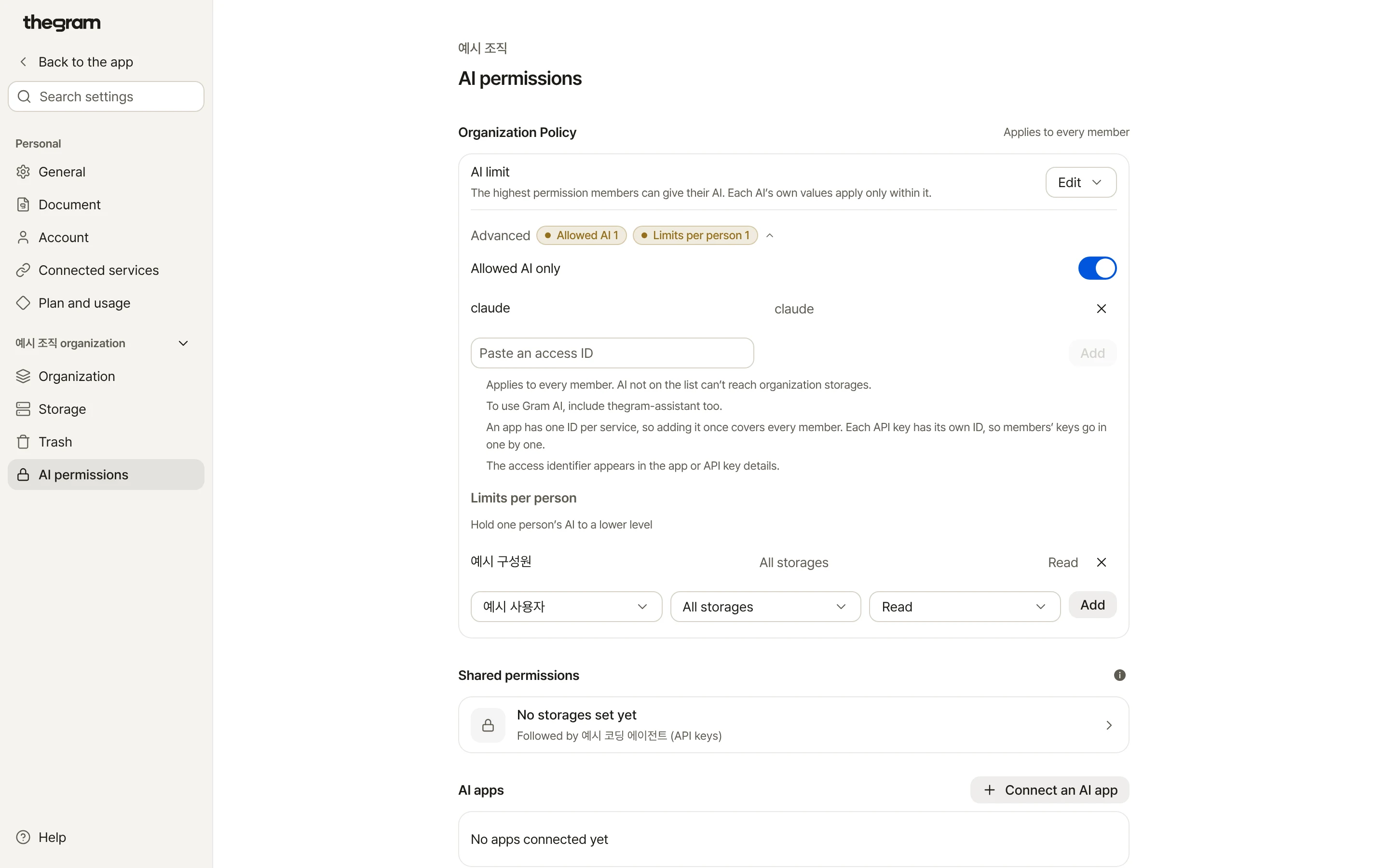
1. Select **Advanced** in the organization policy to open it.
2. Turn on **Allowed AI only**.
3. Paste an AI's identifier into **Paste an access ID** and select **Add**.
Advanced shows Allowed AI only and Limits per person.
Know this before you turn it on.
- **The list is empty the moment you turn it on.** Until you add AIs, every AI is blocked from organization storages. Collect the identifiers first.
- **To use Gram AI, include `thegram-assistant` too.** Without it, the Chat tab cannot answer in organization documents.
- **An AI app has one identifier per service.** Adding it once covers every member's copy of that AI.
- **Each API key has its own identifier.** Members' keys go in one by one, and a new key has to be added again.
The identifier is shown as **Access identifier** at the top when a member opens an AI or API key in their **Settings › AI permissions**. Ask members to send it.
## Set a limit per person {#person}
This holds one person's AI to a lower level. For example, an outside collaborator's AI can be limited to Read.
1. Under **Limits per person** in **Advanced**, choose the person.
2. Choose the storage (all storages or one) and the permission.
3. Select **Add**.
A personal limit only lowers. It cannot give more than the AI limit.
## What members see {#member}
In a member's **Settings › AI permissions**, the reason is written in orange under an AI or storage that the policy stops, for example "Not an AI this organization allows · Set by organization admins". **Extended** shows which condition stopped it. [When an AI can't use a storage](/access/blocked/)
Tell members before you change the policy. If an AI that was working suddenly cannot save, they may not know why.
## Values to start with {#start}
- **AI limit**: Edit
- **Allowed AI only**: on if the team's AIs are fixed, otherwise off
- **Sensitive storages**: turn off the storage's AI access
- **Outside collaborators**: Read through a limit per person
## If you are stuck {#help}
- **I can't change the organization policy.** Only organization owners and admins can.
- **After turning on Allowed AI only, everyone's AI was blocked.** The list is empty. Add the identifiers, or keep the switch off until you are ready.
- **Gram AI does not answer in organization documents.** Check that `thegram-assistant` is on the allow list and that the storage's AI access is on.
Next chapter: [Version history and going back](/manage/history/)