---
title: Set permissions for each AI
description: In Settings › AI permissions, change the shared permissions, set one AI separately, and create, edit and revoke API keys.
url: https://docs.thegram.one/access/ai-settings/
lang: en
tier: current
---
# Set permissions for each AI
In this chapter: change storage permissions in Settings › AI permissions. It takes two minutes. If the meaning of a permission is unclear, read Understand storage permissions first.
## Change permissions for all AIs at once {#shared}
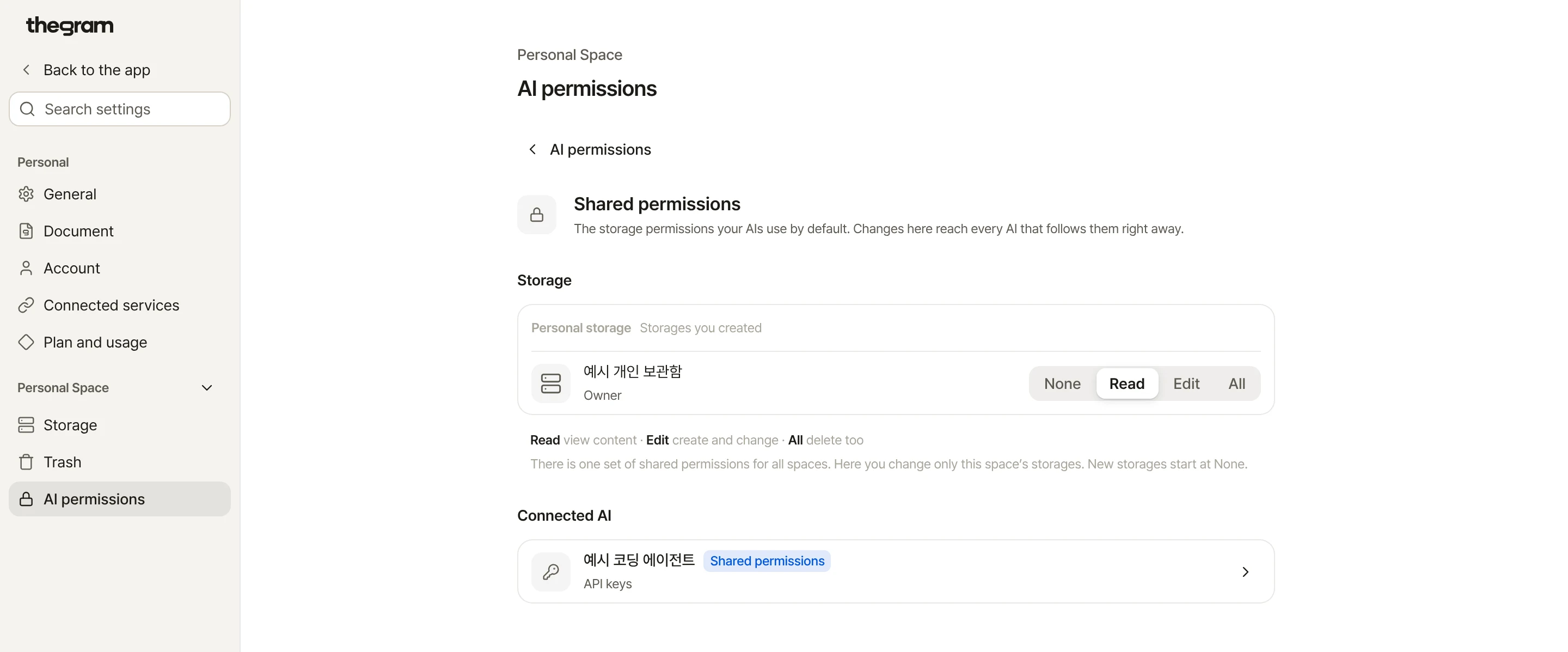
This applies to every AI that follows the shared permissions.
1. Select your name at the bottom left, then **Settings**.
2. Select **AI permissions**, then the **Shared permissions** line at the top.
3. On the right of the storage, select **None**, **Read**, **Edit** or **All**. It is saved as soon as you select it.
4. Under **Connected AI**, check that the right AIs follow this table.
Read: view content. Edit: create and change. All: delete too.
To change an organization's storages, select the arrow next to the space name (for example **Personal Space**) on the left of Settings and choose the organization. AI permissions shows only the storages of the space you chose.
## Set one AI differently {#custom}
1. In **Settings › AI permissions**, select the AI (or API key).
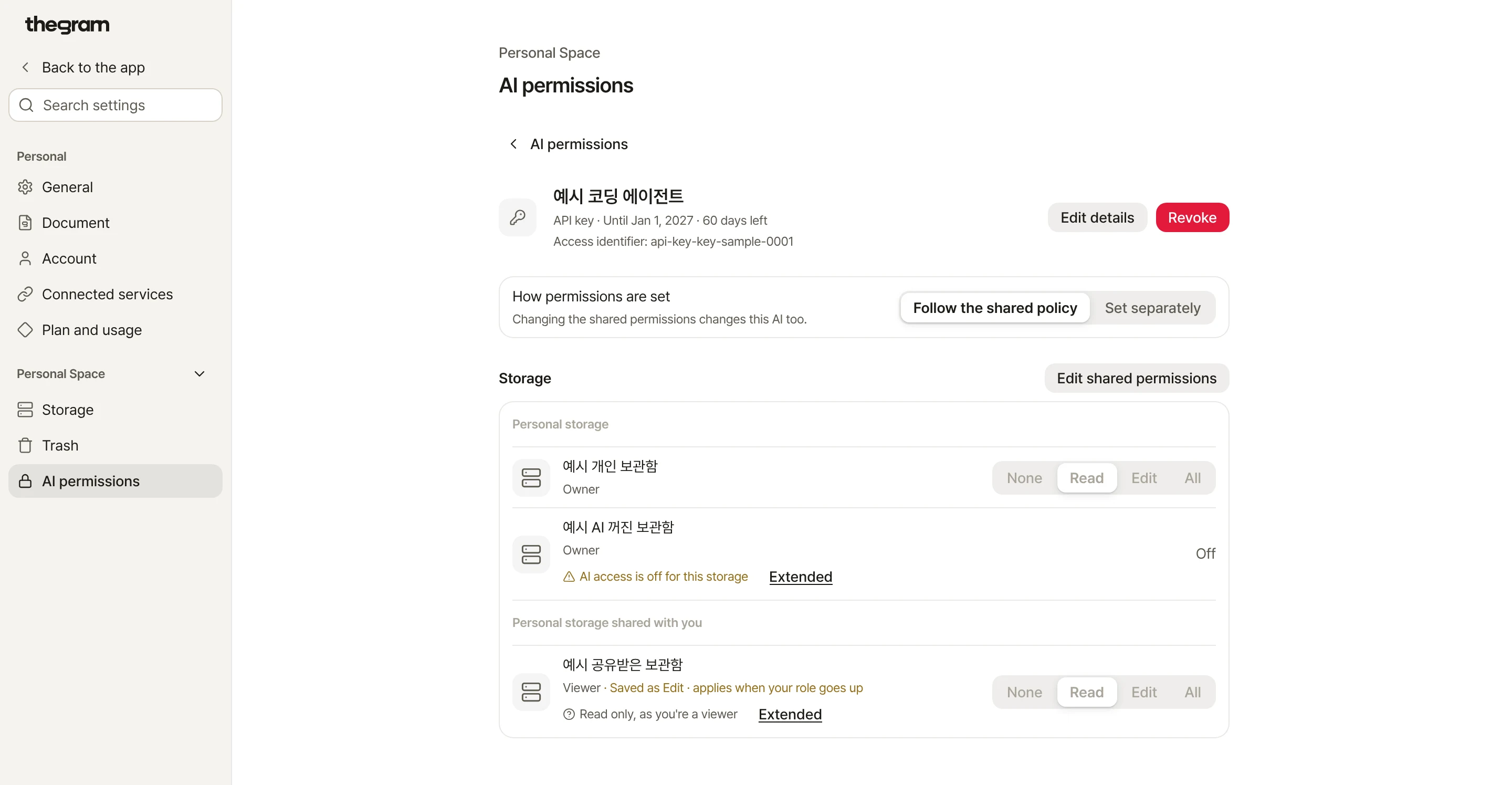
2. Under **How permissions are set**, select **Set separately**.
3. Choose a value for each storage.
One AI's screen. Orange text under a storage means another condition lowered or blocked the permission there.
- Switch back to **Follow the shared policy** and the AI uses the shared table again. The screen says "Changing the shared permissions changes this AI too."
- On an AI that follows the shared permissions, **Edit shared permissions** takes you straight to that screen.
- Storages are grouped as **Personal storage**, **Personal storage shared with you**, then each **organization**. In a shared storage you cannot go above your own role, and in an organization storage you cannot go above the organization's AI limit.
- When a reason is written under a storage, select **Extended** next to it. It shows, in order, where access stopped. [When an AI can't use a storage](/access/blocked/) explains how to read it.
## Create an API key {#keys}
Coding agents such as Claude Code and Codex connect with an API key.
1. In **Settings › AI permissions**, select **Create API key**.
2. Enter a **Name** that says where the key is used, such as "My laptop Claude Code".
3. Choose the **Lifetime**: 30 days, 90 days, a date, or never expires.
4. Set the **Access**. Let the key follow the shared permissions, or choose **Set separately** and set each storage.
5. Select **Create**, then **Copy** the key. The key value is shown only this once.
Putting the key on your computer and connecting the agent is in [2. Connect the AI you use](/start/connect/#agents).
Three rules for keys:
- Do not paste a key into a conversation with an AI or commit it to a repository.
- Create a separate key for each device or tool. If one is lost, you revoke only that one.
- Give a key only the storages its job needs.
## Edit and revoke an API key {#edit-key}
1. In **Settings › AI permissions**, select the key.
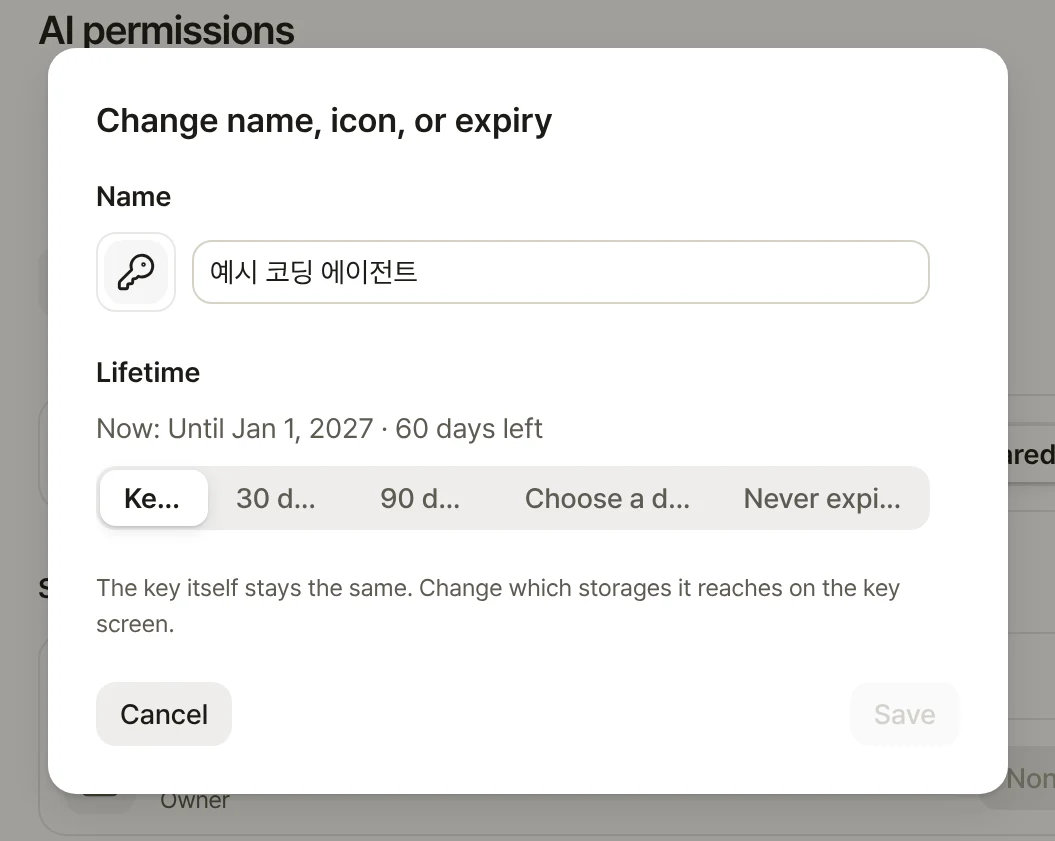
2. To change its name or lifetime, select **Edit details**.
Changing the name or lifetime does not change the key itself. Which storages it reaches is changed on the key's screen.
3. For a key you no longer use, select **Revoke**. Any agent using it loses access at once.
- A key value cannot be shown again. If you lost it, revoke it and create a new one.
- An expired key can only be revoked. To keep working, create a new key.
- A key that **never expires** works until you revoke it. Revoke it when you stop using it.
## How you know it worked {#done}
- In the Settings › AI permissions list, the text under the AI's name shows the new value, such as "Our team Edit".
- In a new conversation, the AI answers the question below with the new values.
```text
Tell me which storages I can use in Thegram and at what permission. Do not create or change anything.
```
## If you are stuck {#help}
- **I raised the value but the AI still can't write.** Check whether that AI is **Set separately** while you changed only the shared permissions. If the list marks it **Set separately**, change it on the AI's own screen.
- **Some values cannot be selected.** You can choose only up to what your role or the organization's policy allows. Select **Extended** under the storage to see the reason.
- **A storage is missing from the list.** Only the storages of the chosen space are shown. Select the arrow next to the space name on the left of Settings and switch.
Next chapter: [When an AI can't use a storage](/access/blocked/)