---
title: Write documents
description: Create a document, add content from the block menu, discuss it in comments and read the save status.
url: https://docs.thegram.one/use/write/
lang: en
tier: current
---
# Write documents
In this chapter: create and edit a document in Thegram yourself.
## Create a document {#new}
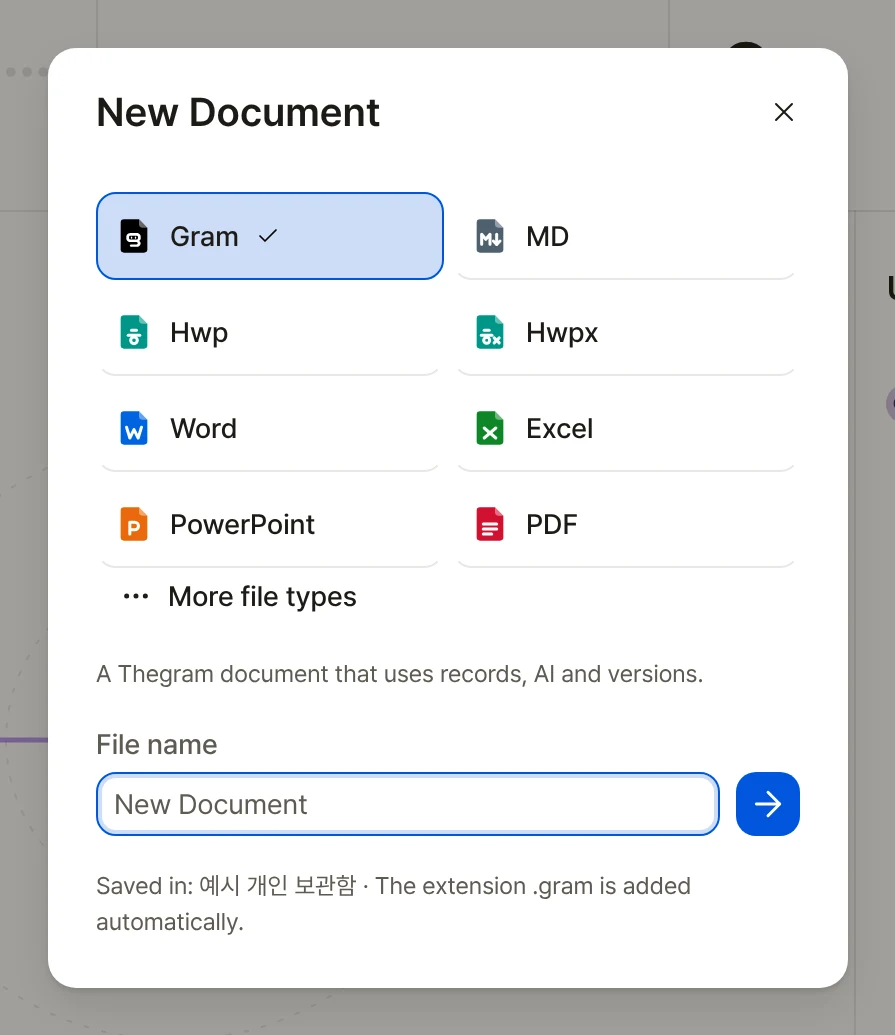
1. Select **New Document** in the left menu, or **New Document** on a storage screen.
2. Choose a format. **Gram** is selected at first.
3. Enter the **File name** and select the arrow button on the right.
Choose a format and enter a name. The storage it is saved in is shown below.
| Format | Choose it when |
| --- | --- |
| **Gram** | A Thegram document that uses records, AI and versions. Choose this unless you have a reason not to |
| **MD** | You want to keep a Markdown file |
| **Hwp, Hwpx, Word, Excel, PowerPoint, PDF** | You need a file in that format |
## Write {#edit}
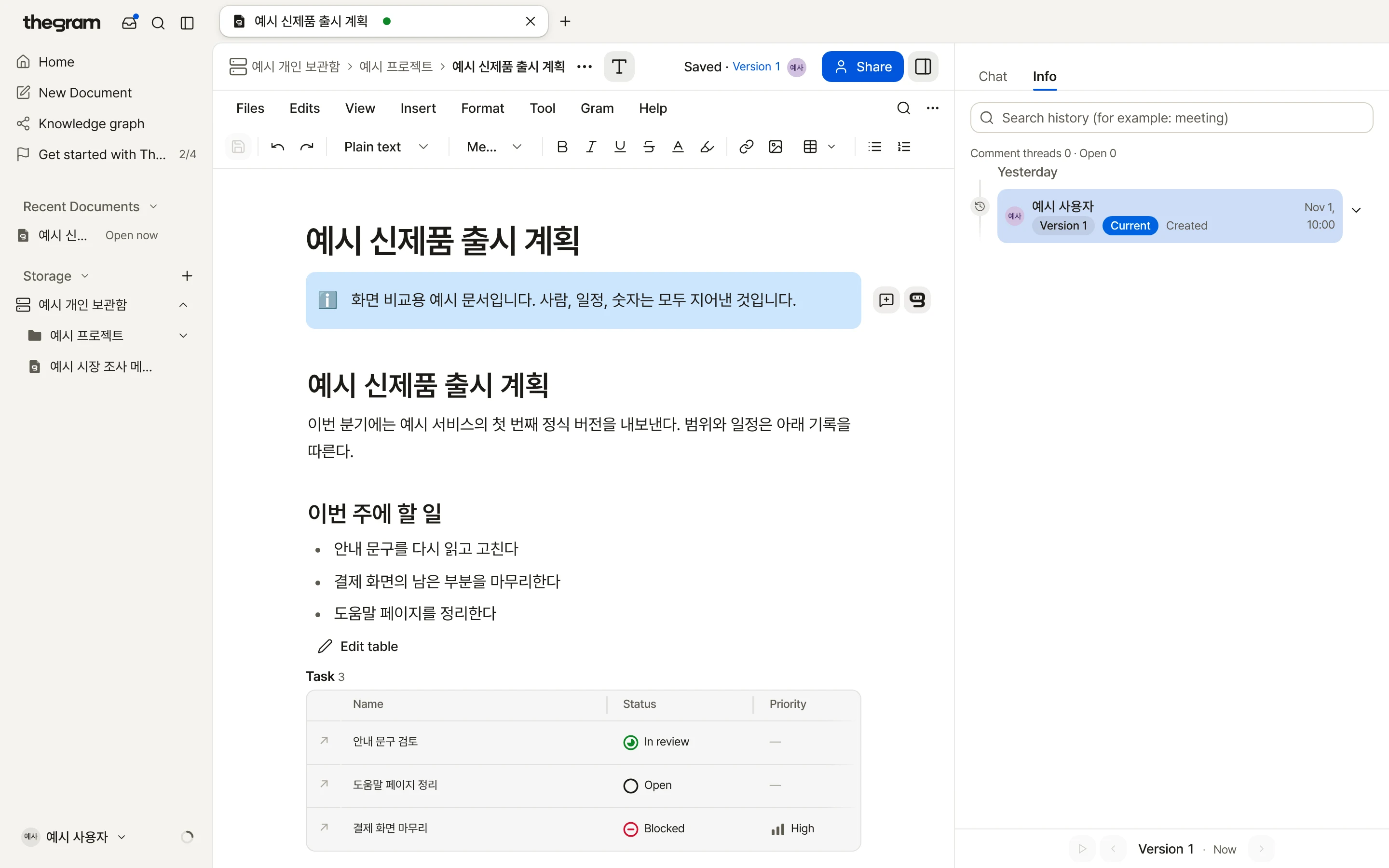
An open document has the body in the middle, menus and a toolbar above it, and the **Chat** and **Info** tabs on the right.
A document. The save status and the Share button are at the top right.
- Just type. Text formatting, links, pictures, tables and lists are on the toolbar.
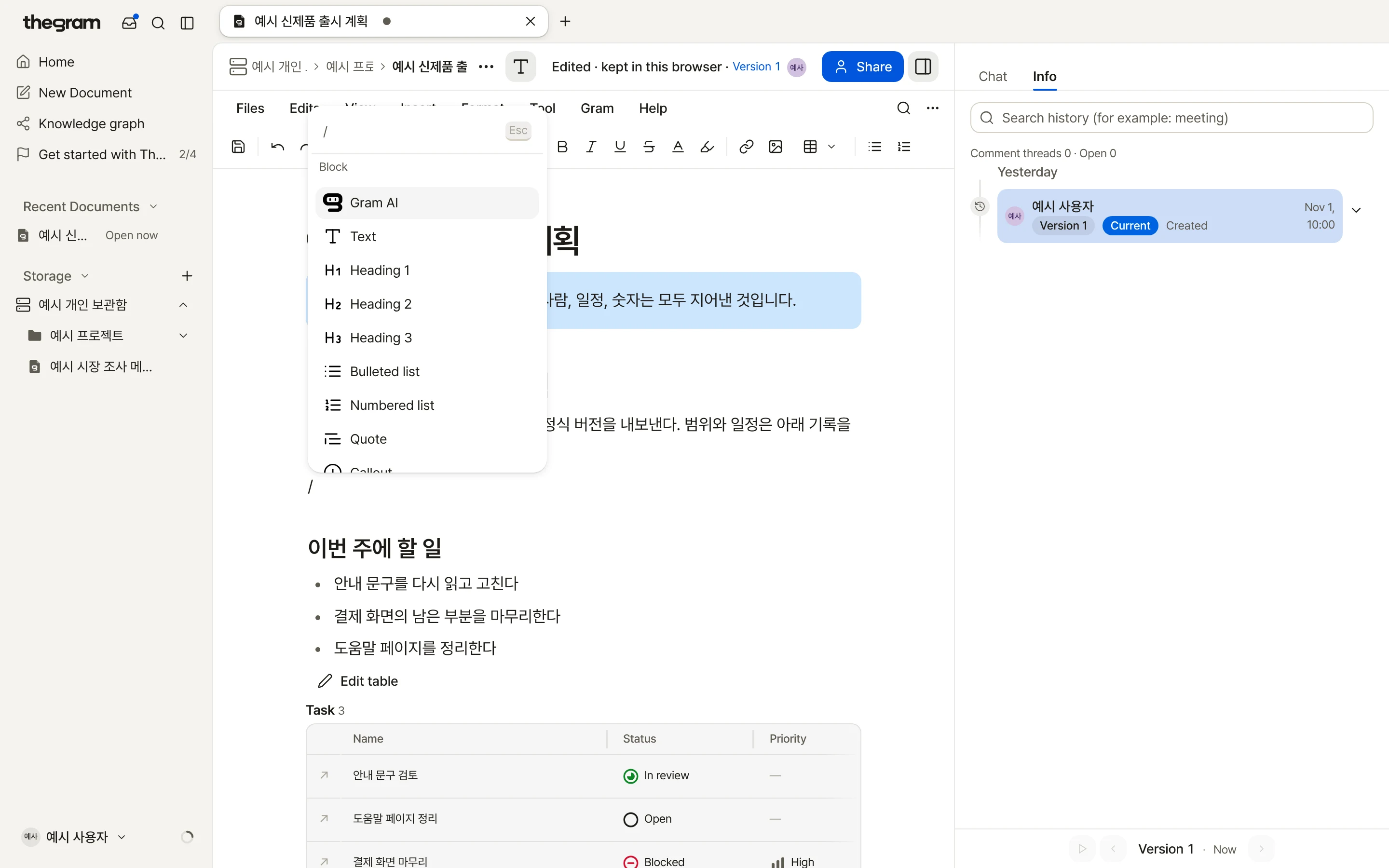
- Press `/` on an empty line for the list of blocks you can insert: headings, bulleted and numbered lists, quotes, callouts and more.
The block menu that `/` opens. Gram AI at the top is a block for asking the AI inside the document.
- Select **…** next to the document name for Copy Document Link, Document structure, Find in Document (Ctrl+F), Find and replace (Ctrl+Shift+H) and Duplicate document. On a Mac, press ⌘ where this guide says Ctrl.
## Read the save status {#save}
Your edits are saved automatically a little while after you stop typing, and also when you move to another document or leave the tab. The status is written at the top of the document.
| What you see | Meaning |
| --- | --- |
| Saved · Version 1 | Saving is finished and the content is now version 1 |
| Edited · kept in this browser | Your edits have not reached the server yet. They are kept in this browser |
- To save right away, press Ctrl+S, or select the save status and then **Save now**.
- Choose how long auto-save waits under **Auto-save** in **Settings › Document**: off, 1, 5, 10 or 15 minutes. It starts at 10 minutes. When it is off, the document is saved only when you save it.
- Each save adds a version, so you can read earlier content later. [Version history and going back](/manage/history/)
## Discuss in comments {#comments}
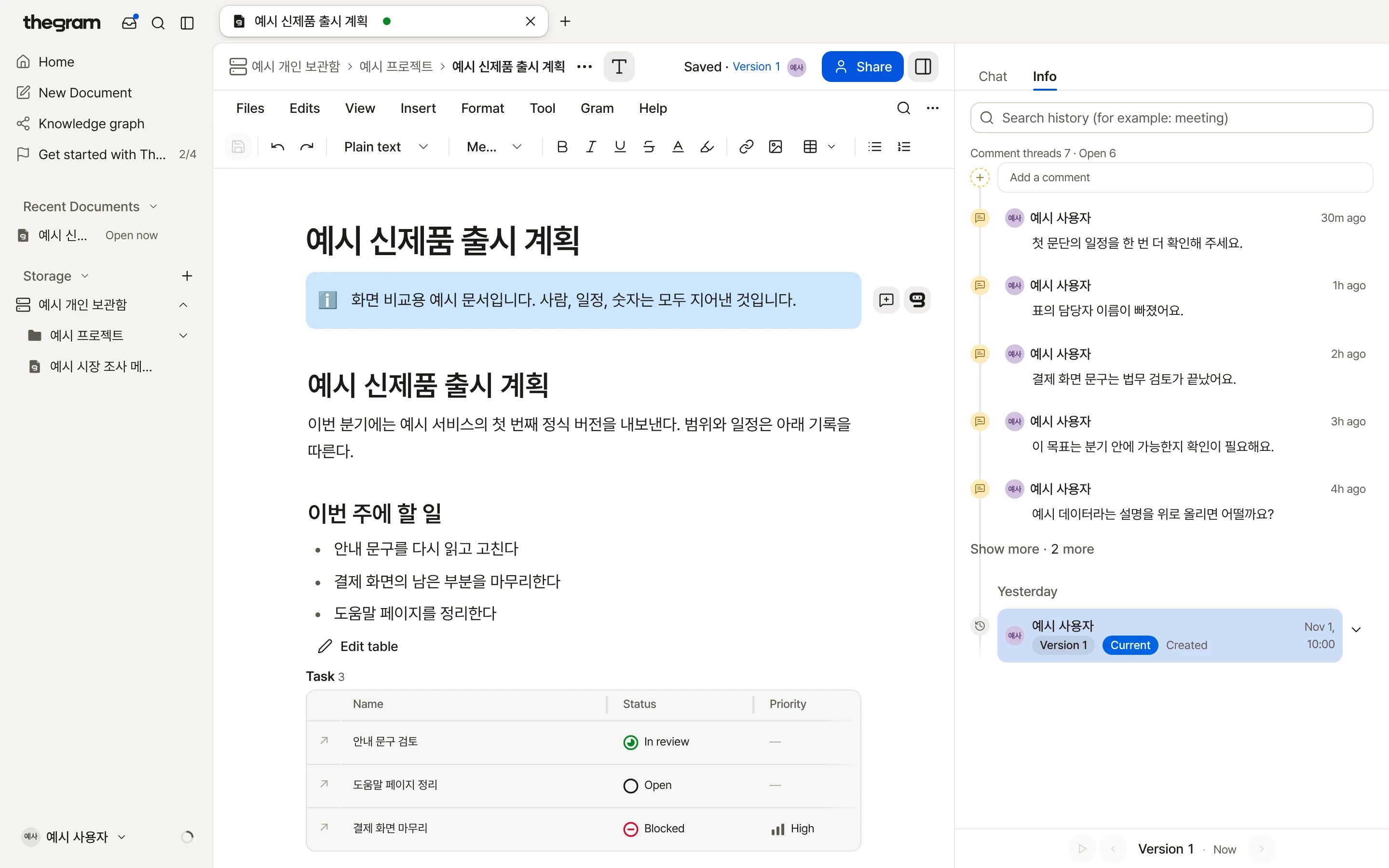
1. Point at the paragraph and select the speech bubble icon on its right.
2. Write the comment. Type `@` and choose a name to call that person.
Comments collect in the Info tab on the right. The number of threads and of open ones is shown at the top.
- The person you called gets a notice in their [Inbox](/use/home/#inbox). If they cannot read the document, the screen tells you.
- Comments are kept apart from the document's content. They are not shown on a document you made public by link.
## How you know it worked {#done}
- The top of the document reads "Saved · Version 1" or similar.
- The document appears in the storage list and under **Recent Documents** in the left menu.
## If you are stuck {#help}
- **I can't type.** A document where your role is Viewer is read-only. You also cannot edit while reading an earlier version: select **Return to Now** at the bottom right to come back to the current document.
- **Someone else edited the same place.** Follow the screen to compare your edit with the latest content, then save. Your edit is kept in this browser.
- **Some features are missing in a Word or Hangul document.** The tools depend on the file format. To use records and versions fully, use the Gram format.
Next chapter: [Keep records](/use/records/)