---
title: Create an organization and invite members
description: Create an organization for your team, invite members, and set the default access of organization storages.
url: https://docs.thegram.one/team/organization/
lang: en
tier: current
---
# Create an organization and invite members
In this chapter: create your team's organization and invite teammates. With an organization you do not invite people again for each storage.
## What an organization is {#what}
An organization is a space a team shares. Storages in your personal space are yours; storages in an organization belong to the organization.
- Members use organization storages as far as **each storage's default access** allows.
- When someone leaves the organization, the documents in organization storages stay with the organization.
- Organization owners and admins set the [AI policy](/team/ai-policy/) in one place.
You need the Pro plan to create or join an organization and to read and write what is in it. You can stay a member of an organization you were invited to. [Plan and usage](/manage/plan/)
## Create an organization {#create}
1. Select your name at the bottom left, then the space name at the top of the menu.
2. Select **New Organization** and enter its name.
Whoever creates it becomes the **Organization owner**.
## Invite members {#invite}
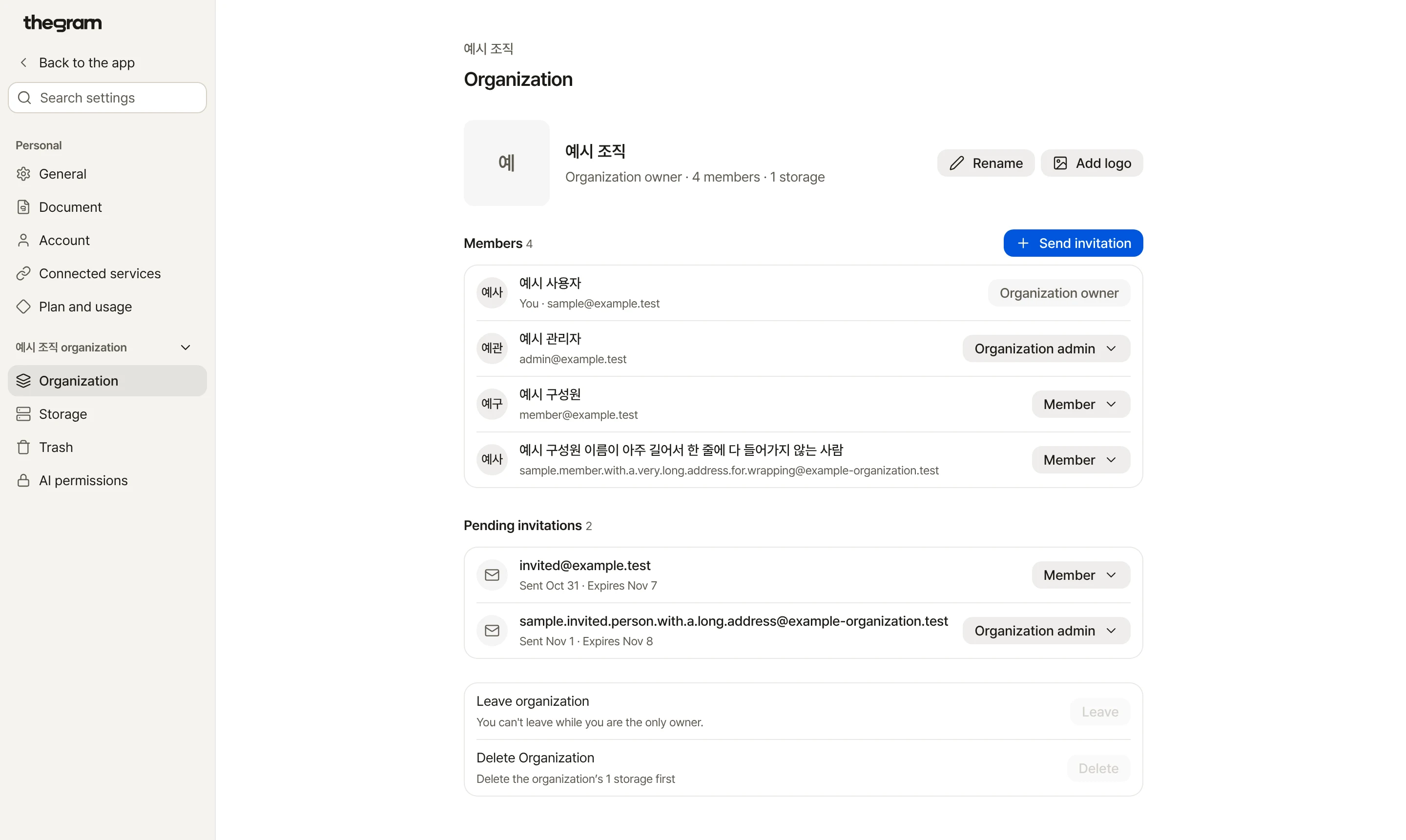
1. Open **Settings**, select the arrow next to the space name on the left and choose the organization.
2. Select **Organization**, then **Send invitation**.
Settings › Organization. Members and pending invitations are on one screen.
3. Enter an email and choose **Member** or **Organization admin**.
4. Select **Send invitation**.
The invitation appears under **Pending invitations** with its expiry date. When the person accepts, they move to **Members**.
## Organization roles {#roles}
| Role | Can do |
| --- | --- |
| **Organization owner** | Everything, including deleting the organization |
| **Organization admin** | Add and remove members, change the organization's name, logo and policy, and create organization storages |
| **Member** | Use organization storages as far as each storage's default access allows |
An organization role is separate from the role set on each storage (Editor, Viewer). A member can be an Editor in one storage and a Viewer in another.
## Set access to an organization storage {#vaults}
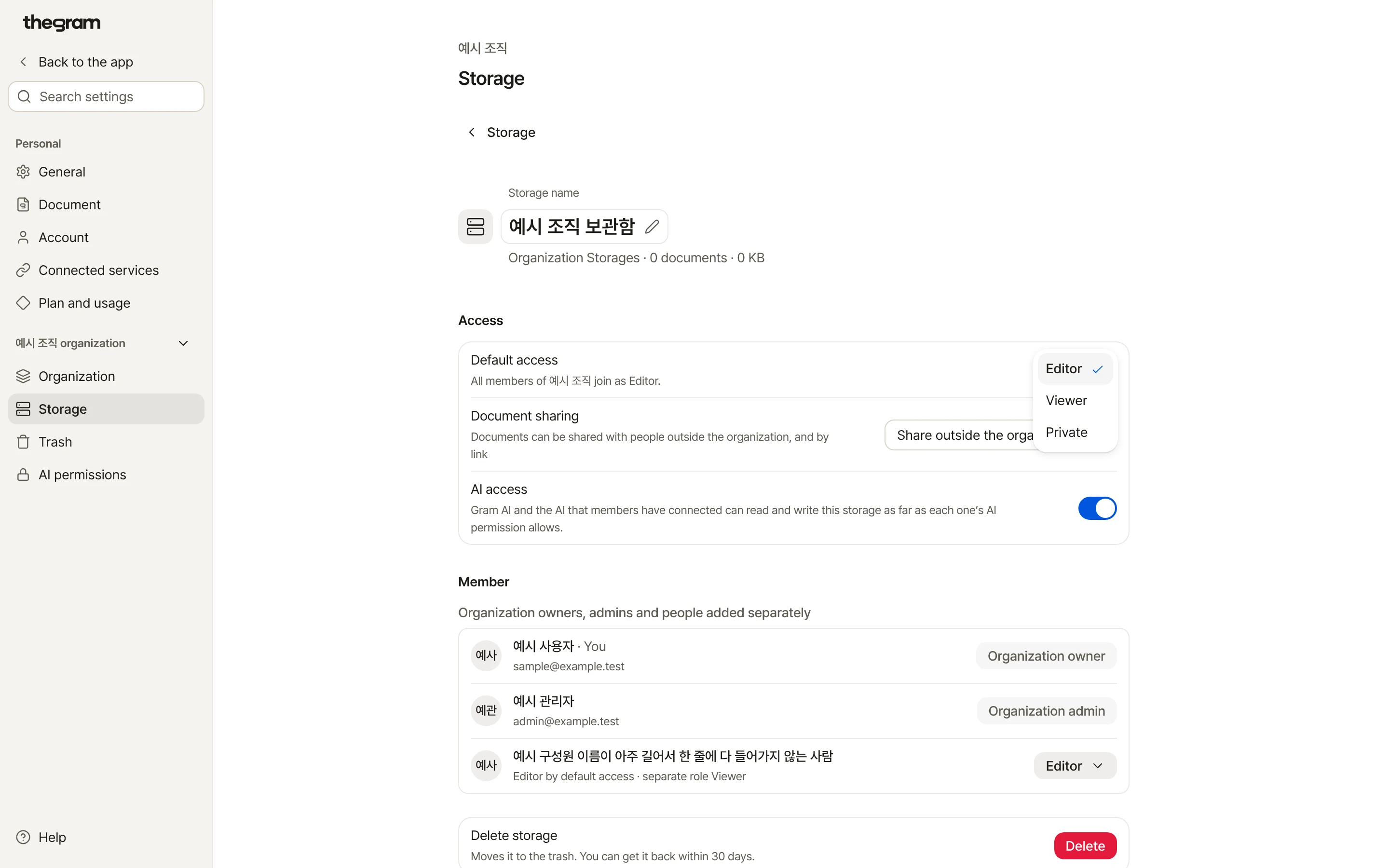
Organization owners and admins create organization storages. Afterwards, select the storage under **Settings › Storage** to set three things.
The settings of one organization storage.
| Setting | Values | Meaning |
| --- | --- | --- |
| **Default access** | Editor, Viewer, Private | The role every organization member has in this storage. With **Private**, only organization owners, admins and people added separately get in |
| **Document sharing** | Share outside the organization, Share within the organization, No sharing | How far documents in this storage can be shared |
| **AI access** | On, off | When on, Gram AI and the AI that members have connected can read and write this storage as far as each one's AI permission allows |
- The storage's admins can change the default access. Organization owners and admins can change document sharing and AI access.
- To set one person differently, give them their own role under **Member** below.
For sensitive storages (HR, contracts), start with **Default access** set to **Private** and **AI access** off.
## Leave or delete the organization {#leave}
Both are at the bottom of **Settings › Organization**.
- **Leave organization**: you can't leave while you are the only owner.
- **Delete Organization**: not possible while organization storages remain. Delete the storages first.
## If you are stuck {#help}
- **New Organization does not work.** Check that you are on the Pro plan. There is also a limit on how many organizations you can create.
- **An organization storage is missing.** Its default access may be **Private**. Ask an organization admin to add you as a member of it.
- **I joined, but the content does not open.** You remain a member, but you need your own Pro to read and write what is in the organization.
- **I can only read in an organization storage.** Its default access is Viewer. Ask the storage admin to make you an Editor.
Next chapter: [Set the organization's AI policy](/team/ai-policy/)