---
title: 1. Create a storage
description: Create the first storage for your documents and records. You only choose a name.
url: https://docs.thegram.one/start/vault/
lang: en
tier: current
---
# 1. Create a storage
In this chapter: create your first storage. You only choose a name.
## What a storage is {#what}
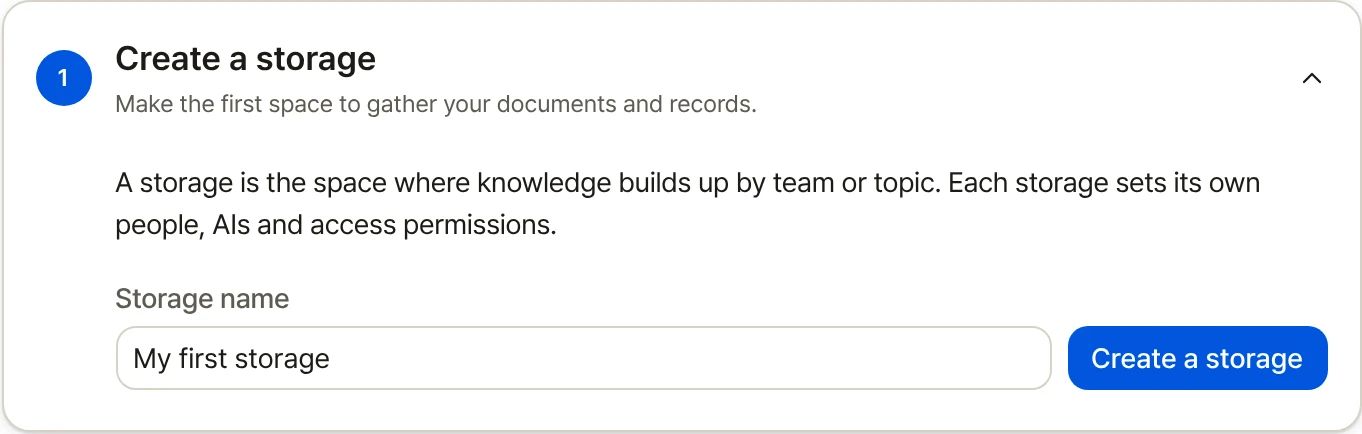
A storage is the space where knowledge builds up by team or topic. Each storage sets its own people, AIs and access permissions.
If you split your work into storages such as "Our team", "Investing notes" and "House contract", you decide for each one which AI may read it and which may write to it. Start with one and add more when you need them.
## Steps {#steps}
1. Sign in at [Thegram](https://vault.thegram.one/). On your first sign-in, Home opens **Get started with Thegram**. If you do not see it, select **Get started with Thegram** in the left menu.
2. In **1 Create a storage**, look at the **Storage name** field. It already says "My first storage". Keep it, or change it to the name of a team or a topic.
3. Select **Create a storage**.
Check the name and select Create a storage.
## How you know it worked {#done}
- Step 1 shows **Done** on the right, and the line under its title reads "Storage ‘My first storage’ is ready".
- The new storage appears under **Storage** in the left menu.
## If you are stuck {#help}
- **The Create a storage button does not respond.** The button is off while the name is empty. Enter a name.
- **A `/` in the name became `-`.** A storage name cannot contain `/` or `\`, so they are saved as `-`.
- **You see "Could not create storage".** Try again in a moment. If it keeps happening, write to support@thegram.one.
## Create another storage {#more}
You can create one at any time outside the guide.
1. Select **+** (New Storage) next to **Storage** in the left menu.
2. Enter a name and select **Create**.
3. When asked "Let AI use this storage?", choose one of the four values below under **All connected AI**. To choose a different value for each AI, open **Set it per AI**.
4. Select **Save**. If you select **Skip**, no AI can see this storage. You can change this later in **Settings › AI permissions**.
| Value | Meaning |
| --- | --- |
| None | No AI can see this storage |
| Read | AI can only view documents |
| Edit | AI can create and change documents |
| All | AI can also delete documents |
For an AI to write what you talked about into the storage, it needs **Edit**. You check this in the next chapter while you connect your AI.
Next chapter: [2. Connect the AI you use](/start/connect/)