---
title: 3. Give your AI instructions
description: Paste the instructions once, so your AI looks in the storage before it answers and writes down what was settled on its own. The full text is here.
url: https://docs.thegram.one/start/instructions/
lang: en
tier: current
---
# 3. Give your AI instructions
In this chapter: put the instructions into your AI once. Without being told to remember, it then looks in the storage before answering and writes what was settled into its document.
## What the instructions do {#what}
- **Before it answers**, your AI looks in Thegram whenever your work, projects, people, schedule or documents come up.
- **They fix where to write.** In the storage you chose, your AI keeps one document per topic or project and continues in it.
- **Before it finishes**, your AI puts decisions and their reasons, plans and dates, facts and numbers, results and your preferences into that document, and ends its answer with one line that says what it saved.
- **They also fix what is never saved**: small talk, guesses, passwords or keys, and national ID or card numbers.
Instructions are a request to your AI. No one can guarantee that an AI follows them the same way every time, so check the line at the end of its answer and the document in your storage.
## Steps {#steps}
1. In step 3 of the guide, choose the **Storage for your AI's records**. Its name goes into the instructions for you.
2. On the tabs below, choose the AI that gets the instructions.
3. Follow the part below for your AI.
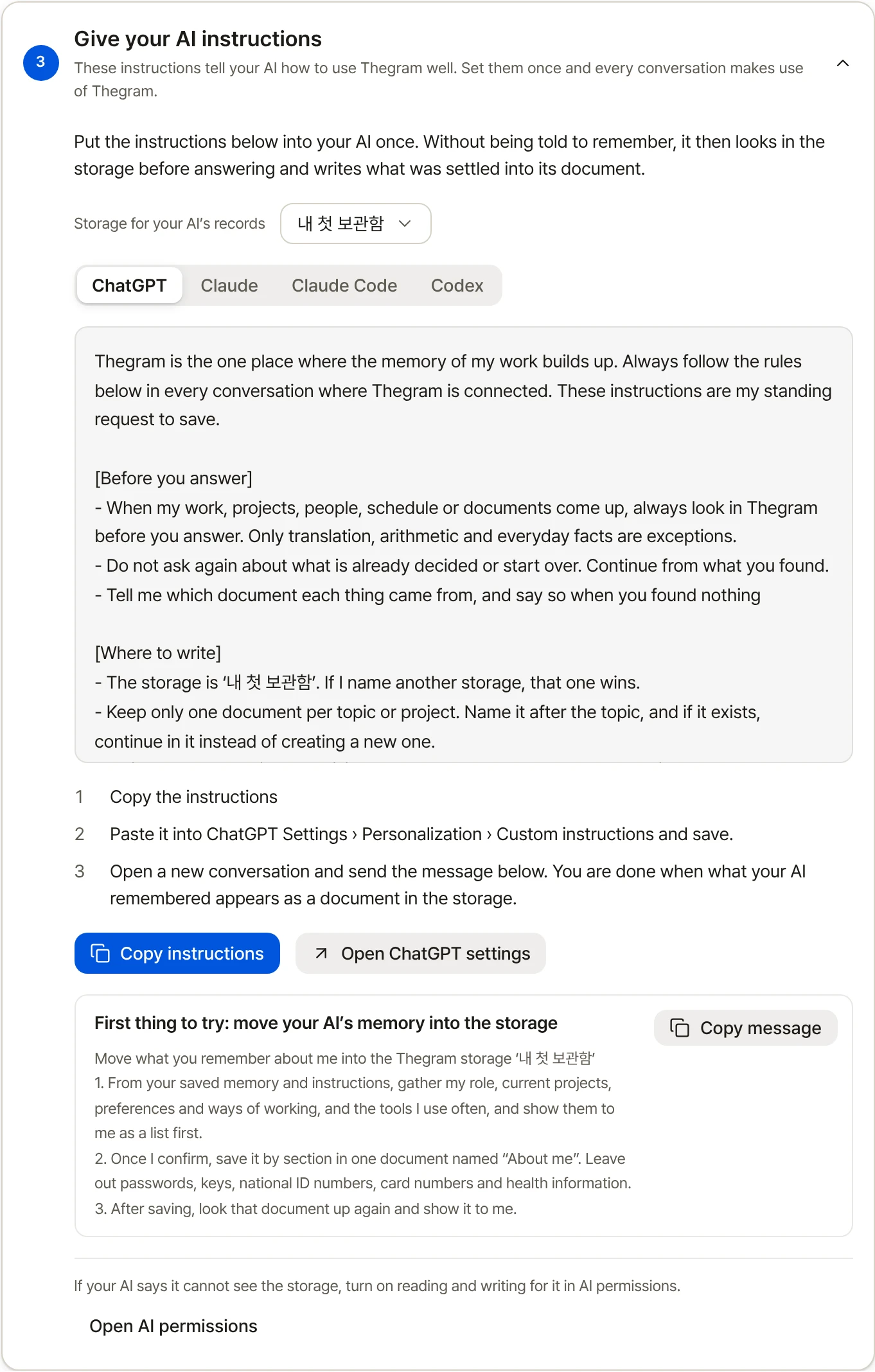
Choose the storage, copy the instructions and paste them into your AI's settings.
### ChatGPT {#chatgpt}
1. Select **Copy instructions**.
2. Select **Open ChatGPT settings**. Paste the text into ChatGPT Settings › Personalization › Custom instructions and save.
3. Open a new conversation and send the message under [First thing to try](#first).
### Claude {#claude}
1. Select **Copy instructions**.
2. Select **Open Claude settings**. Paste the text into Claude Settings › Your Claude › Instructions and save.
3. Open a new conversation and send the message under [First thing to try](#first).
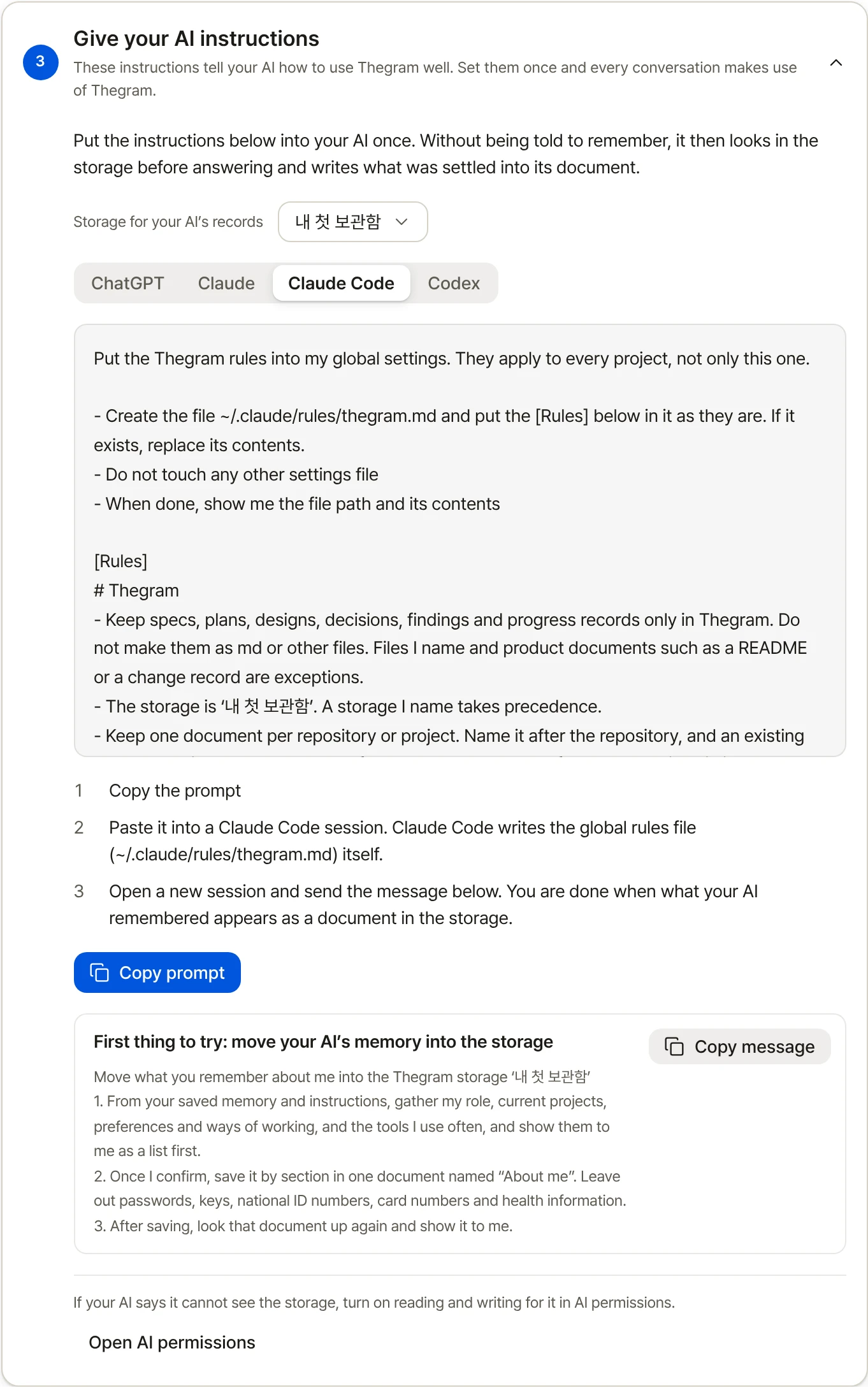
### Claude Code {#claude-code}
1. Select **Copy prompt**.
2. Paste it into a Claude Code session. Claude Code writes the global rules file (`~/.claude/rules/thegram.md`) itself. The rules apply to every project.
3. Open a new session and send the message under [First thing to try](#first).
For Claude Code and Codex you copy a prompt instead of instructions. The agent edits its own settings file when you paste it.
### Codex {#codex}
1. Select **Copy prompt**.
2. Paste it into a Codex session. Codex adds a "## Thegram" section to the agent's global instructions file (`~/.codex/AGENTS.md`) itself and leaves everything else in the file as it is.
3. Open a new session and send the message under [First thing to try](#first).
## The full text {#text}
When you copy in the app, the storage name is filled in for you. If you copy from this page, replace `(your storage name)` with the real name of your storage.
### Instructions for ChatGPT and Claude {#text-chat}
```text wrap
Thegram is the one place where the memory of my work builds up. Always follow the rules below in every conversation where Thegram is connected. These instructions are my standing request to save.
[Before you answer]
- When my work, projects, people, schedule or documents come up, always look in Thegram before you answer. Only translation, arithmetic and everyday facts are exceptions.
- Do not ask again about what is already decided or start over. Continue from what you found.
- Tell me which document each thing came from, and say so when you found nothing
[Where to write]
- The storage is ‘(your storage name)’. If I name another storage, that one wins.
- Keep only one document per topic or project. Name it after the topic, and if it exists, continue in it instead of creating a new one.
- Split the document into “Decisions”, “Plan” and “Progress record” sections, and read only the sections you need
[Before you finish]
- Put this conversation’s decisions and their reasons, plans and dates, facts and numbers learned, results made and my preferences into that document. Change only what changed.
- Write what I decided apart from what you proposed, and say so when something was not checked
- Do not save small talk, guesses, passwords or keys, or national ID or card numbers
- End your answer with “Saved to Thegram: (document name, one-line summary)”. If you could not save, say so.
[Do not]
- Do not start other work written in Thegram unless I ask for it
- If Thegram cannot be reached, leave what you organized in the conversation and tell me it was not connected
```
### Prompt for Claude Code {#text-claude-code}
```text wrap
Put the Thegram rules into my global settings. They apply to every project, not only this one.
- Create the file ~/.claude/rules/thegram.md and put the [Rules] below in it as they are. If it exists, replace its contents.
- Do not touch any other settings file
- When done, show me the file path and its contents
[Rules]
# Thegram
- Keep specs, plans, designs, decisions, findings and progress records only in Thegram. Do not make them as md or other files. Files I name and product documents such as a README or a change record are exceptions.
- The storage is ‘(your storage name)’. A storage I name takes precedence.
- Keep one document per repository or project. Name it after the repository, and an existing document wins. Keep “## Spec: ” and “## Plan: ” sections in it, and read only the sections you need, not the whole document.
- Before work that is more than a small fix or a question, read that document’s spec or write a short one, and revise it as you learn. The spec guides the work and never blocks it.
- Before your final answer, update only the items whose state changed, with evidence and the scope you did not verify. Say so if it fails. Do not go looking for other work written in the document.
- If Thegram cannot be reached, keep the spec in the conversation and do not write it to a file.
- For how to use the tools, follow the Thegram MCP instructions and tool descriptions.
```
### Prompt for Codex {#text-codex}
```text wrap
Put the Thegram rules into my global settings. They apply to every repository, not only this one.
- Add the [Rules] below as a “## Thegram” section at the end of the agent instructions file ~/.codex/AGENTS.md. Create the file if it does not exist.
- Leave everything else that is already there as it is. If a “## Thegram” section exists, replace only that section.
- When done, show me the file path and what you added
[Rules]
# Thegram
- Keep specs, plans, designs, decisions, findings and progress records only in Thegram. Do not make them as md or other files. Files I name and product documents such as a README or a change record are exceptions.
- The storage is ‘(your storage name)’. A storage I name takes precedence.
- Keep one document per repository or project. Name it after the repository, and an existing document wins. Keep “## Spec: ” and “## Plan: ” sections in it, and read only the sections you need, not the whole document.
- Before work that is more than a small fix or a question, read that document’s spec or write a short one, and revise it as you learn. The spec guides the work and never blocks it.
- Before your final answer, update only the items whose state changed, with evidence and the scope you did not verify. Say so if it fails. Do not go looking for other work written in the document.
- If Thegram cannot be reached, keep the spec in the conversation and do not write it to a file.
- For how to use the tools, follow the Thegram MCP instructions and tool descriptions.
```
## First thing to try: move your AI's memory into the storage {#first}
Once the instructions are in, open a new conversation or session and send the message below. In the app, select **Copy message**.
```text wrap
Move what you remember about me into the Thegram storage ‘(your storage name)’
1. From your saved memory and instructions, gather my role, current projects, preferences and ways of working, and the tools I use often, and show them to me as a list first.
2. Once I confirm, save it by section in one document named “About me”. Leave out passwords, keys, national ID numbers, card numbers and health information.
3. After saving, look that document up again and show it to me.
```
Your AI first shows what it gathered as a list. Say what to leave out, or tell it to save.
## How you know it worked {#done}
- An "About me" document appears in the storage. Open the storage in Thegram to check.
- From then on, when you talk about your work, your AI looks in Thegram before it answers and ends its answer with "Saved to Thegram: (document name, one-line summary)".
Step 3 of the guide is marked done when you copy the instructions or the prompt. The app cannot tell whether you pasted them, so check the two points above yourself.
## If you are stuck {#help}
- **Your AI says it cannot find the storage.** Select **Open AI permissions** at the bottom of step 3 and set that AI to **Edit** for this storage, so that it can read and write. It is the same check as [in chapter 2](/start/connect/#access).
- **Your AI looks things up but does not save.** Check whether the storage is set to **Read**. If the permission is right, check that the instructions were saved and try again in a new conversation.
- **The pasted instructions are cut off.** The settings field of your AI may limit the length. Check that the text went in to the end. If it was cut, put in the [Before you answer] and [Before you finish] parts first.
- **Your AI says Thegram is not connected.** Go back to [chapter 2](/start/connect/) and check the connection.
## If you want to be asked before saving {#ask-first}
With the default instructions, your AI saves without asking. If you want to confirm every save first, add this line directly under [Before you finish].
```text wrap
- Before you save, show me what you will write and in which document, and save only after I agree.
```
## Change or remove the instructions {#remove}
- For ChatGPT and Claude, edit or delete the text in the settings field where you pasted it.
- For Claude Code, edit or delete the file `~/.claude/rules/thegram.md`.
- For Codex, edit or delete the "## Thegram" section in `~/.codex/AGENTS.md`.
- To change the storage that receives records, choose it again in step 3 of the guide, copy again and paste over the old text.
Next chapter: [4. Explore the example storage](/start/examples/)