---
title: 4. Explore the example storage
description: Open real documents in the example storage and learn to read the original, find records and compare earlier versions. It takes about three minutes and you can skip it.
url: https://docs.thegram.one/start/examples/
lang: en
tier: current
---
# 4. Explore the example storage
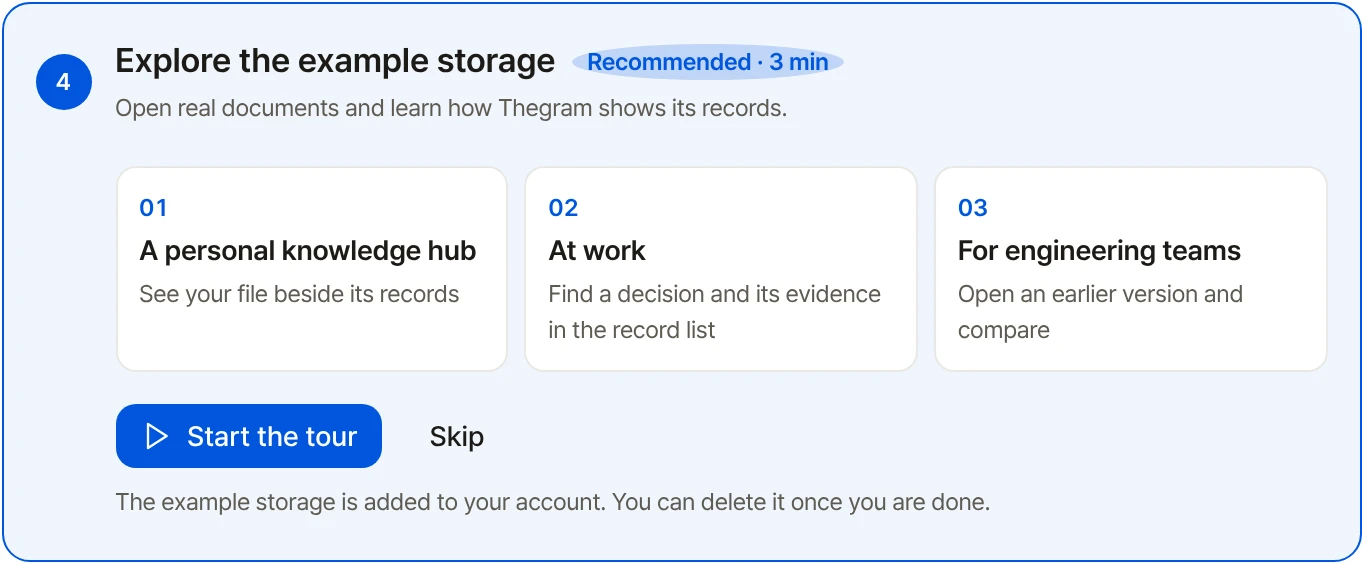
In this chapter: tour the example storage and try reading an original, finding records and comparing an earlier version yourself. It takes about three minutes, and you can skip it.
## The three examples {#examples}
| Example | What you try | What it contains |
| --- | --- | --- |
| 01 A personal knowledge hub | See your file beside its records | Research one person gathered to decide whether to buy 20 more shares of a stock they hold |
| 02 At work | Find a decision and its evidence in the record list | The annual journal of Yeobaek, a team that considered opening a second location |
| 03 For engineering teams | Open an earlier version and compare | Review notes from a fictional engineering team that revised the acceptance criteria of one spec several times |
Every company and number in the examples is fictional.
## Steps {#steps}
1. In step 4 of the guide, **Explore the example storage**, select **Start the tour**.
When you select Start the tour, the example storage is added to your account.
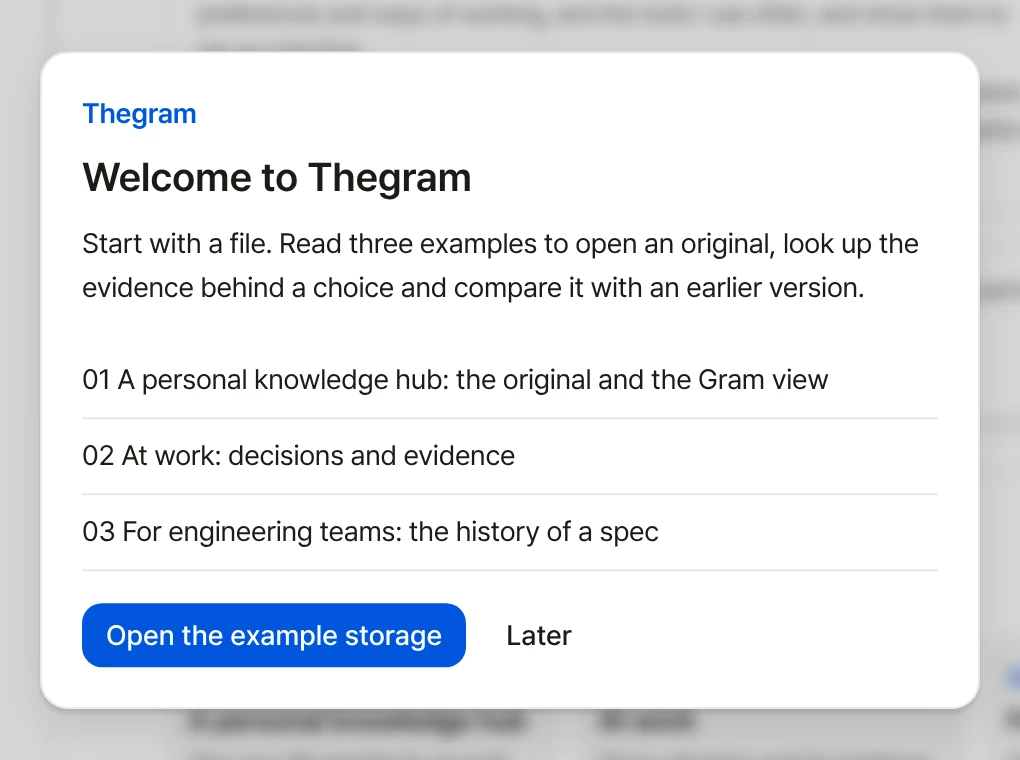
2. The "Welcome to Thegram" sheet opens and prepares the example documents. When they are ready, select **Open the example storage**.
The Open the example storage button turns on when the example documents are ready.
3. Select each place the tour points to. The tour continues in order.
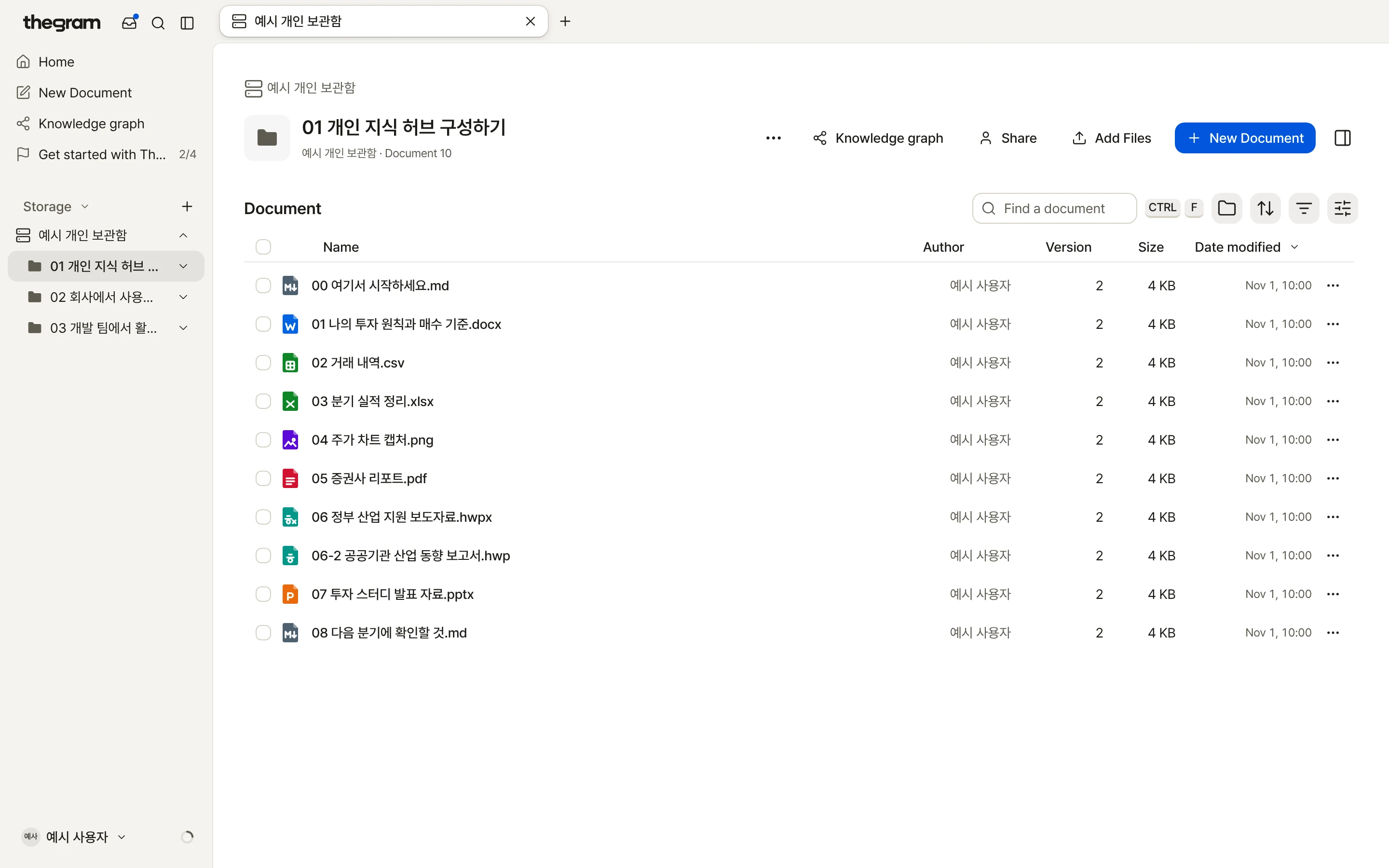
The first example folder. Each example has its own folder. The real example storage is named "Start Thegram".
### 01 A personal knowledge hub {#example-1}
- Open the research folder, then open the government press release, an HWPX file.
- Read the same document in two views, **Original** and **Gram**. The original shows the layout as it was released. The Gram view shows the text and the records drawn from it.
- Check the answer to "Should you buy more?". The answer is "Not yet". The press release is a call for applicants, so no company has been selected, and operating margin is 9%, below the 12% threshold.
### 02 At work {#example-2}
- Open Yeobaek's annual journal.
- Select the **Records** list below the text. You can read decisions, goals and observed values apart from each other.
- Think about what you would check first in your role. You can also ask your connected AI: “Show only confirmed decisions and the evidence for each.”
### 03 For engineering teams {#example-3}
- Open the Codex review notes.
- Select the save status to see which version you are reading and who changed it.
- Open **History**, choose a version before the current one and read the text as it was then. Reading does not change the current document.
At the end, select **Finish the tour**.
## How you know it worked {#done}
- Step 4 of the guide shows **Done** and reads "Tour finished. The examples stay in your storage."
- The example storage "Start Thegram" stays in the storage list in the left menu. You can delete it when you are done.
- If all four steps are done, the top of the guide shows "You are all set". Select **Back to Home**.
## Skip it or see it again {#skip}
- To leave it for now, select **Skip**. Step 4 is marked **Skipped**.
- If you select **Later** during the tour, the tour closes.
- To see it again, open **Settings › Help** and select **Replay the tour** under **Explore the example storage**. Examples you deleted are restored, and documents you changed are left as they are.
## If you are stuck {#help}
- **You see "Could not prepare the example storage".** Select **Retry**. If it keeps happening, write to support@thegram.one.
## What to do next {#next}
You have finished all four steps. You and the AIs you use now share the same knowledge!
- Add your own files. In a storage, create a new document or drop in files such as HWP, PDF or DOCX.
- Work with your connected AI as usual. Check that its answers end with "Saved to Thegram" and that documents build up in your storage.
- For more, choose from the table in [Get started with Thegram](/start/#next).