---
title: Trash and export
description: Bring back deleted documents and storages within 30 days, and download a document or a whole storage as files.
url: https://docs.thegram.one/manage/trash-export/
lang: en
tier: current
---
# Trash and export
In this chapter: bring back what you deleted, and download your material as files.
## Bring back what you deleted {#trash}
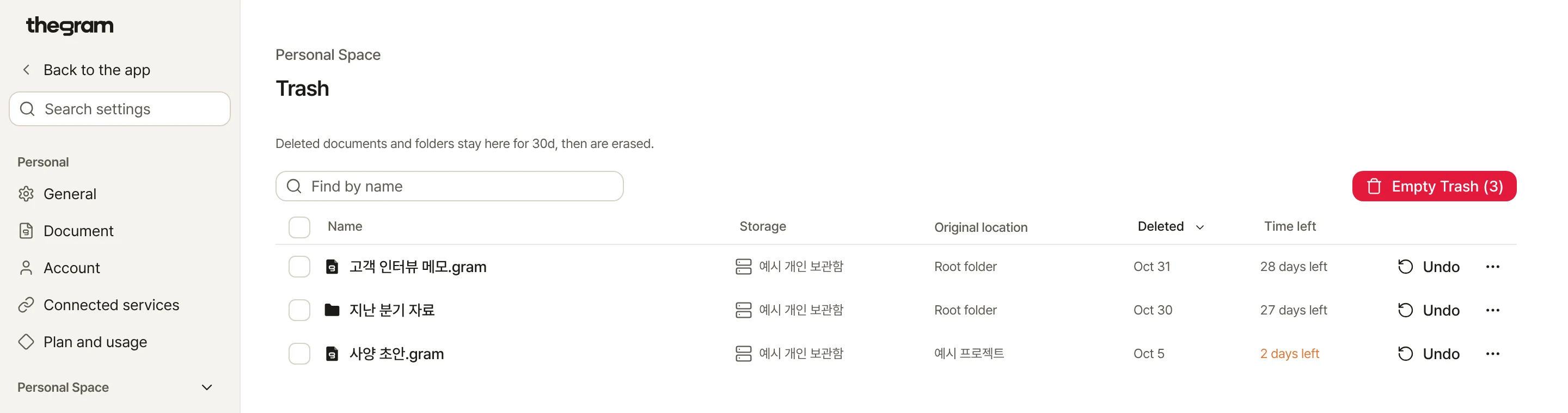
Deleted documents, folders and storages stay in the trash for 30 days and are then erased.
1. Select your name at the bottom left, then **Settings**.
2. Select **Trash**. For an organization's trash, first choose the organization with the arrow next to the space name on the left.
3. Select **Undo** on the right of the item to bring back.
Items with little time left are marked in color.
- After the **Time left** runs out, an item cannot be brought back.
- An item returns to its **Original location**.
- **Empty Trash** erases everything in the trash at once and cannot be undone. Check the list before you select it.
## Download one document {#doc}
Open the document and choose from the **Files** menu.
| Menu | What you get |
| --- | --- |
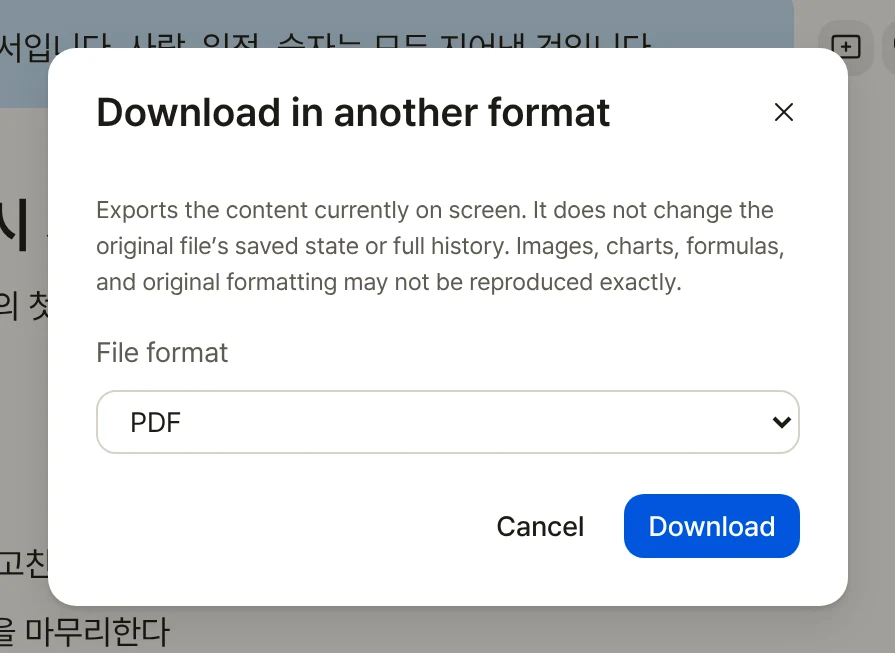
| **Download in another format** | A file converted to another format such as PDF |
| **Download .gram** | The Thegram document as it is, records included |
| **Download ZIP with photos** | A ZIP of the document and the pictures in it |
Choose the file format and select Download.
**Download in another format** exports the content currently on screen in that format. Images, charts, formulas and the original formatting may not be reproduced exactly. If you need the uploaded file's own look, download the original from the Original view.
## Download a whole storage {#vault}
1. In the left menu, select the arrow next to the storage name to open its menu.
2. Select **Export All (ZIP)**.
The storage's documents download as one ZIP file. Use it before deleting a storage or to keep regular copies.
## If you are stuck {#help}
- **The document is not in the trash.** 30 days have passed, or it is in another space's trash. Switch the space and check.
- **You see "The result is over 48 MB".** Split the document and download again.
- **The downloaded file looks different.** Changing the format can change the look. If the look matters, download the original file or the .gram.
Next chapter: [Plan and usage](/manage/plan/)