---
title: Account and security
description: Change your display name, protect the account with two-step sign-in and passkeys, manage signed-in devices, and delete the account.
url: https://docs.thegram.one/manage/account/
lang: en
tier: current
---
# Account and security
In this chapter: make your account safe. Your storages gather the context of your work, so turning on two-step sign-in is recommended.
## Open the screen {#open}
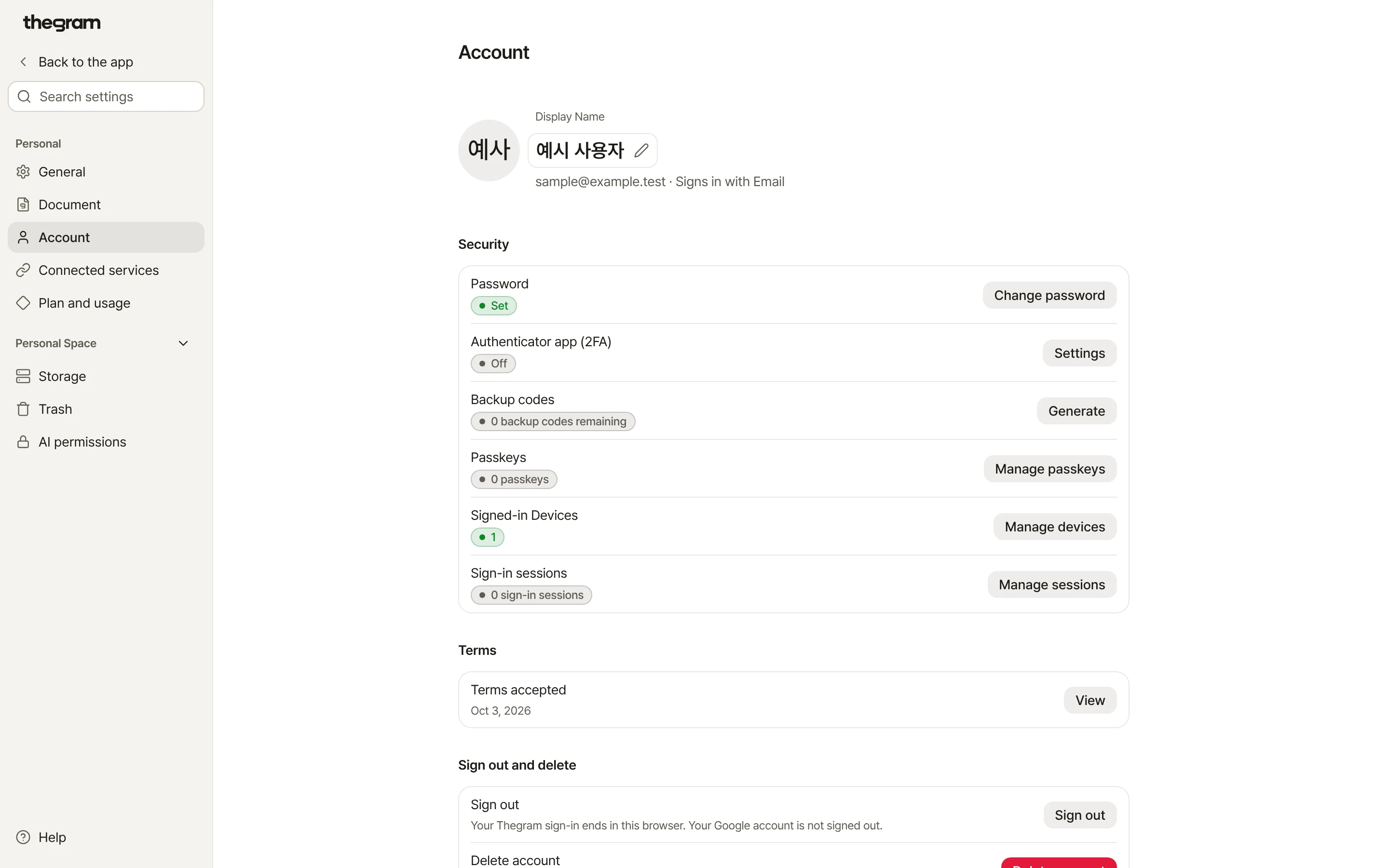
Select your name at the bottom left, then **Settings**, then **Account**.
Settings › Account.
## Change your display name {#name}
Select the pencil next to the name. The display name is the name shown in comments, version history and member lists. Under it are the email you signed in with and the sign-in method.
## Protect the account {#security}
These are under **Security**.
| Line | What it does |
| --- | --- |
| **Password** | Changes your password |
| **Authenticator app (2FA)** | Asks for a code from an authenticator app when you sign in |
| **Backup codes** | Codes to use when you cannot use the authenticator app. Generate them and keep them somewhere safe |
| **Passkeys** | Saves a passkey on this device or in a password manager so you can sign in without a password |
| **Signed-in Devices** | Shows the devices signed in to your account and lets you remove them |
| **Sign-in sessions** | Shows the current sessions and lets you end them |
A suggested order:
1. Select **Settings** on **Authenticator app (2FA)** and turn it on.
2. Select **Generate** on **Backup codes**, then download the codes and keep them. Generating new backup codes makes the old ones stop working.
3. Register a **passkey** on the devices you use often, and give it a name you will recognize.
If you see a device or session you do not know, end it and change your password. Then check [Settings › AI permissions](/access/ai-settings/) for AI connections or API keys you do not recognize.
## Sign out {#signout}
**Sign out** ends your Thegram sign-in in this browser. If you signed in with Google, your Google account is not signed out. To sign out other devices too, use **Sign-in sessions**.
## Delete the account {#delete}
Use **Delete account** at the bottom of the screen.
- While storages remain, the account cannot be deleted. Delete the storages or hand them over first.
- Before deleting, download what you need with [Export All](/manage/trash-export/#vault).
## Help and reporting a problem {#support}
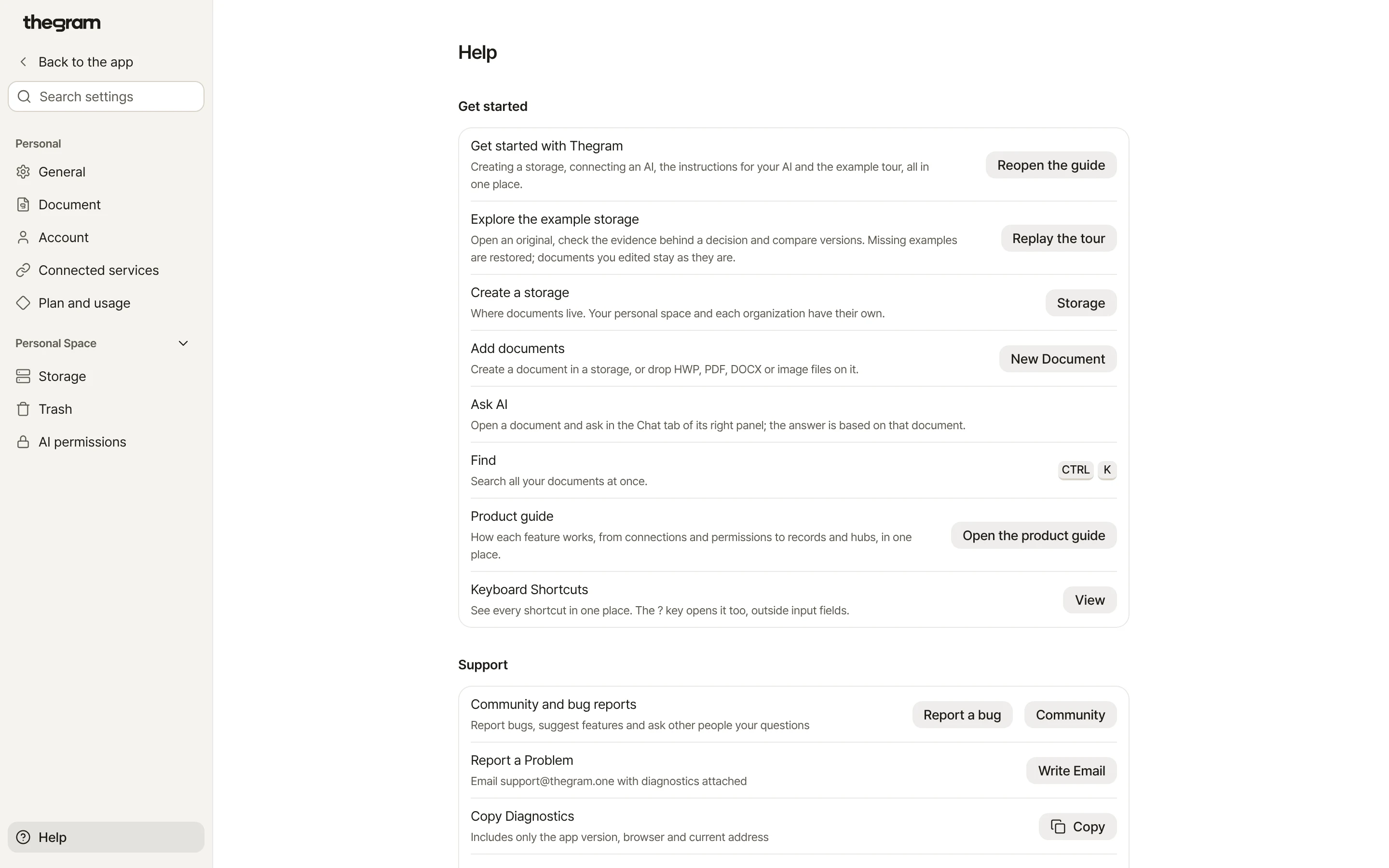
**Settings › Help** gathers the guide, keyboard shortcuts and problem reports.
Settings › Help.
To report a problem, select **Write Email** on **Report a Problem**. An email to support@thegram.one is prepared with diagnostics attached. **Copy Diagnostics** includes only the app version, the browser and the current address.
## If you are stuck {#help}
- **I lost my authenticator app.** Sign in with a backup code and set the authenticator app up again. If you have no backup codes either, write to support@thegram.one.
- **I can't register a passkey.** The browser may not support it. Try a current version of Chrome, Edge or Safari.
Next chapter: [When an AI won't connect](/help/connection/)