---
title: Connect your services
description: Connect work services to Thegram, understand each connector and review accounts, permissions and actions before using them with AI.
url: https://docs.thegram.one/guides/connectors/
lang: en
tier: current
editorial_sources:
- https://vault.thegram.one/v3/settings/connections
- https://thegram.one/install/
---
# Connect your services
Bring the context you already have into Thegram. **Service connectors let Thegram work with another service. AI connections let another AI use Thegram.** They are different directions and do not share one blanket permission.
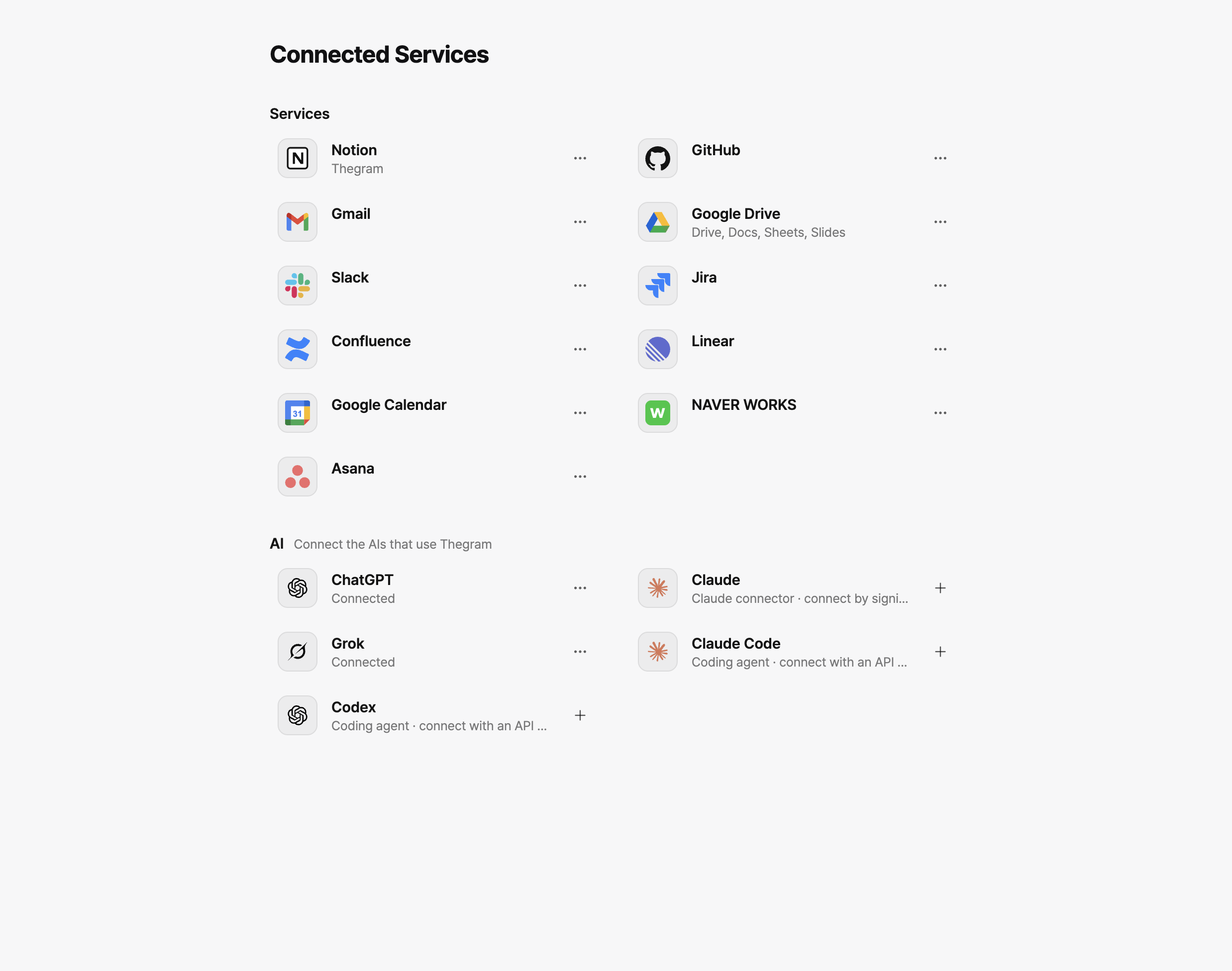
Current web UI, captured 25 October 2026 in the Thegram organization. Account identifiers are masked; connection states are unchanged. Select the image for the high-resolution view. Your available services and accounts can differ.
## Connect one service {#connect}
1. Open Thegram in your browser, select the intended workspace and go to **Settings → Connected Services**.
2. Select a service to read its details. Choose **Connect** only when you are ready to authorize that provider.
3. On the provider’s own site, check the account, organization, requested resources and scopes. Complete sign-in and consent yourself.
4. After returning to Thegram, verify the intended account is shown. A reconnect warning is not a successful connection.
5. Ask a read-only question about something the account already permits. Do not send, create or edit data just to check the connection.
The native app can use connected services, but its connection-management controls can differ. Complete provider authorization in the **web browser**, then return to the app. Never paste provider secrets or a Thegram API key into chat.
## Choose the source you need {#catalog}
The product catalogue includes these services. **Visibility and operations depend on server configuration, provider permissions, your account and plan.** A catalogue entry is not a promise that every workspace has it enabled.
| Service | Context it provides | A useful read-only first request |
| --- | --- | --- |
| **Notion** | Pages and databases shared with the integration | Find this week’s meeting notes and cite the decisions. |
| **GitHub** | Repositories, source, issues and pull requests the account can access | Summarize the open pull requests awaiting my review. |
| **Gmail** | Authorized messages and threads | Summarize recent messages and identify follow-ups without sending mail. |
| **Google Drive** | Files, Google Docs, Sheets and Slides | Find the latest quarterly report and cite the key figures. |
| **Slack** | Permitted channels, threads, files and canvases | Find the deployment discussion and list the decisions with source links. |
| **Microsoft 365** | Authorized Outlook mail, OneDrive/SharePoint files and Teams context | Find the contract draft and summarize its open questions. |
| **Jira** | Issues, projects and issue history on authorized sites | List the remaining issues in the current sprint. |
| **Confluence** | Pages and spaces available to the account | Find the onboarding page and summarize its current steps. |
| **Linear** | Issues, projects and documents | List blocked issues in the current cycle with their reasons. |
| **Google Calendar** | Authorized events and attendees | Summarize tomorrow’s meetings without creating or changing events. |
| **NAVER WORKS** | Authorized boards, mail, calendars and work materials | Summarize the latest board announcements. |
| **Asana** | Authorized projects and tasks | List this week’s deadlines and their owners. |
| **Box** | Authorized files and folders | Find the latest report and cite its source file. |
| **Dropbox** | Authorized files and shared folders | Find the current design file and summarize recent changes. |
### Google Drive is one connection {#drive}
Drive document storage and AI use the **same account connection**, not a second set of credentials. Multiple accounts can be listed separately. An existing app-file-only grant is not silently widened: files outside the provider grant remain inaccessible. Company Drive remains associated with its vault and policy.
### NAVER WORKS and organization setup {#naverworks}
An organization may need its administrator to register the NAVER WORKS application first. Select the intended organization when offered. Use a shared Thegram application only if the interface explicitly offers it and you accept that route. A missing organization application is not fixed by changing to an unrelated account.
## Review before an external change {#review}
Reading and proposing are not execution. Before sending mail, posting a message, changing an issue or creating an event, review the **provider, account, exact target and proposed arguments** in Thegram’s action review. Approve only the action you intend. Provider permissions and organization policy still apply.
If a result is **uncertain**, inspect the external service before trying again. A timeout is not proof that the provider made no change; resending can duplicate an action.
## Manage access and recover {#manage}
- **Connected:** confirm the right account, not just the service name.
- **Reconnect required:** review the warning and sign in again with the intended account.
- **Missing or unavailable service:** ask the workspace/operator administrator about provider configuration. Do not enter an OAuth client secret as an end user.
- **Forbidden:** check the provider’s scopes, plan and administrator consent; Thegram cannot grant access the provider refused.
- **Rate limit:** wait for the provider’s stated recovery; do not repeatedly reconnect.
- **Disconnect:** review which account is being removed. Disconnecting a credential is not a request to delete existing Thegram documents.
Connection alone does not import all source documents. Context used to answer a question may be sent to the selected AI model. Read [permissions](/guides/permissions/) before using sensitive material, or follow [connection troubleshooting](/guides/troubleshooting/).
## Connect an AI to Thegram instead
Use [ChatGPT, Claude or Grok](/guides/cloud-setup/) for OAuth, or [Claude Code, Codex, OpenCode and OMP](/guides/local-setup/) for the coding-agent plugin and a scoped API key.