---
title: Connect ChatGPT, Claude or Grok
description: Choose your AI app, install the appropriate skill, authorize its OAuth connector and verify permitted reads before writing.
url: https://docs.thegram.one/guides/cloud-setup/
lang: en
tier: current
status:
component: ChatGPT/Claude/Grok OAuth connections
deployment: Cloud MCP https://vault.thegram.one/mcp
applies_to_version: Latest
status: GA
last_verified: "2026-10-25"
owner: thegram-one/thegram-plugin
public_evidence:
- https://thegram.one/install/chatgpt.md
- https://github.com/thegram-one/thegram-plugin
rationale: The public setup guide and plugin README document OAuth connections. Provider account installation and consent are performed by the person; a custom connector is not an official directory listing.
historical_source: https://docs.thegram.one/sources/cloud-setup.gram
editorial_sources:
- https://thegram.one/install/chatgpt.md
- https://github.com/thegram-one/thegram-plugin
---
# Connect ChatGPT, Claude or Grok
## Connect the client you use {#h0-1}
[ChatGPT instructions](#h0-6) · [Claude instructions](#h0-8) · [Grok instructions](#grok). These connections use Cloud MCP and OAuth; no running desktop app or coding-agent API key is required.
### Before connecting {#h0-3}
Sign in with your own provider and Thegram accounts. Review the intended vaults, read/write access and organization policy. Complete consent yourself. Connecting a provider is not approval to save unrelated conversation content.
### ChatGPT {#h0-5}
#### Install and connect {#h0-6}
1. [Open the official Thegram plugin page](https://chatgpt.com/plugins/plugin_asdk_app_6acc810ccabc8191acd3f457dc498d43).
2. Select **Install plugin**, then follow ChatGPT’s account-connection prompts.
3. Review access to the intended Thegram resources and complete the provider’s consent flow yourself.
4. Select Thegram from the tools or apps available in your chat or dot.
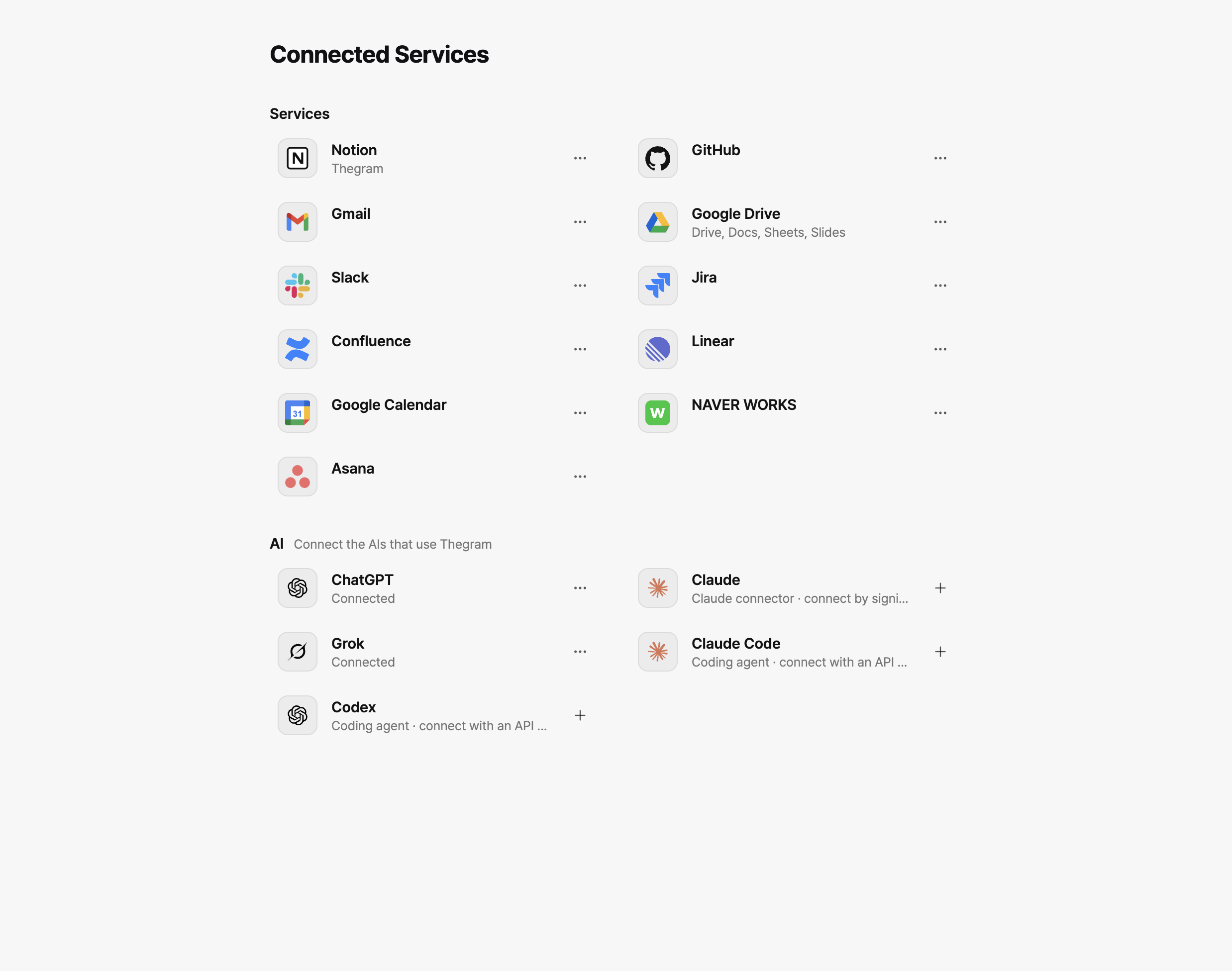
Thegram’s current AI connection section, captured 25 October 2026—not the provider’s consent screen. Identifiers are masked and connection states are unchanged; your account may differ. Open for the high-resolution original.
**Expected:** Thegram is available in the client and an authorized read can see the intended resources. Installation without account connection is not a successful data-access check.
### Claude {#h0-8}
1. Open [Thegram in the Claude Directory](https://claude.ai/directory/thegram) and select **Connect**.
2. Sign in with your own Thegram account. Review the intended vaults and read/write access in **Settings → AI permissions**.
3. Optional: for the memory workflow skill, download the [Claude companion plugin](https://thegram.one/download/latest/thegram-claude.zip) and install `thegram-cloud` in **Customize → Plugins → Add → Upload plugin**. The connector works without it.
4. Start a new conversation and ask for a decision with its source.
If the Directory is not available in your Claude plan or organization, add a custom connector in **Settings → Connectors** with this endpoint and OAuth:
```text
https://vault.thegram.one/mcp
```
The connector supplies MCP tools; the plugin supplies the memory workflow. Installing the plugin alone does not authorize data access. See the [published Claude instructions](https://thegram.one/install/#claude).
**Expected:** the connector is available and an authorized read succeeds. Provider plans and organization policy can restrict custom connectors.
### Grok {#grok}
1. Open [Grok Connectors](https://grok.com/connectors) and choose **New Connector → Custom**. Name it **Thegram**.
2. Set the server URL to `https://vault.thegram.one/mcp`.
3. Use the following public OAuth configuration. Leave **Client secret** empty and select **None (PKCE)** for token authentication.
| Field | Value |
| --- | --- |
| Client ID | `p13ez96egczgttbo5s090` |
| Authorization endpoint | `https://auth.thegram.one/oidc/auth` |
| Token endpoint | `https://auth.thegram.one/oidc/token` |
| Scopes | `openid offline_access` |
4. Choose **Save and connect**, then review your Thegram account and consent yourself.
**Expected:** Grok can read the permitted Thegram context. The public client ID is not a secret or an API key. Follow the [current Grok guide](https://thegram.one/install/#grok) if the provider changes its labels.
### Other OAuth clients {#h0-10}
Use Streamable HTTP at the same endpoint with the client’s own OAuth sign-in. Do not paste a coding-agent API key into an OAuth consent screen. Coding hosts use the [separate API-key guide](/guides/local-setup/).
### Read first {#h0-22}
```text
List the Thegram spaces this connection can access. Read an existing document’s overview and cite its path. Do not create, edit, move, delete or share anything. If nothing is available, report the empty listing or permission error.
```
**Expected:** existing permitted information or a clear empty/denied result. Do not create a vault or document just to test connectivity.
### Permissions and storage {#h0-12}
A connection sees only the resources allowed by its grant, current membership and policy. Local-only files are not uploaded automatically; Drive access is separately authorized. Review AI connections under **Settings → Connected Services**, and resource access under **Settings → AI permissions**. API keys are a separate credential. See [permissions](/guides/permissions/) and [service connectors](/guides/connectors/).
### What the assistant remembers {#h0-15}
Documents use the shared record vocabulary for decisions, tasks, risks and evidence. A connector is the access layer; the assistant and installed skill determine how to retrieve and propose changes. See [workflows](/guides/workflows/).
### Saving is a separate decision {#h0-25}
Approve the exact content and destination before a write. Then read the saved document directly; a search miss while indexing is pending is not proof of a failed save. Never broaden scopes, switch destinations or copy private material simply to get a positive setup result.
### If you are blocked {#h0-32}
Use [connection troubleshooting](/guides/troubleshooting/) for sign-in, missing tools, permissions and empty results. These instructions describe the public connection path, not a provider-account installation performed on your behalf.