---
title: Run an AX program
description: Set up an organization, keep goals, decisions, risks and metrics as records, give AI scoped access and follow progress and changes from the home.
url: https://docs.thegram.one/guides/ax/
lang: en
tier: current
editorial_sources:
- https://vault.thegram.one/
- https://thegram.one/
---
# Run an AX program
An AI transformation (AX) program works when people and AI read and update the same facts. In Thegram that means an organization with vaults, documents whose goals, decisions, risks and metrics are typed records, AI access you set per vault, and a home that shows what changed. The screens below come from a demo organization, Northstar Industries, with fictional data.
## 1. Create an organization and vaults {#organization}
Open the account menu at the bottom of the sidebar, select your space and choose **New Organization**. In the organization’s **Storage** settings, create the vaults the pilot needs—for example, an AX program vault and a company knowledge base. For each vault choose whether the whole organization can enter and the default role members get.
Start with one team. Put its rules, decisions and working knowledge into a vault: write in the editor, upload files, or ask Thegram AI to organize what you give it into records.
## 2. Keep the program as records {#records}
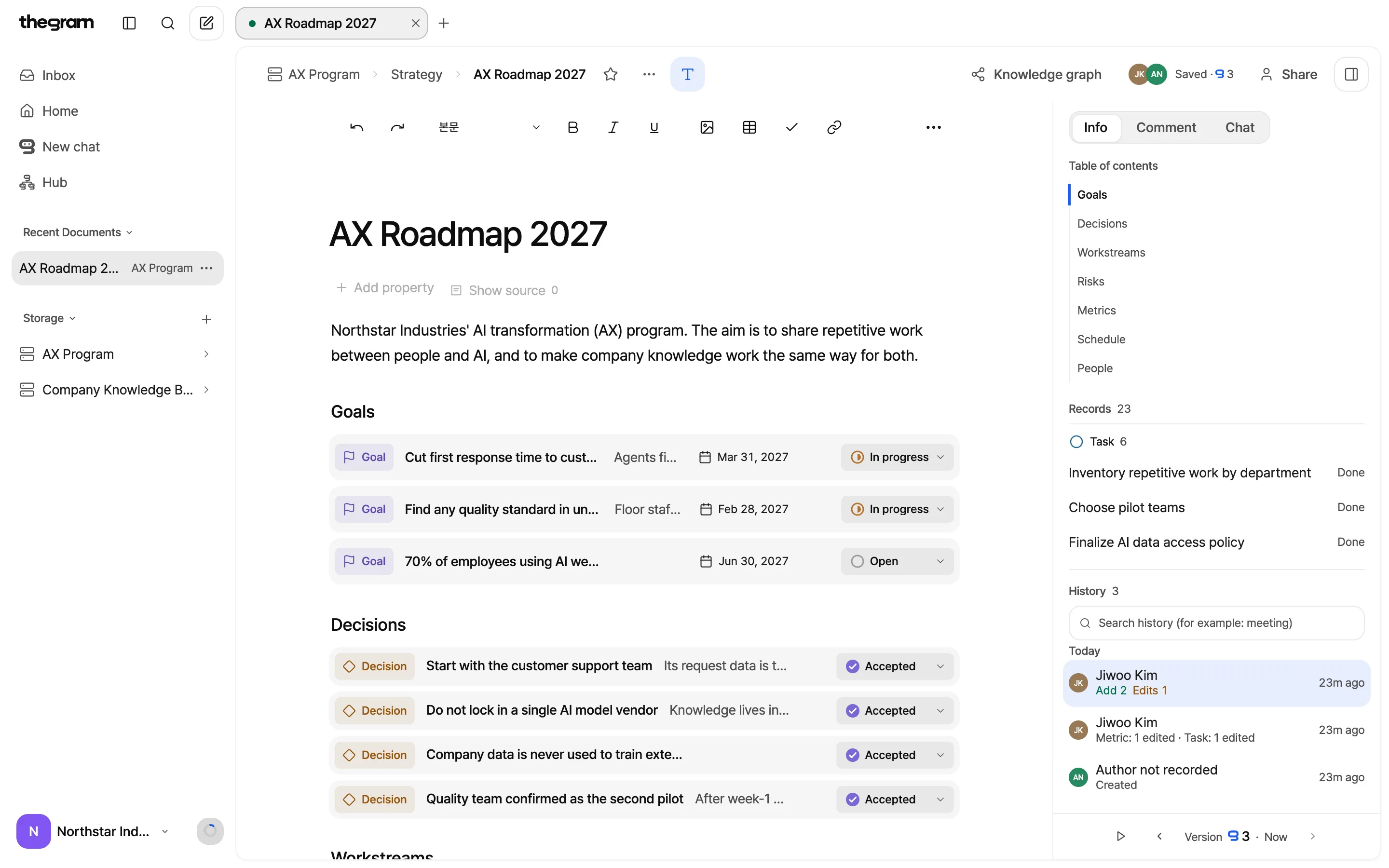
Write the program as a document with typed records instead of a slide deck: **goals** with owners and due dates, **tasks** with status, **decisions** with their reasons, **risks** with priority and status, **metrics** with value, unit and observation date, **events** and **people**. Link them with relations such as supports, depends on and blocks. See [records and fields](/reference/records-guide/) and [relations](/reference/relations-guide/).
A roadmap document: goals and decisions with their status, and the revisions on the right.
Every write—by a person or an authorized AI—is a new revision with its author and time, so a superseded decision or a mitigated risk keeps its earlier state.
## 3. Give AI scoped access {#ai-access}
New organization vaults start with agent access off. Before Thegram AI or another AI can use them, an organization admin sets two things:
- **Settings → AI permissions → Highest Access for Members’ Agents:** none, read, edit or all. This is the ceiling for every member’s agent in the organization.
- The **agent switch** on each vault in the organization’s **Storage** settings. When it is off, no agent can access that vault.
If the message box in **New chat** cannot be used in an organization, check these two settings first.
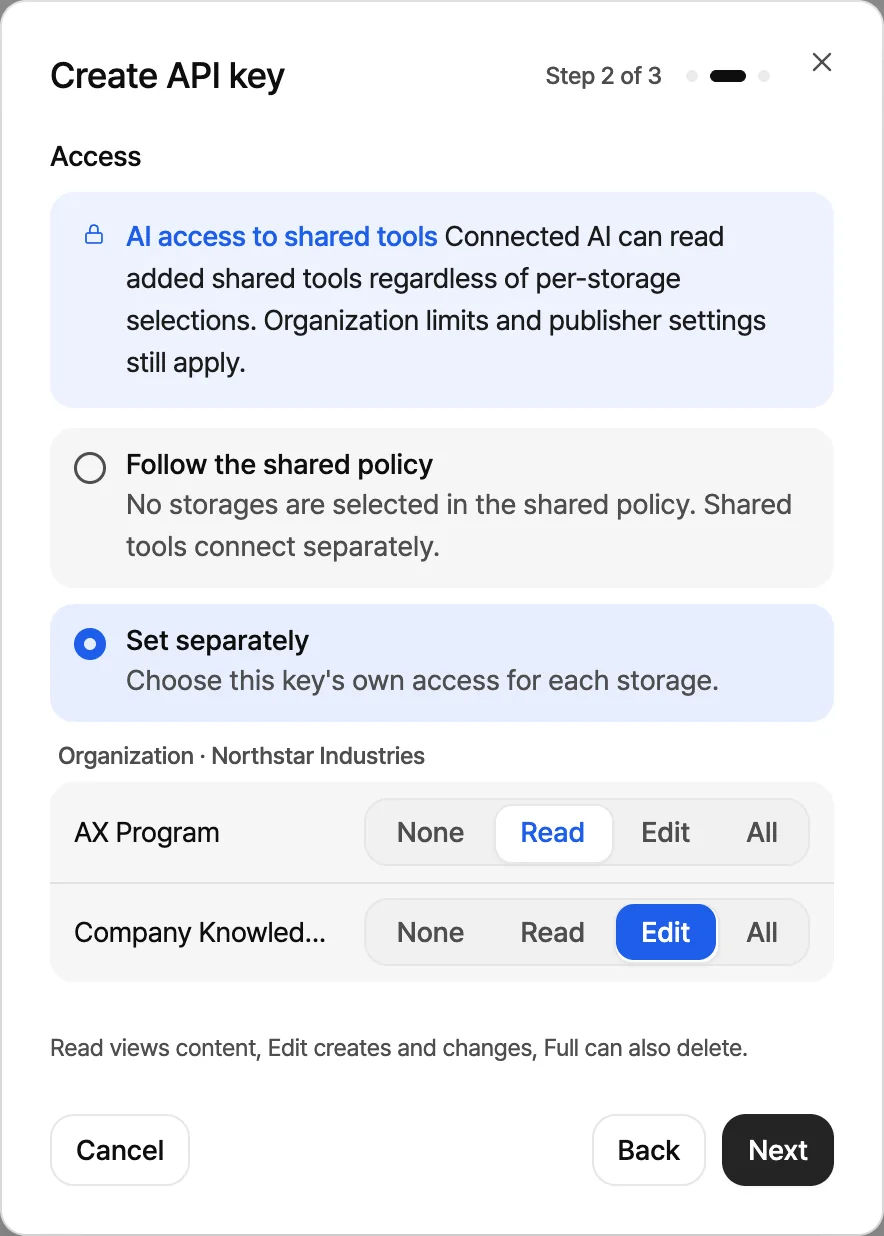
For a coding agent or another service, create an API key and choose **Set separately** to give it access per vault. See [Your permissions](/guides/permissions/).
A key with read access to one vault and edit access to another.
## 4. Follow progress from the home {#home}
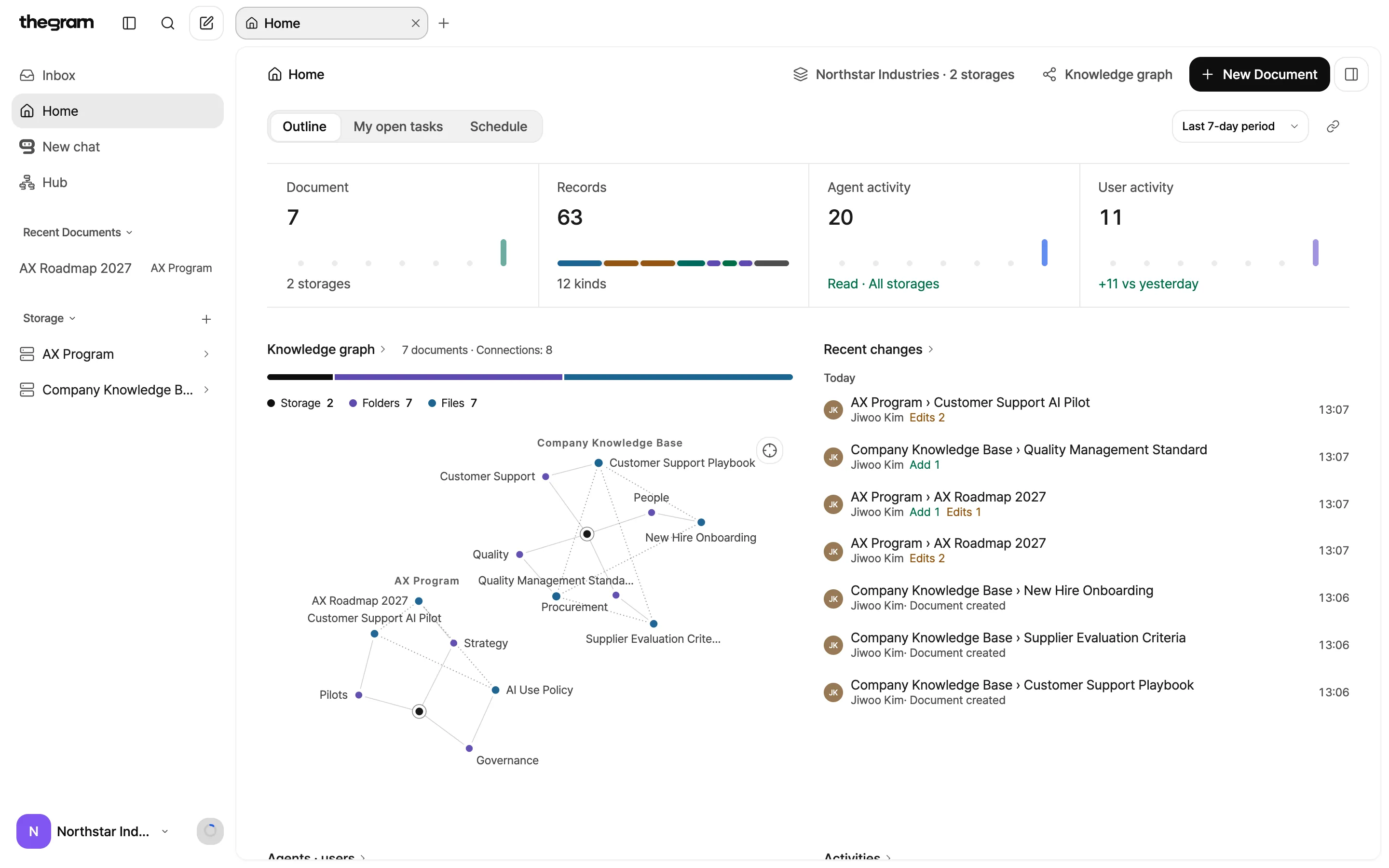
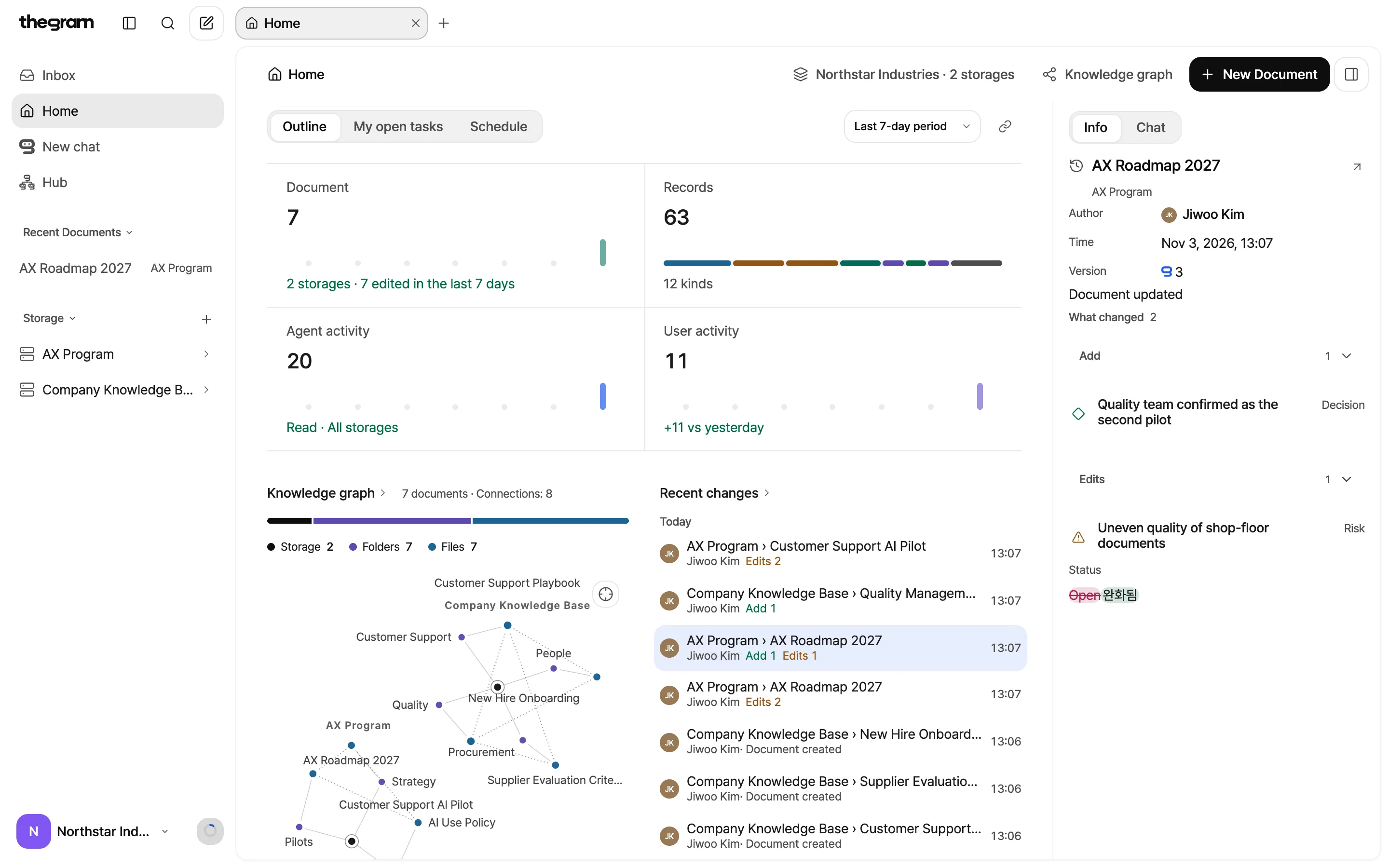
**Home** rolls up the selected scope: documents, records by kind, agent and user activity, a knowledge graph and recent changes. The **My open tasks** and **Schedule** tabs show work and dates across vaults. Select a change to see what was added and what moved.
The organization home.A selected change: one decision added, one risk moved from open to mitigated.
## 5. Ask, measure and expand {#ask}
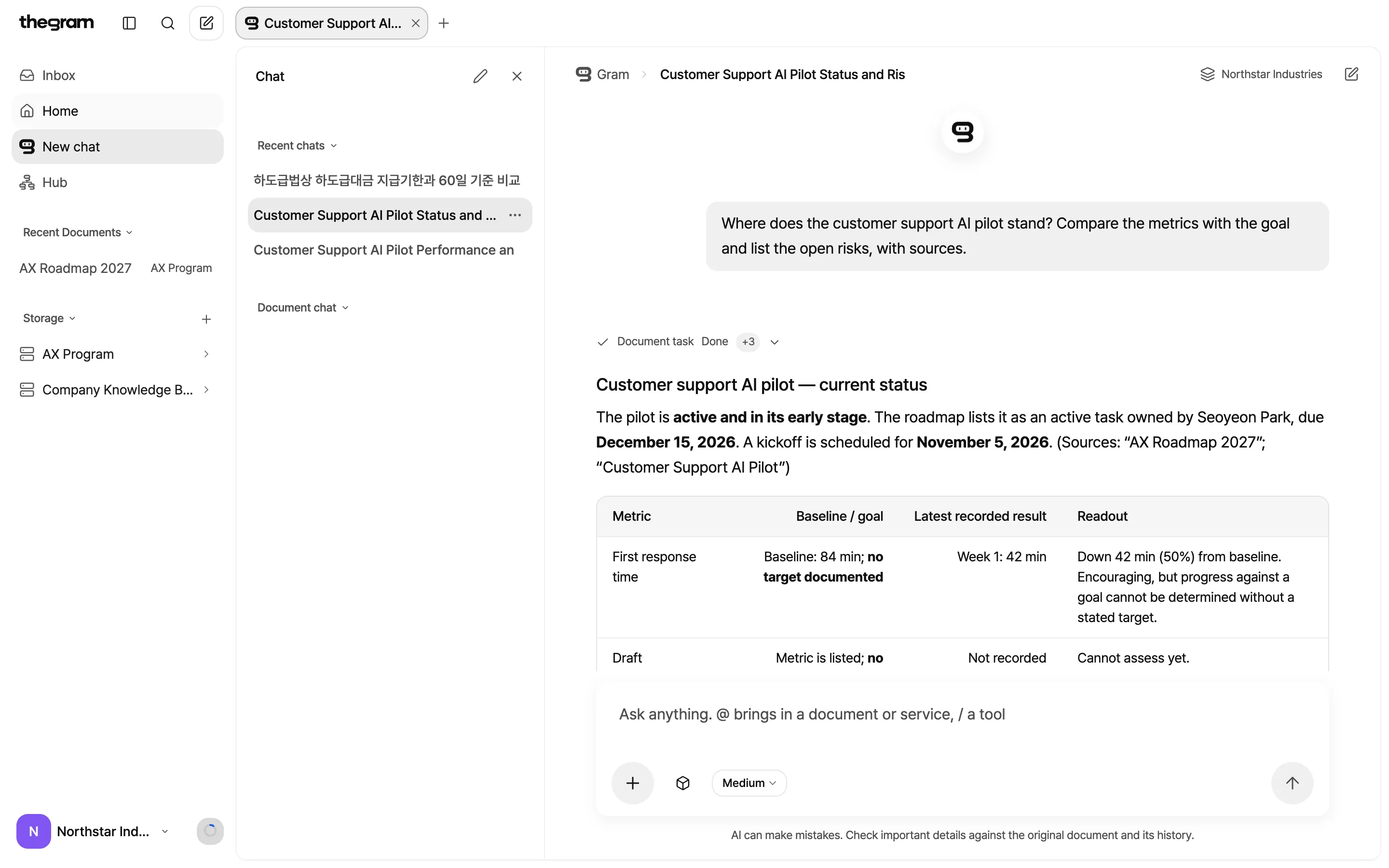
Ask Thegram AI how the program is going. It answers from the records the space allows and lists the documents it used; add a [GramHub tool](/guides/hub/) when the question needs outside data such as law or public bids.
An answer with a metrics table and its source documents.
AI answers can be wrong. Check important figures against the record and its history before you report them. When the pilot’s metrics and change history show the effect, add the next team’s vault and repeat.