---
title: Thegram web and apps
description: Choose the web, macOS, iPhone or iPad workflow, sign in with the right account and understand where your documents and connections live.
url: https://docs.thegram.one/guides/apps/
lang: en
tier: current
editorial_sources:
- https://vault.thegram.one/v3/
- https://apps.apple.com/app/thegram/id6821552969
---
# Thegram web and apps
Use the **web** for immediate access and provider authorization, or a **native app** for the device’s document, sharing and system integrations. Connecting an external AI to Thegram does not require a desktop app running in the background.
## Web workspace {#web}
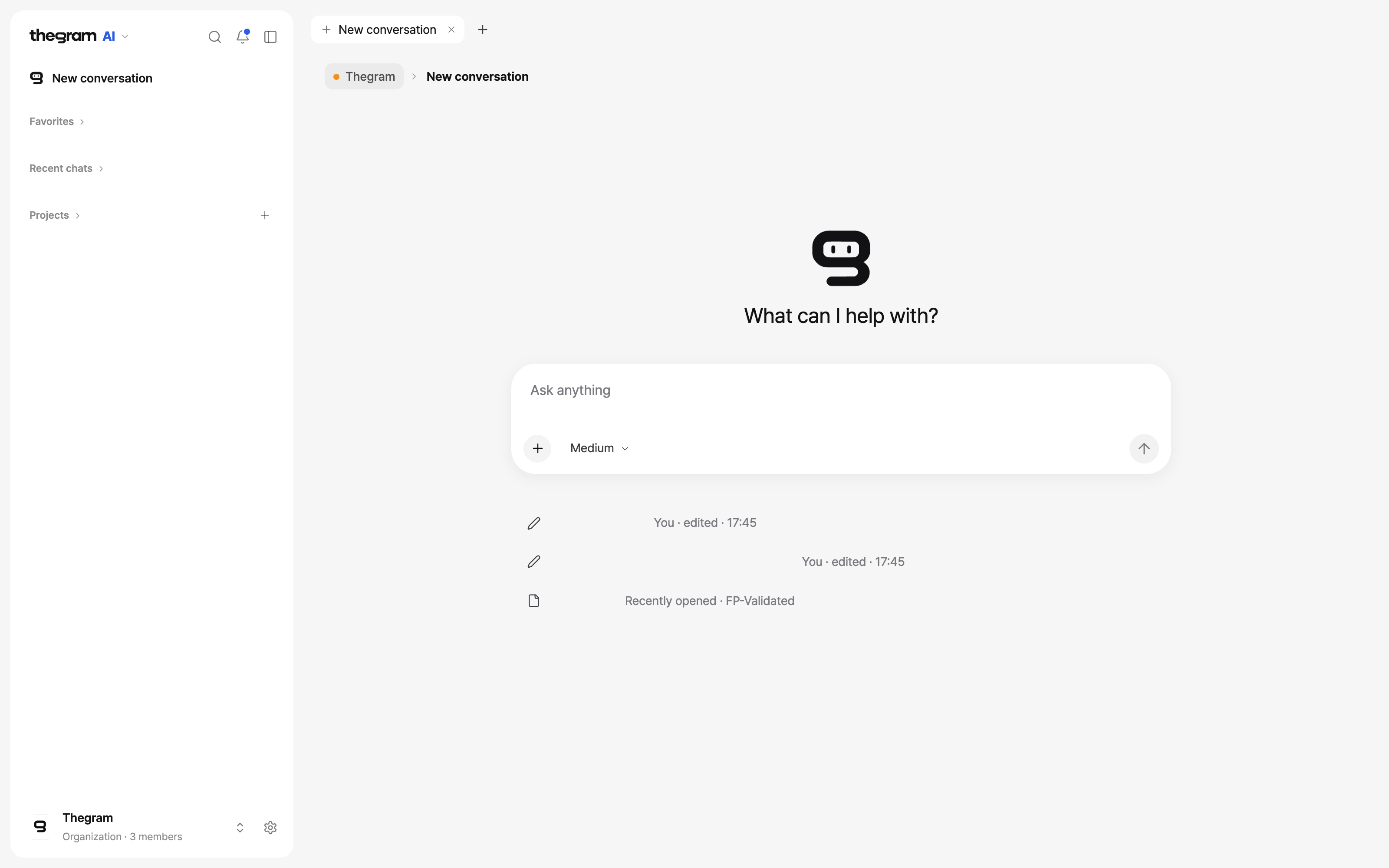
Open [Thegram](https://vault.thegram.one/v3/) and sign in. Select the intended workspace before working with its documents. The product switcher separates **thegram** documents and storage from **thegram AI** chats and projects.
Live web UI, captured 25 October 2026 in the Thegram organization. Private document titles are masked; no message was sent. Open the image for the 3200×2000 original.
- **Documents and storage:** locate the right source, open the document, and use the document, dashboard or graph view that answers your question.
- **AI chats and projects:** start with a question, select the relevant context and inspect the sources in the answer. A proposed external action still needs review.
- **Connected Services:** authorize an external service in the browser and verify the intended account. The organization label alone is not a grant to every document.
- **AI permissions:** review which Thegram resources an AI connection may read or write. Do not broaden access to make a connection check pass.
## iPhone and iPad {#mobile}
Use the [Thegram App Store page](https://apps.apple.com/app/thegram/id6821552969) for the public app, or an explicitly approved build supplied by your organization. Your device and account permissions remain authoritative.
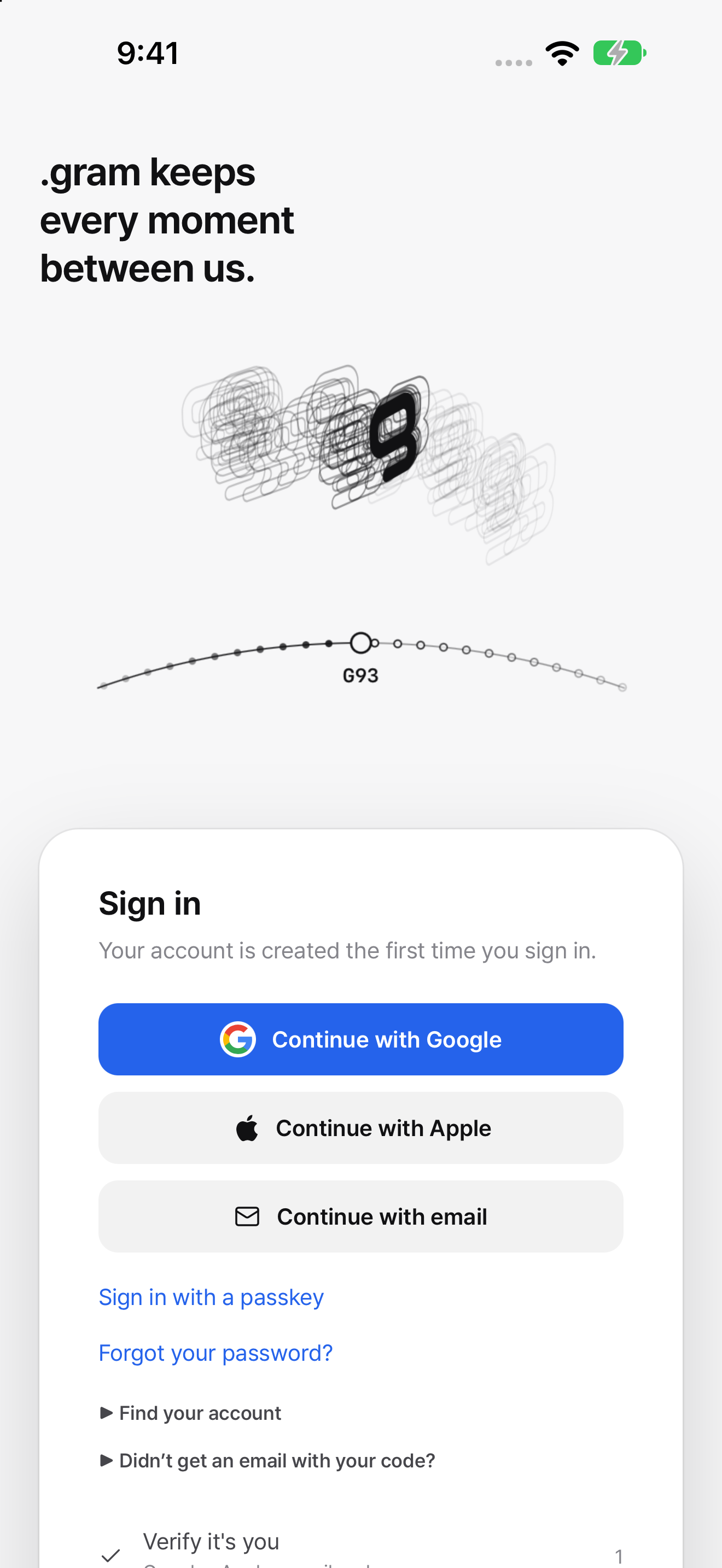
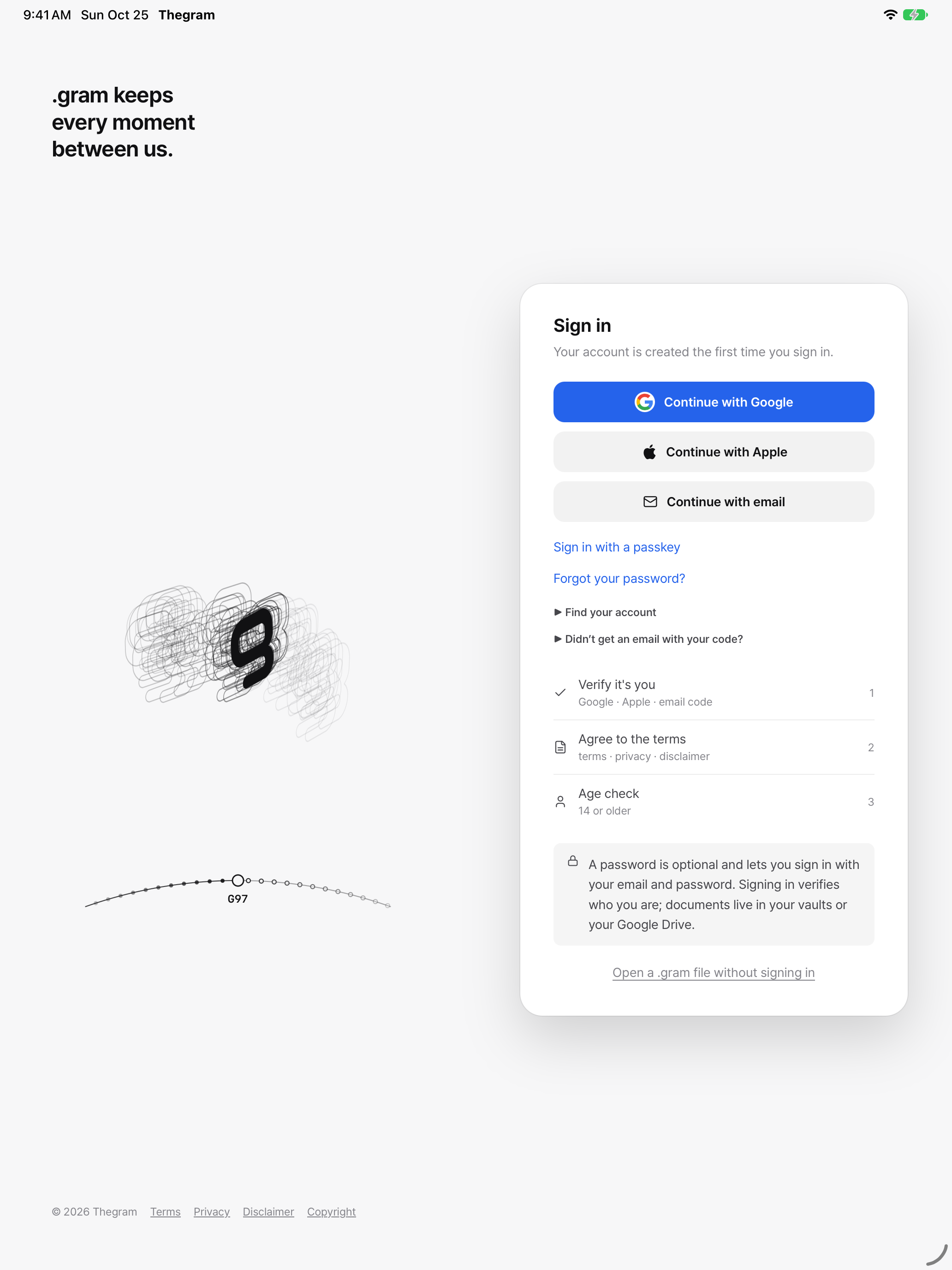
iPhone: a fresh native build, captured at 1320×2868 in Simulator. This is the first-launch screen before account sign-in, not a connected workspace.iPad: a fresh native build, captured at 2064×2752 in Simulator. The clock is normalized for presentation. No account credentials or private documents appear.
These are **new captures from native source**, not responsive-browser mockups or reused marketing images. Capture build: app **1.2.0**, UI **3.64.0**, 25 October 2026. A capture build is not a claim that a new App Store version has been published, or that physical-device behavior has been certified.
### First sign-in
1. Open the app and choose your normal sign-in method. Complete provider checks yourself; do not give an assistant your password, verification code or API key.
2. Confirm the account before selecting the intended organization. Signing in identifies the person; access still depends on membership and resource permissions.
3. Open an existing permitted document and read its current state before editing. Local-device files and Cloud vaults are different storage locations.
4. If an app update is offered, let the verified update finish before relying on the new interface. Do not install an unrelated package or disable signature verification.
For device-specific guidance, see [iPhone and iPad](/guides/ios-guide/). Authorize new work-service connections through the [web connector flow](/guides/connectors/#connect), then return to the app.
## macOS {#mac}
Use the current native build supplied by your team. The native shell provides its own account sign-in, windows, printing and system integrations; it is not a required proxy for Cloud MCP. Do not follow archived DMG or desktop-socket setup instructions to connect an AI.
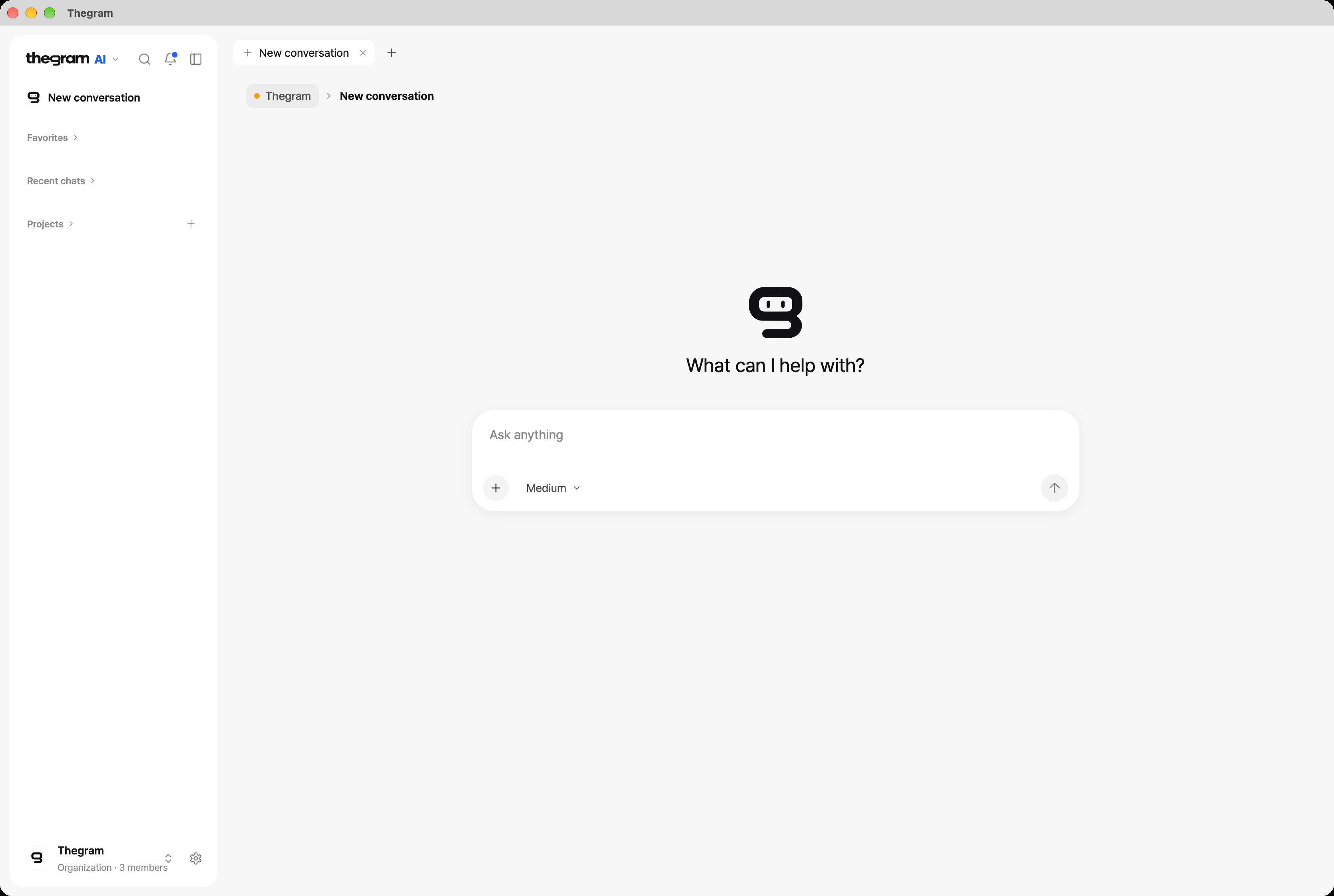
New native macOS build, captured after account sign-in in the Thegram organization at 3338×2242 Retina resolution. Private recent-document suggestions are redacted; navigation and controls are unchanged. Open the image for the original.
Sign in through the app’s normal account flow and select the intended workspace. A successful compilation is not proof of a connected session: if the app reports an unavailable release, network error or failed sign-in, resolve that state before editing or sharing. If no current Mac build has been supplied, the web remains the documented access route.
## Keep the boundaries clear {#boundaries}
| Task | Correct place |
| --- | --- |
| Authorize Notion, Slack, Drive or another work service | Web → Settings → Connected Services |
| Connect ChatGPT, Claude or Grok to Thegram | The AI provider’s OAuth connector flow |
| Connect a coding agent | Its plugin installer and a privately entered, scoped Thegram API key |
| Review an AI’s Thegram access | Settings → AI permissions |
| Read or edit a document | The app or web, with the correct source and permissions |
| Send, post or change an external resource | Review the precise provider, account, target and arguments first |
See [service connectors](/guides/connectors/), [AI setup](/guides/quickstart/) and [connection troubleshooting](/guides/troubleshooting/) for the next step.