---
title: Understand AI connections
description: Thegram has connections in two directions. Tell an AI that uses Thegram apart from a work service that Thegram reads, and an AI app you sign in to apart from an API key.
url: https://docs.thegram.one/access/connections/
lang: en
tier: current
---
# Understand AI connections
In this chapter: what "connection" means in Thegram, where a connected AI shows up, and where you go to disconnect one.
## Connections run in two directions {#two}
Settings has two menus with similar names. They point in opposite directions.
| Menu | Who uses what | Examples |
| --- | --- | --- |
| **Settings › AI permissions** | The AI you use reads and writes your Thegram storages | ChatGPT, Claude, Claude Code, Codex |
| **Settings › Connected services** | Thegram reads material from your work services | Notion, GitHub, Slack |
This chapter and the next three cover the first row: **an AI that uses Thegram**. Work services are covered in [Service connectors](/guides/connectors/).
## Two ways to connect an AI {#how}
An AI connects by **signing in** or with an **API key**. Either way, it then has its own line in **Settings › AI permissions**.
| | AI app (connect by signing in) | API key |
| --- | --- | --- |
| Mostly used by | Chat AIs such as ChatGPT, Claude, Grok and Muse | Coding agents such as Claude Code and Codex |
| How you connect | Add Thegram on the AI's side and sign in with your Thegram account | Create a key in Thegram and put it on your computer |
| Where it is listed | **AI apps** | **API keys** |
| Lifetime | There is no field for it | You choose it when you create the key (30 days, 90 days, a date, or never expires) |
| How you remove it | Open the AI and select **Disconnect** | Open the key and select **Revoke** |
The first connection is described step by step in [2. Connect the AI you use](/start/connect/).
## See the AIs you connected {#list}
1. Select your name at the bottom left, then **Settings**.
2. Select **AI permissions** on the left.
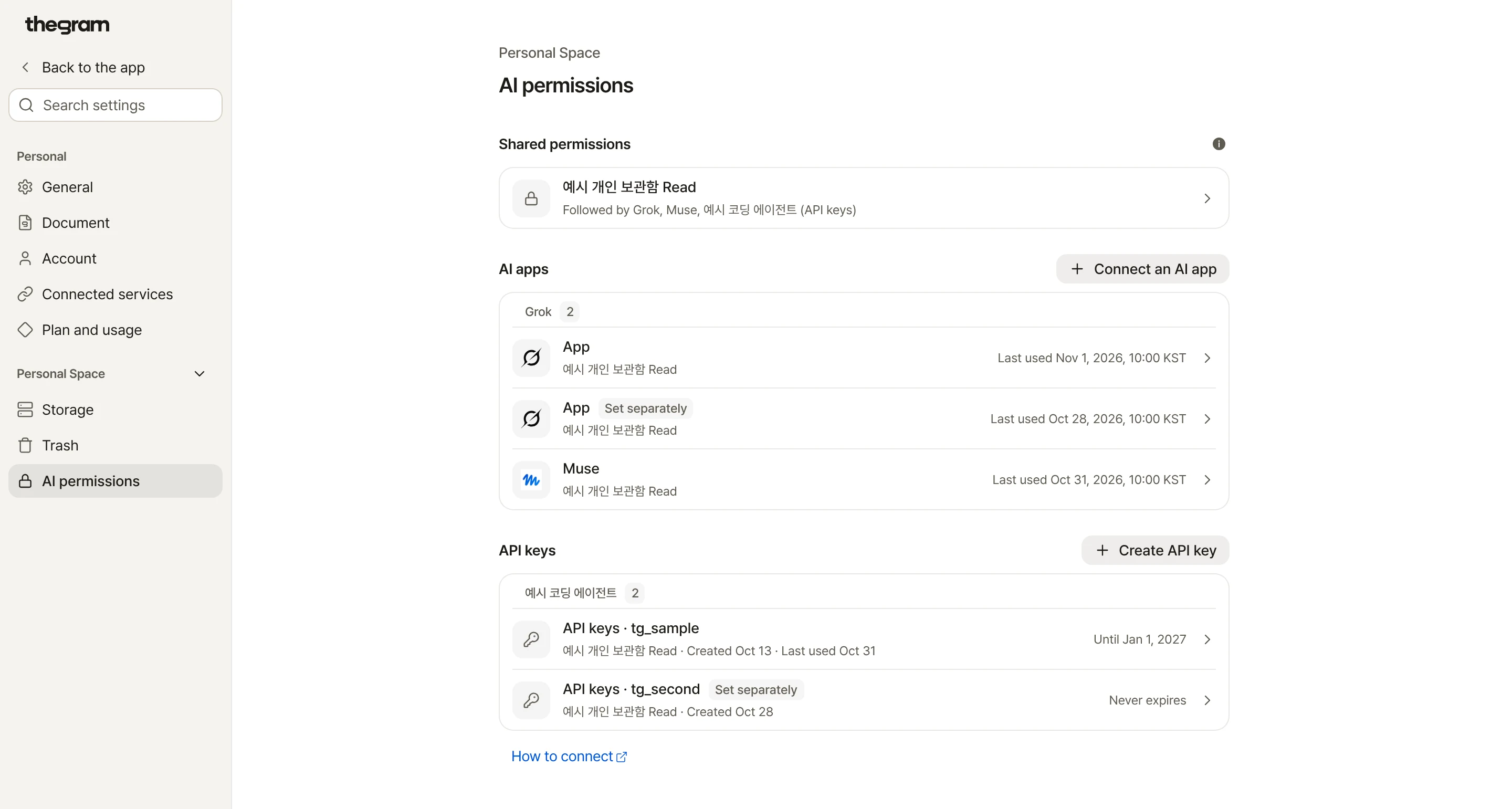
Settings › AI permissions. From the top: shared permissions, AI apps, API keys.
Each line tells you this.
- **The text under the name** is the storages that AI can use and at what level. "Team storage Read" means it can only read that storage.
- **Set separately** means this AI does not follow the shared permissions and keeps its own. See [Understand storage permissions](/access/permissions/#shared).
- **Last used** is when that AI last used Thegram. Use it to tidy up connections you no longer use.
- **Lifetime** (API keys only) reads "Until Jan 1, 2027" or "Never expires".
## Connect another AI app {#add}
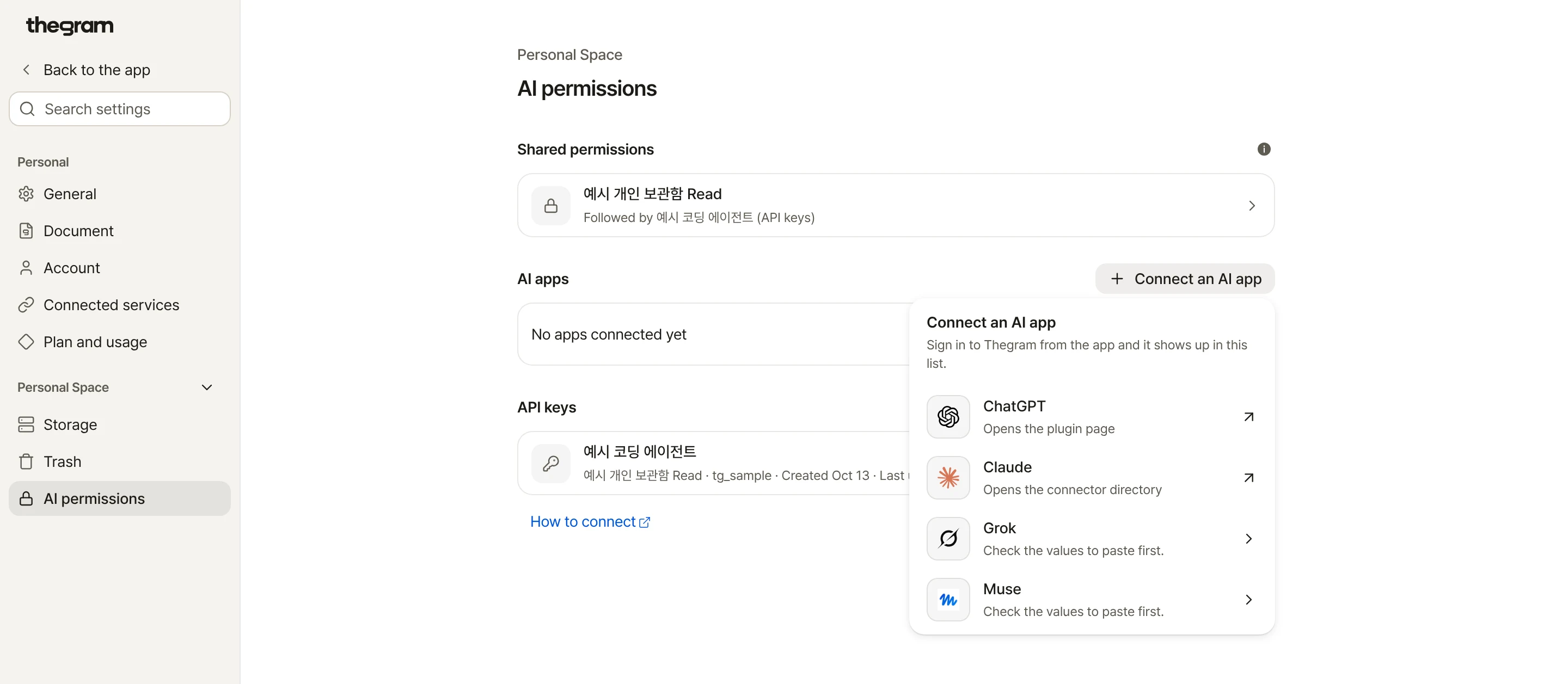
1. In **Settings › AI permissions**, select **Connect an AI app**.
2. Choose the AI.
The menu says "Sign in to Thegram from the app and it shows up in this list."
- **ChatGPT** and **Claude** open that AI's Thegram page in a new window. Connect there and sign in with your Thegram account.
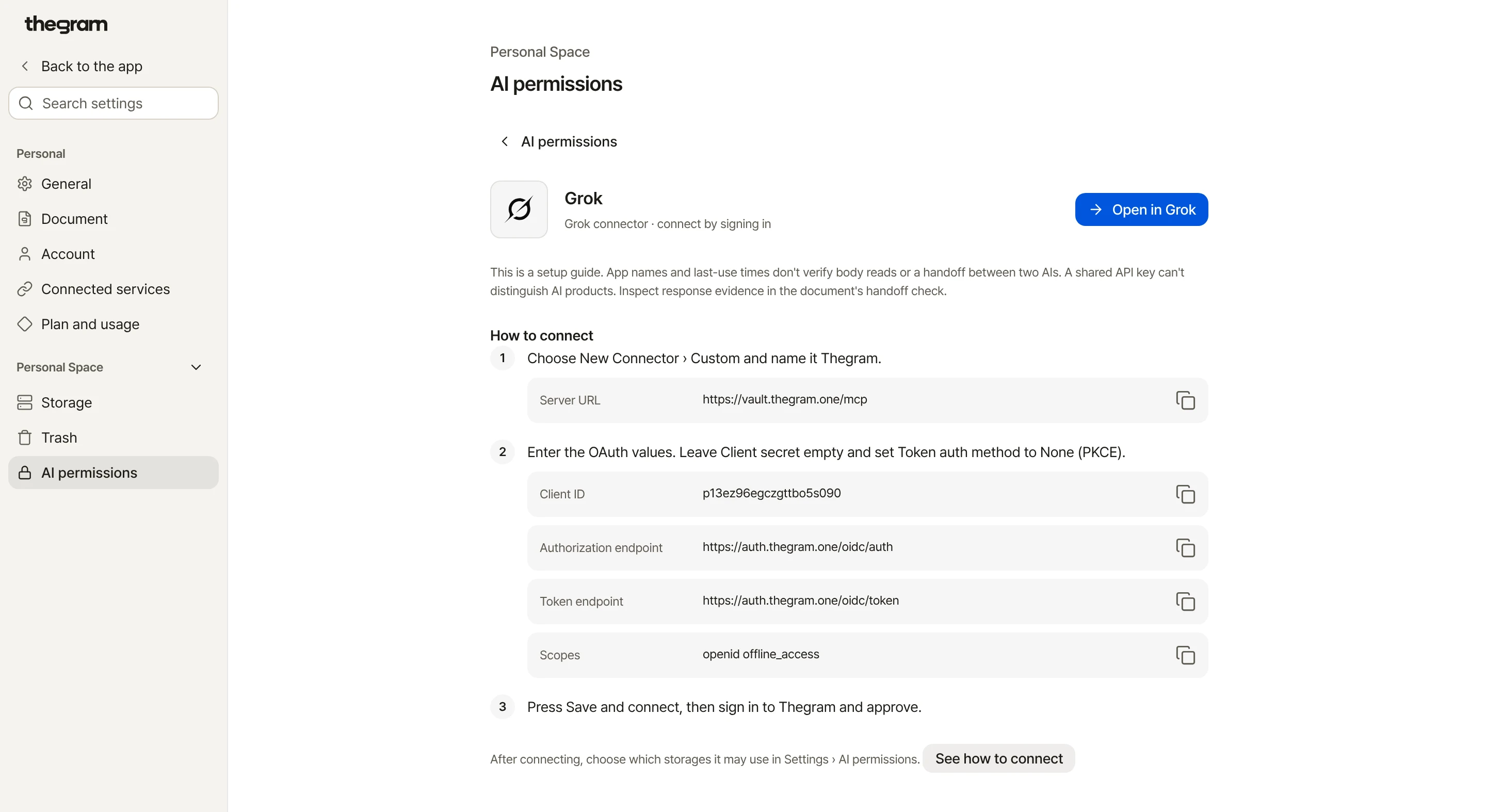
- **Grok** and **Muse** first open a screen with the values to paste. Use the copy button next to each value, paste them into the AI's connector settings one by one, then sign in to Thegram and approve.
For Grok and Muse, copy the values from this screen exactly.
Creating an API key is covered in [Set permissions for each AI](/access/ai-settings/#keys).
## Connecting and permission are separate {#separate}
This is the part people mix up most. A **connection** means the AI can enter your Thegram account. A **permission** says which storages it can use once inside, and how far.
- An AI that is connected but has no permission answers that it has "no storage" or that "access was denied".
- A new storage starts with AI permission **None**. Even with a working connection, you open each new storage yourself.
- With **Read** only, the AI can look things up but cannot save.
The next chapter explains how permissions are decided.
## Disconnect {#disconnect}
Remove AIs you no longer use and keys you have lost.
- **AI app**: in Settings › AI permissions, open the AI and select **Disconnect**. All of its access ends. To use it again, sign in again from the AI.
- **API key**: open the key and select **Revoke**. Any agent using that key loses access at once. A revoked key cannot be restored; create a new one.
Documents the AI already wrote stay in your storage after you disconnect it.
## Things people mix up {#faq}
- **The same AI appears twice.** If you connect to Thegram twice from the same AI, each connection gets its own line inside that AI's group. Each line has its own permissions, so check both and disconnect the one you do not use.
- **ChatGPT is not under Connected services.** AIs such as ChatGPT are under **AI permissions**. **Connected services** is for work services such as Notion and GitHub.
Next chapter: [Understand storage permissions](/access/permissions/)